
You can generate a document automatically when a record changes, for example when an opportunity is set to Closed Won. You create a document solution in Docs Made Easy, then build a record-triggered flow in Salesforce that calls the Docs Made Easy action with the solution ID and the record ID.
This guide uses the Opportunity object as an example.
Before you begin
- Flow automation is a Pro feature. The user the flow runs as needs the Docs Made Easy and Docs Made Easy Pro licenses, the Docs Made Easy Business User or Docs Made Easy Admin permission set, and the Docs Made Easy Pro User permission set. See Assign licenses and permission sets.
- You have permission to create flows in Salesforce.
- You have a Microsoft Word template for the document.
Create the document solution
In Salesforce, open Docs Made Easy from the App Launcher, go to Document Setup and click Launch Wizard. The wizard opens.
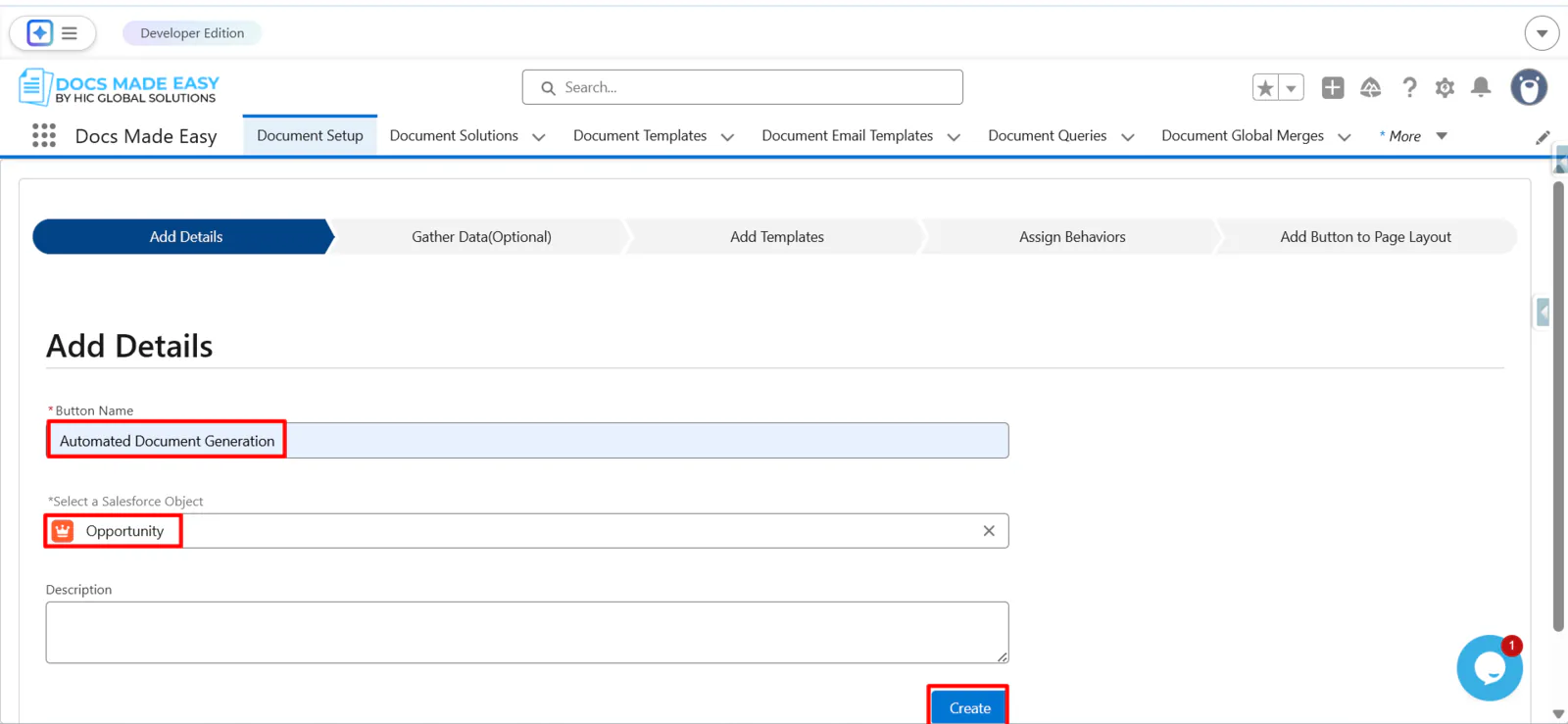
Enter the button name, select the Salesforce object (in this example, Opportunity), and click Create.
Click Next to go to the template section, then click Create New Document Template.
Enter the template name, upload the template file, and click Save.
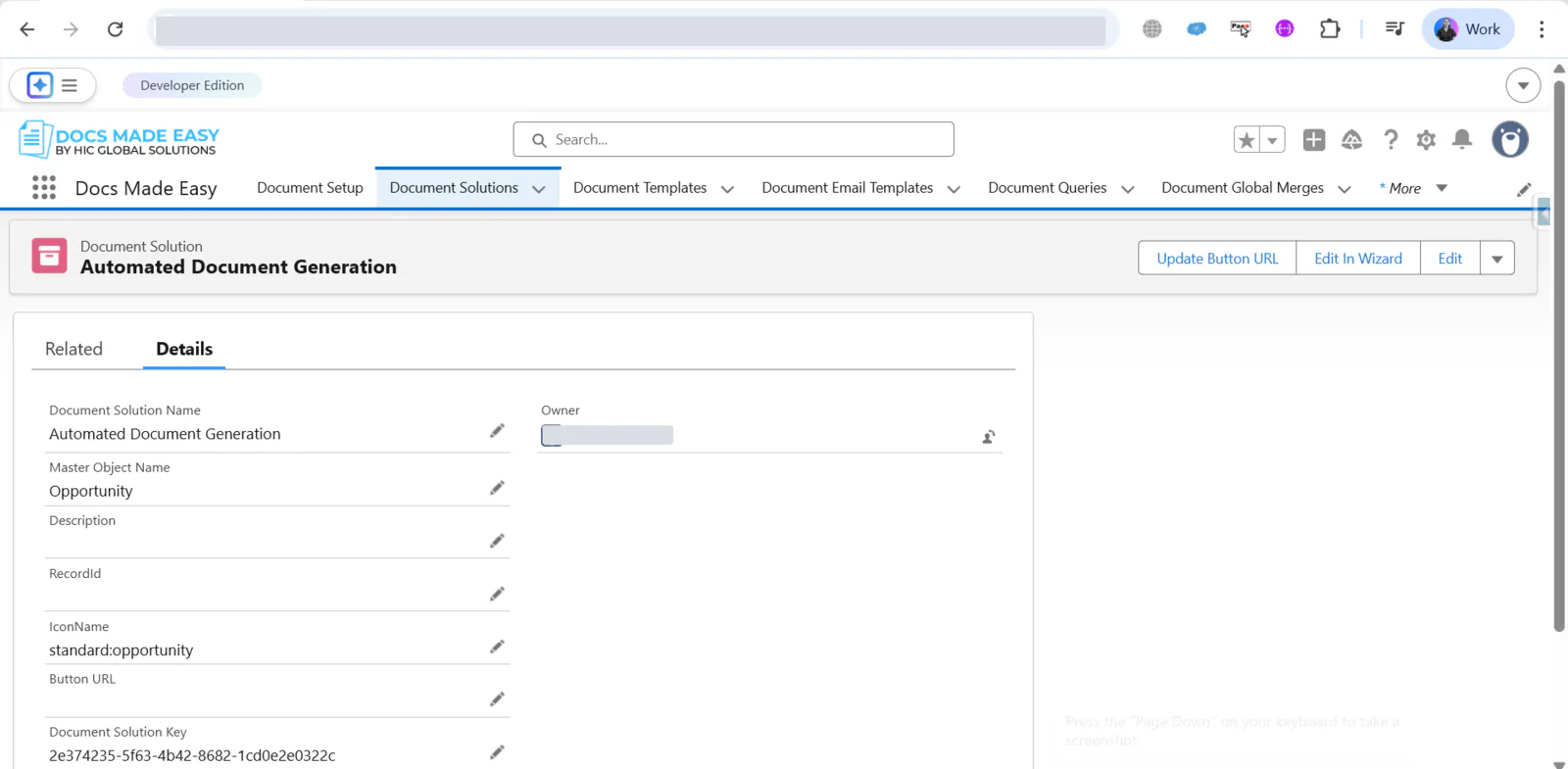
Open the solution you created and copy the Solution ID. You need it when you configure the flow.
Create the record-triggered flow
Go to Setup, enter
Flowsin the Quick Find box, click Flows under Process Automation, and then click New Flow. The new flow dialog opens.Select the Triggered Automations category, then select Record-Triggered Flow as the flow type. The Configure Start panel opens.
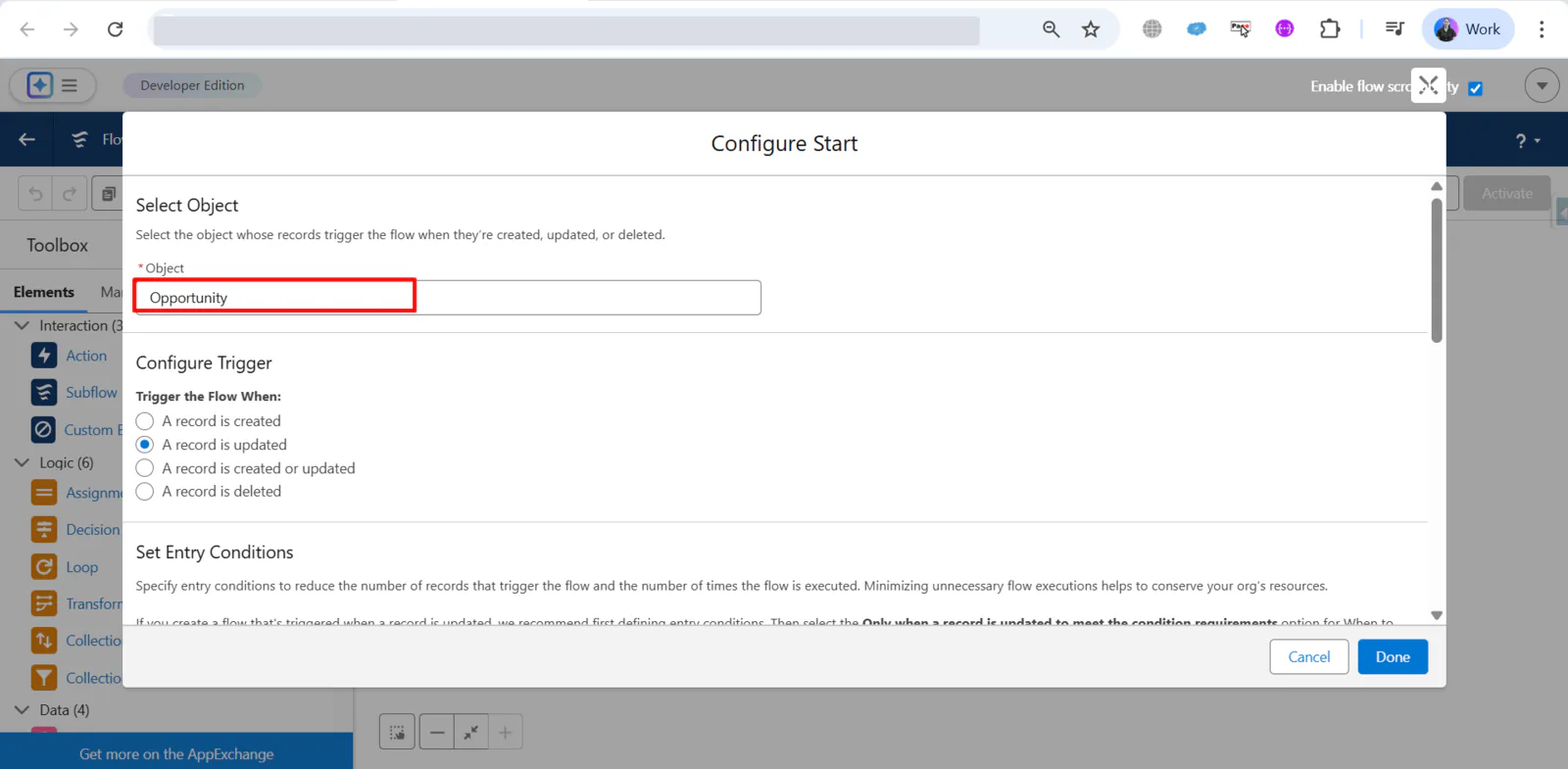
Select the object (Opportunity) and choose when the flow runs, for example A record is updated.
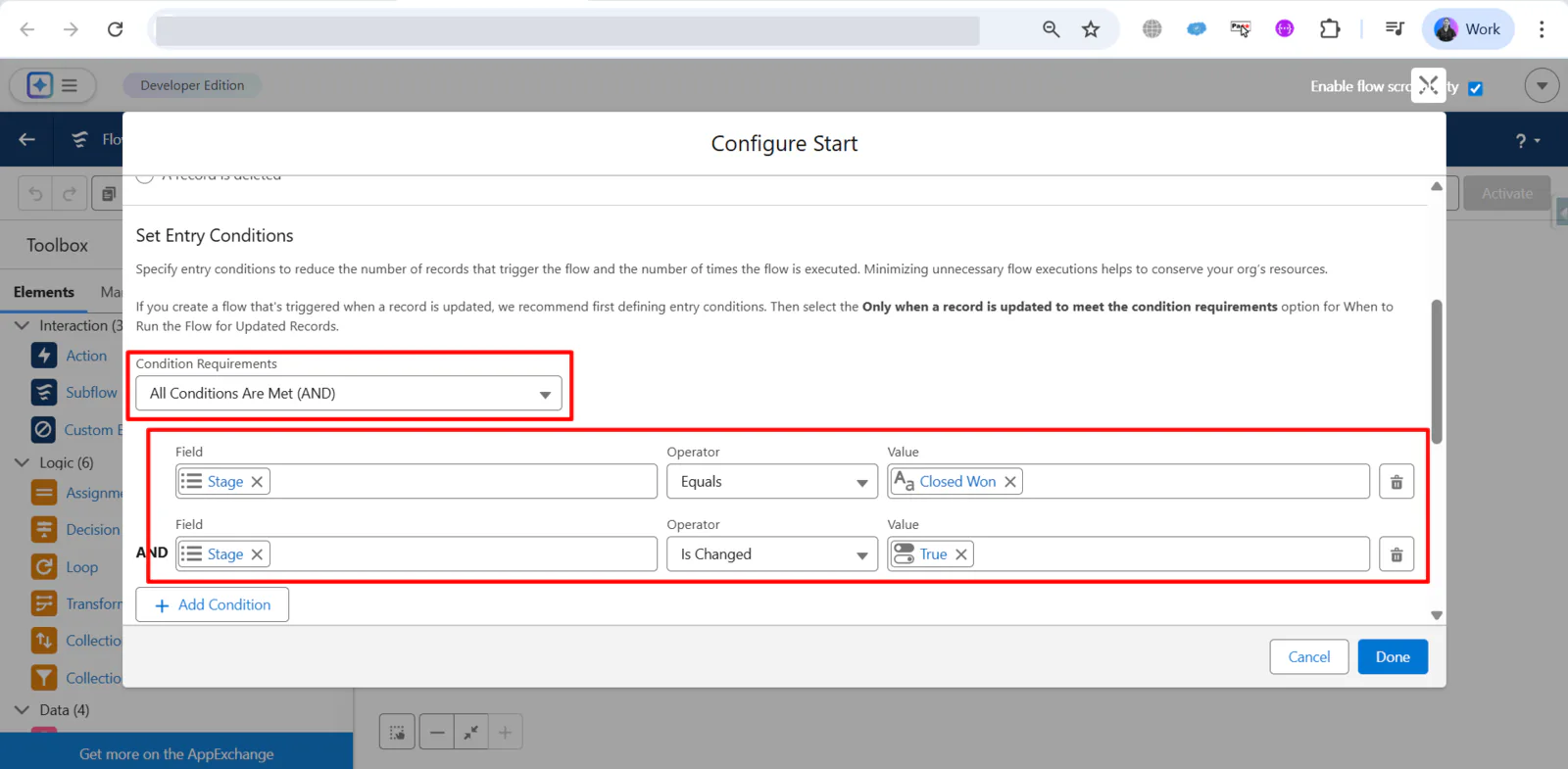
Under Condition Requirements, select All Conditions Are Met (AND) and add these two conditions:
- Stage Equals Closed Won
- Stage Is Changed True
Under Optimize the Flow for, select Actions and Related Records, then click Done. The flow canvas opens with the start element.
Add the Docs Made Easy action
Drag the Action element from the Toolbox onto the canvas.
Search for and select ASync Document Generate Solution. The action's input fields appear.
Turn on Set Input Values for
documentSolutionIdandrecordId, then enter the Document Solution ID that you copied earlier and, for Record ID, the triggering record's ID:{!$Record.Id}(in the resource picker, choose Triggering Record > Record ID). That tells Docs Made Easy which record to generate the document for. Click Done to save the action.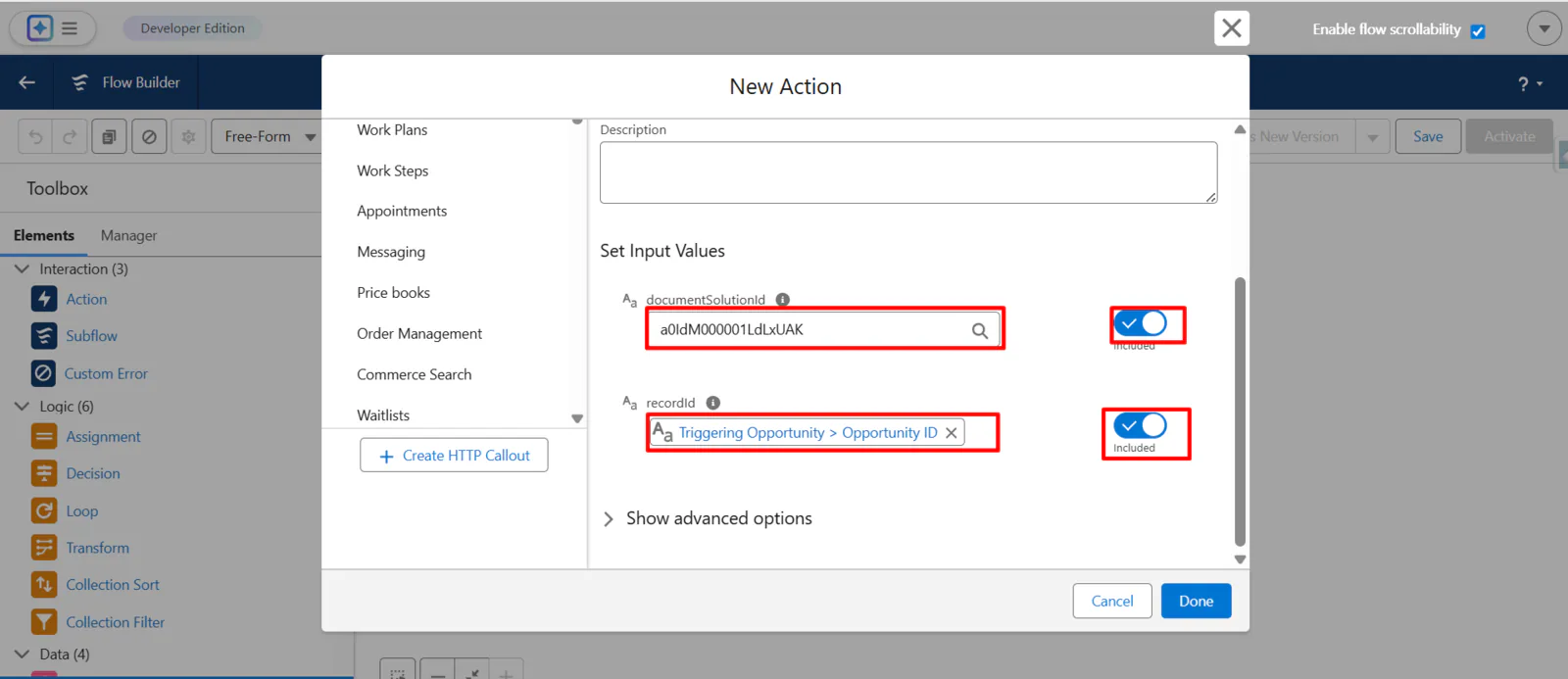
Check that the start element connects to the Apex action, then click Save.
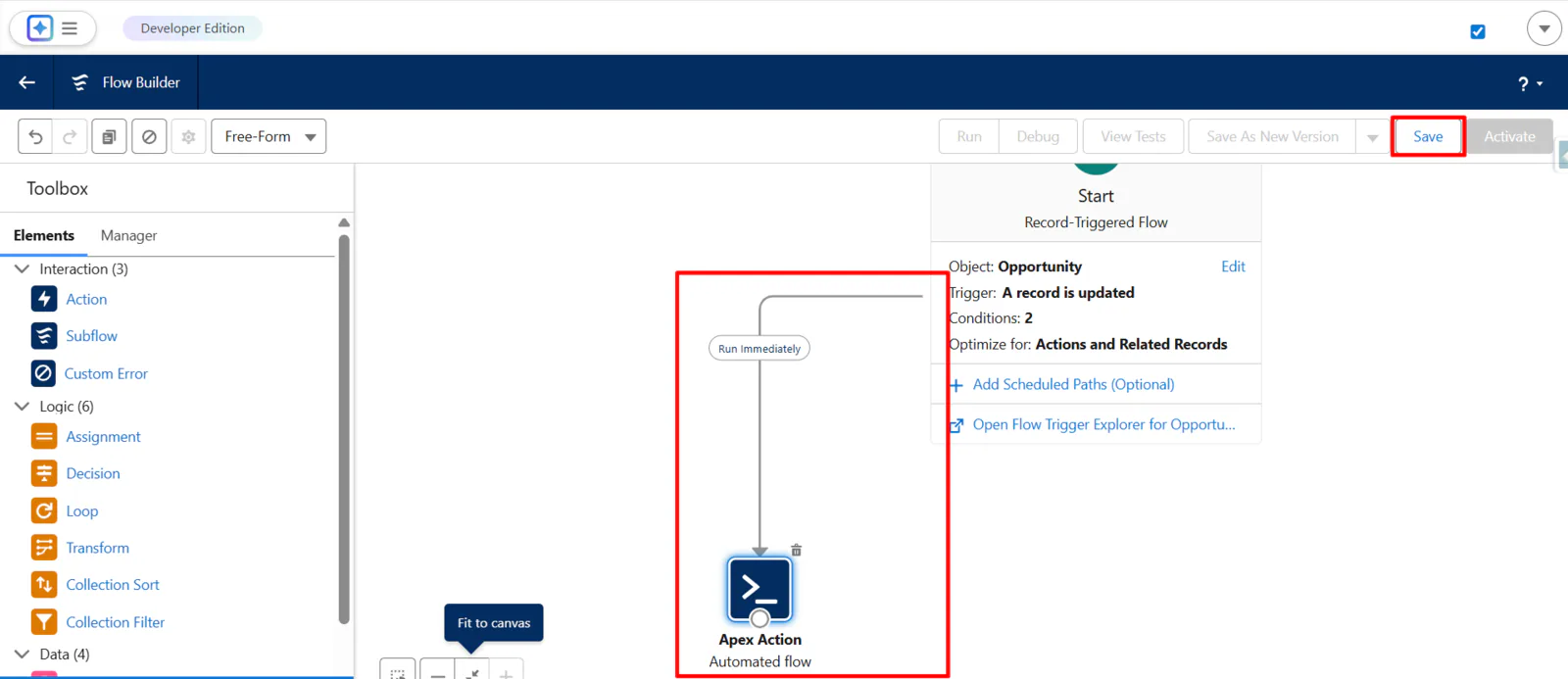
Enter a Flow Label and click Save, then click Activate. The flow is now live.
Test the flow
Open an opportunity, change Stage to Closed Won, and click Save.
On the Related tab, check Files or Notes & Attachments. The generated document appears in both automatically after the record is saved. The solution's
bgmsetting doesn't change where it goes.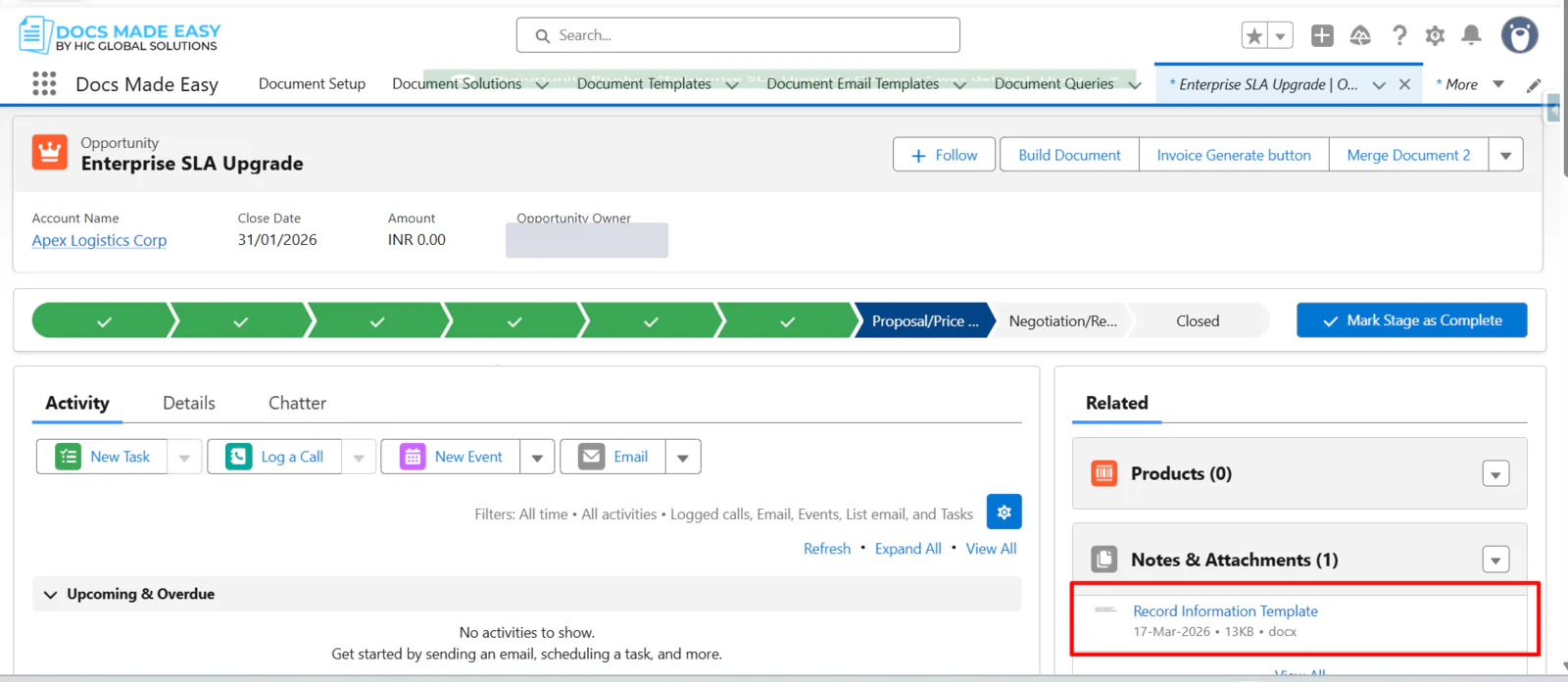
If no document appears, check the Salesforce debug logs for the flow run. They show why the flow failed.
Related: Send email via Flow · Generate bulk documents · Can document generation be automated?