
Quick Start is the fastest way to generate your first document with Docs Made Easy. You pick a pre-built solution, and the app creates a button that you add to a record page.
Before you begin
Create a solution with Quick Start
Open the Docs Made Easy app. On the Document Setup page, click Launch Quick Start. The Quick Start page opens.
Click Account Brief, Client Letter, or Sales Proposal, depending on what you need.
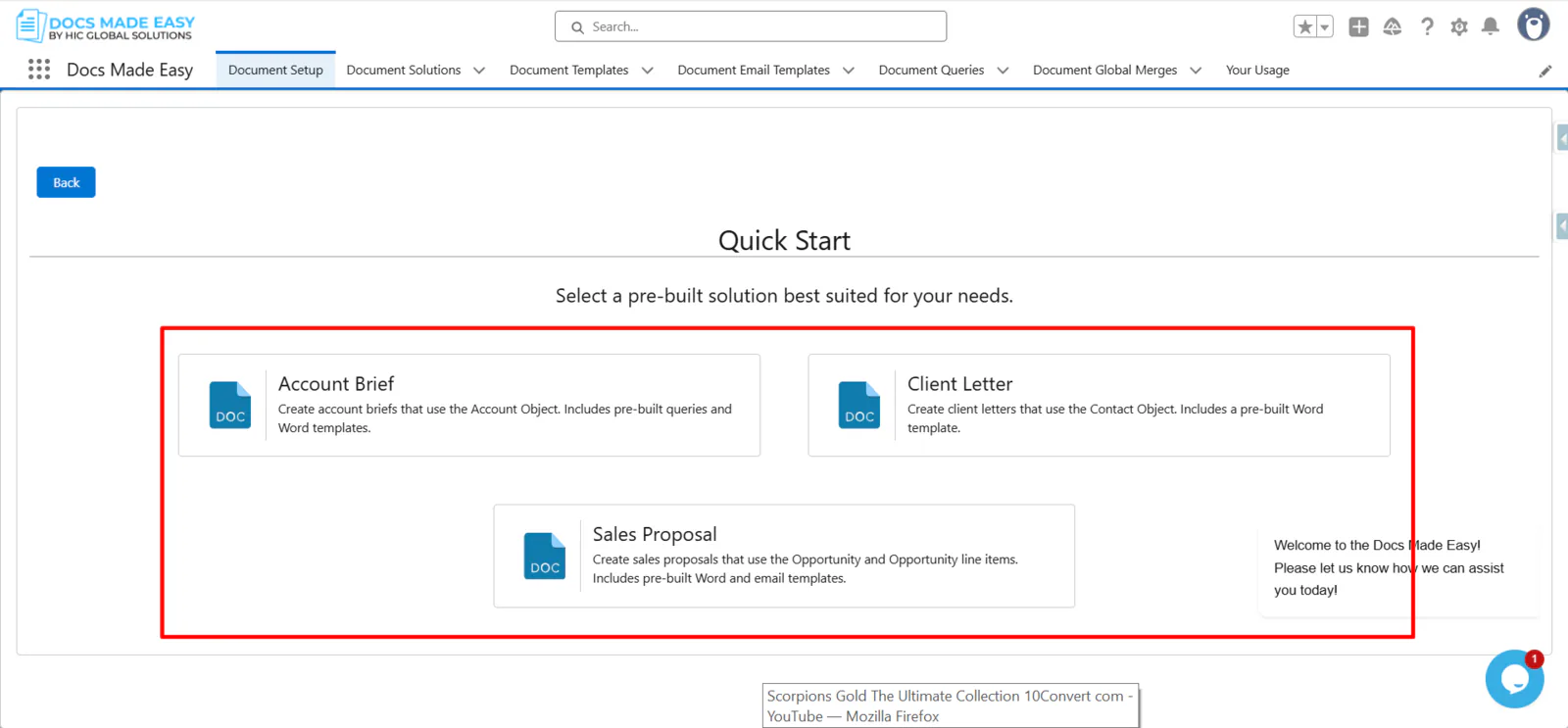
Docs Made Easy creates a custom button and confirms it. Click Go to Page Layouts. The Page Layouts list opens.
Add the button to a page layout
Click the page layout where you want the button to appear. The page layout editor opens.
Click Mobile & Lightning Actions, drag your new button into the Salesforce Mobile and Lightning Experience Actions section, and click Save.
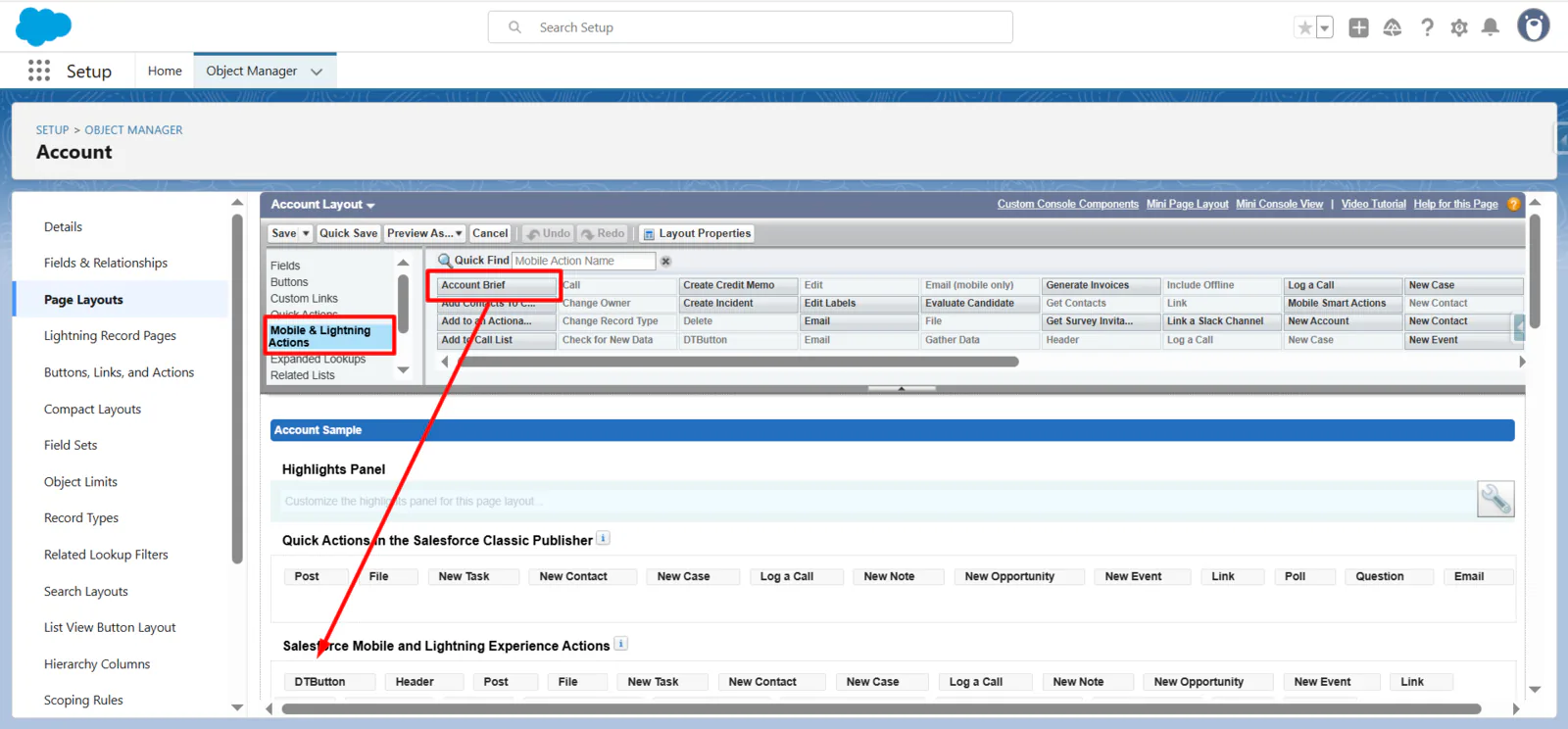
The button now appears on the record page. Click it to generate a document.
Next steps: To build a solution with your own template, see Generate your first document with the Document Automation Wizard.