
Install Docs Made Easy from Salesforce AppExchange to start generating documents in your org. You install the package once, for all users, and then open it from the App Launcher.
Before you begin
- You need a Salesforce login with permission to install packages in your org, typically a System Administrator.
Install the package
Go to Salesforce AppExchange, search for Docs Made Easy, and click Get It Now. If you aren't logged in yet, the Let's Get Started window asks you to log in with your Trailblazer.me account.
After you log in, click Install in Production.
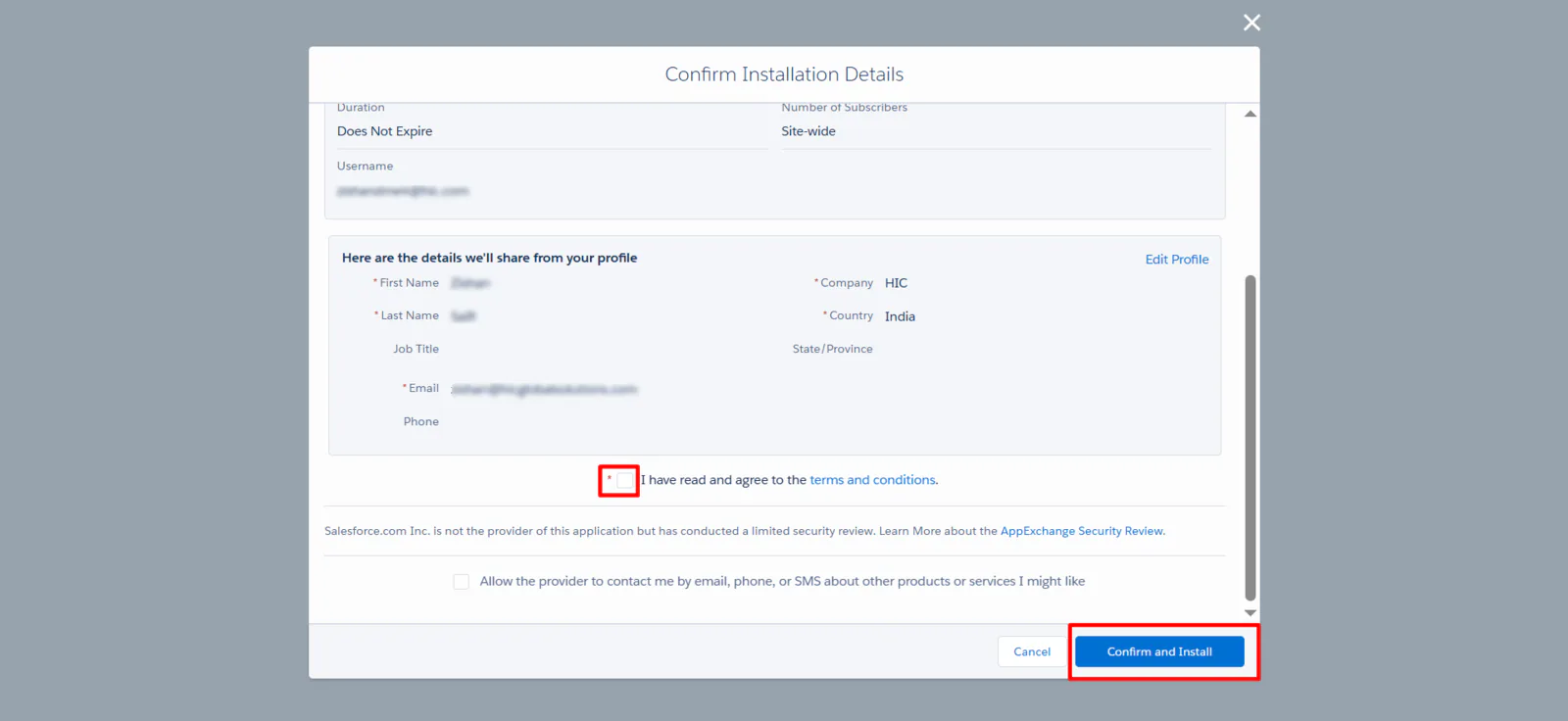
In the next window, agree to the terms and conditions, then click Confirm and Install. Salesforce redirects you to its login page.
Log in to Salesforce with your account. The package installation screen opens.
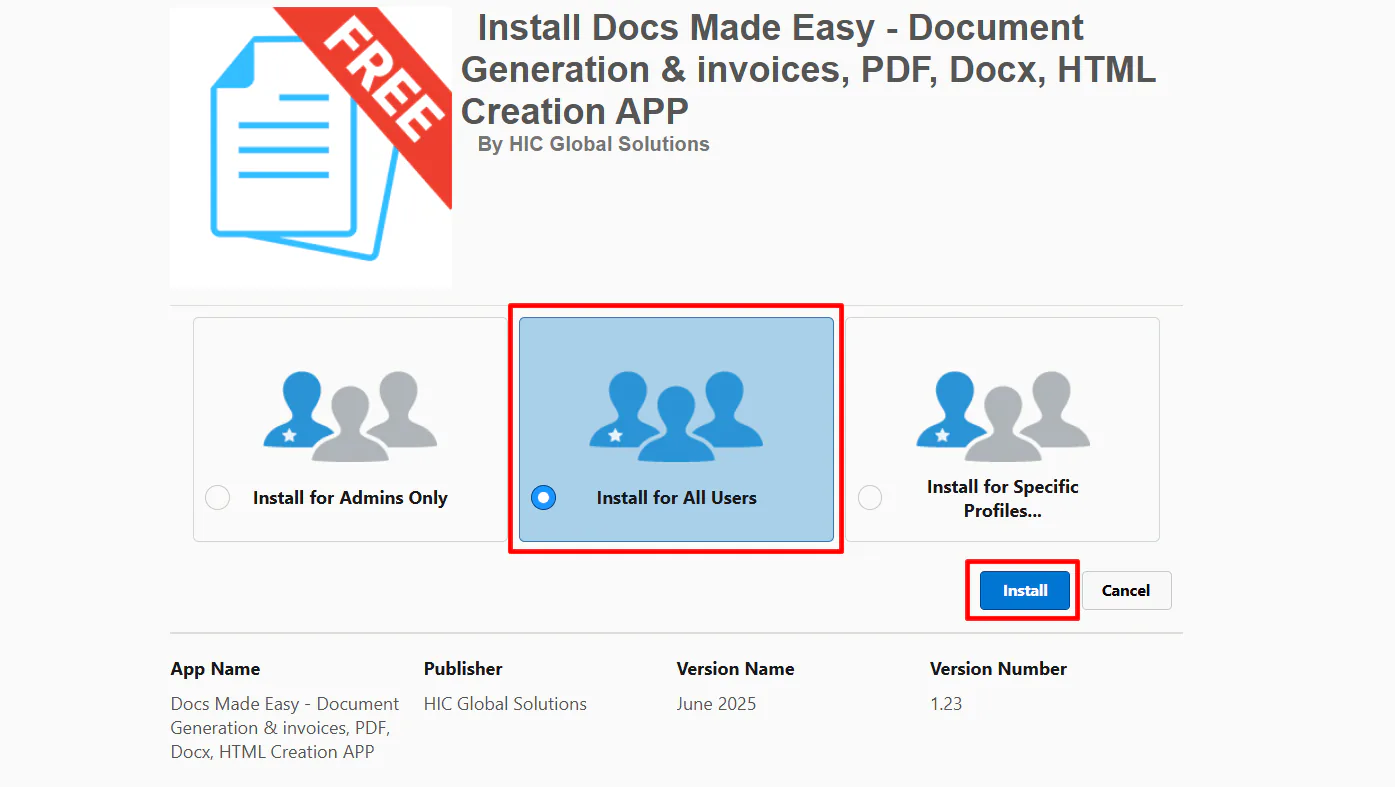
Select Install for All Users and click Install. A progress screen shows that the package is installing for all users.
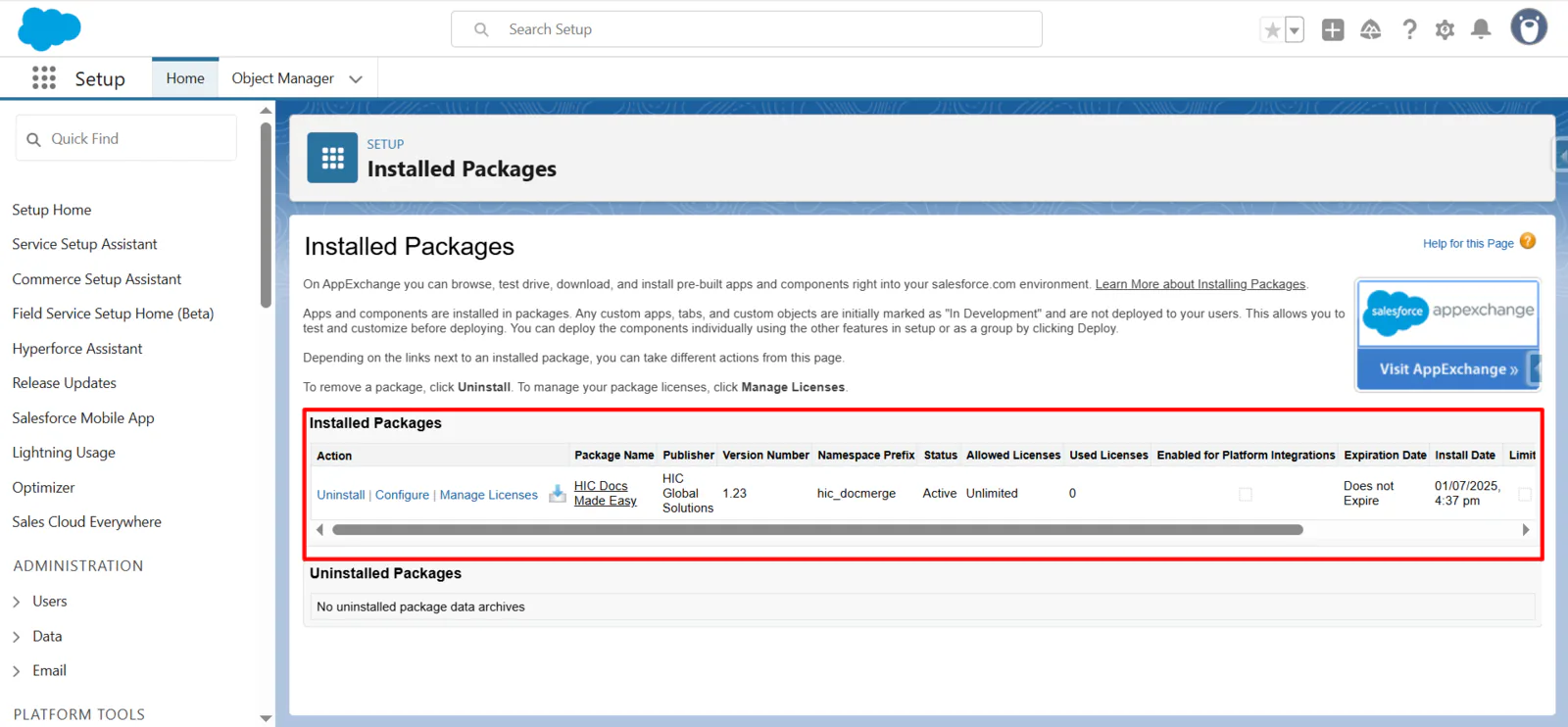
When the installation finishes, check that Docs Made Easy appears in Installed Packages.
Open the app
- Click the App Launcher (nine-dot icon) in the top-left corner of Salesforce.
- In the search box, type Docs Made Easy, then click the app to open it. The Docs Made Easy home page opens.
Next steps: Assign licenses and permission sets, then generate your first document with Quick Start.