
You can move document solutions from a sandbox to production (or from production to a sandbox) with the Push to Production/Sandbox button. Use it when you have built and tested a solution in one org and want to reuse it in another, instead of rebuilding it by hand.
Before you begin
- You need the username of a user in the target org.
- You need access to Setup in the source org.
Add the Push to Production/Sandbox button
Log in to your Salesforce org and open Setup from the gear icon.
In Setup, search for the Document Solutions object and open it.
In the left panel, click List View Button Layout.
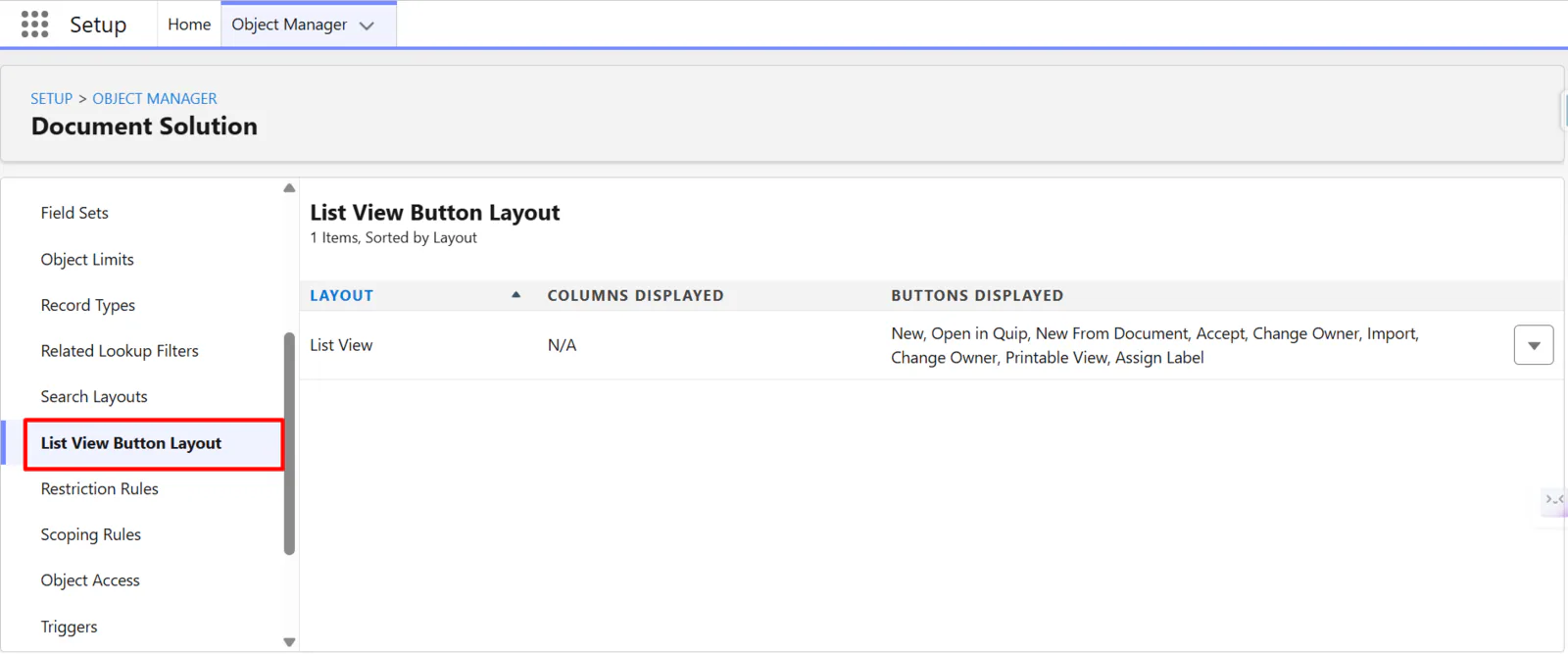
Click the dropdown icon on the list view row and click Edit. The edit page opens.
Under Custom Buttons, select Push to Production/Sandbox and move it to Selected Buttons, so that it appears in the list view. Click Save.
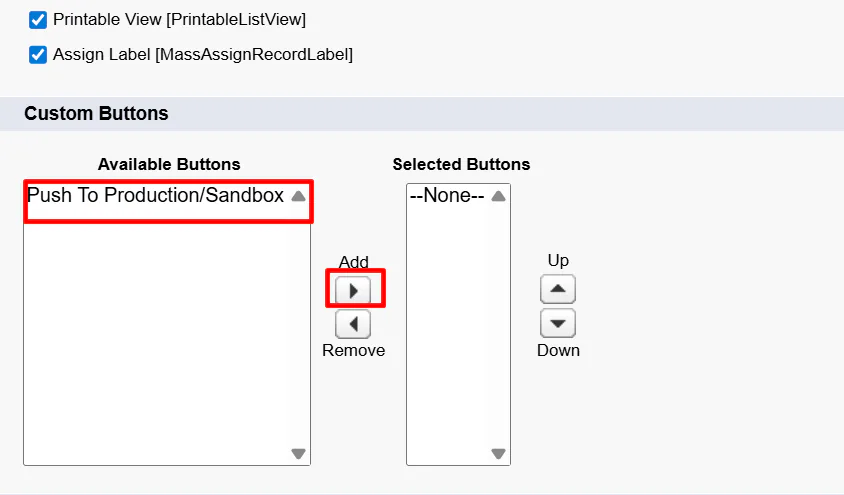
Migrate the document solutions
Open the Document Solutions list, either from the Docs Made Easy app or through the App Launcher.
In the list view, select the document solutions that you want to migrate.
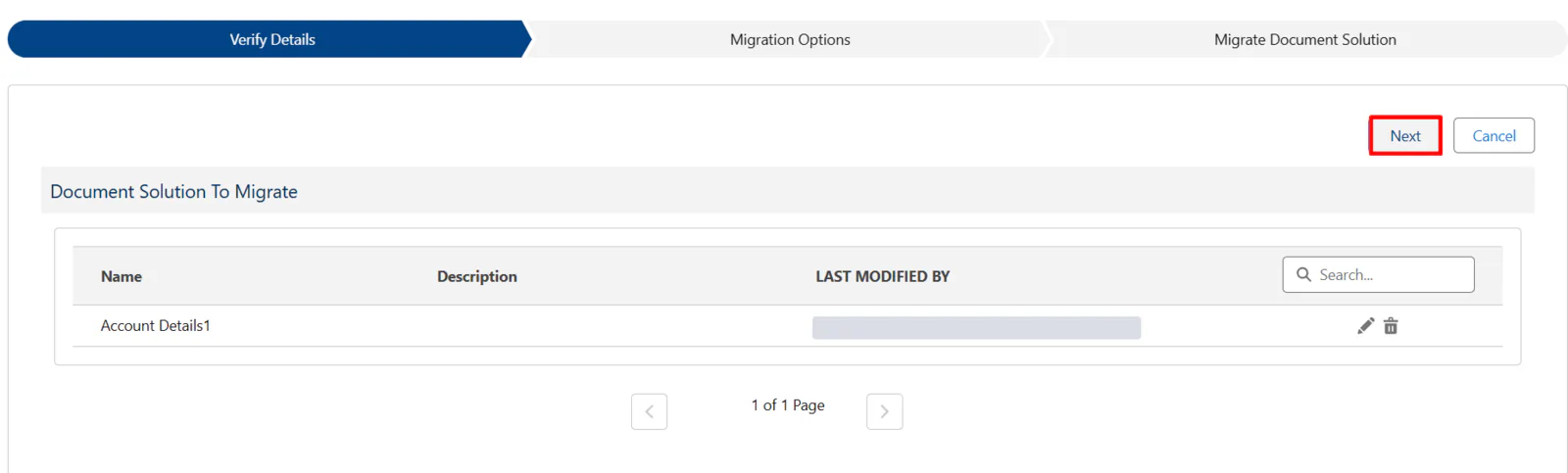
Click Push to Production/Sandbox at the top right. The Verify Details page opens.
Review the selected document solutions and click Next.
In the Final Setup section, choose the Environment to migrate your document solutions to, and enter the Username of the target org. To receive a confirmation, you can also enter your Email address.
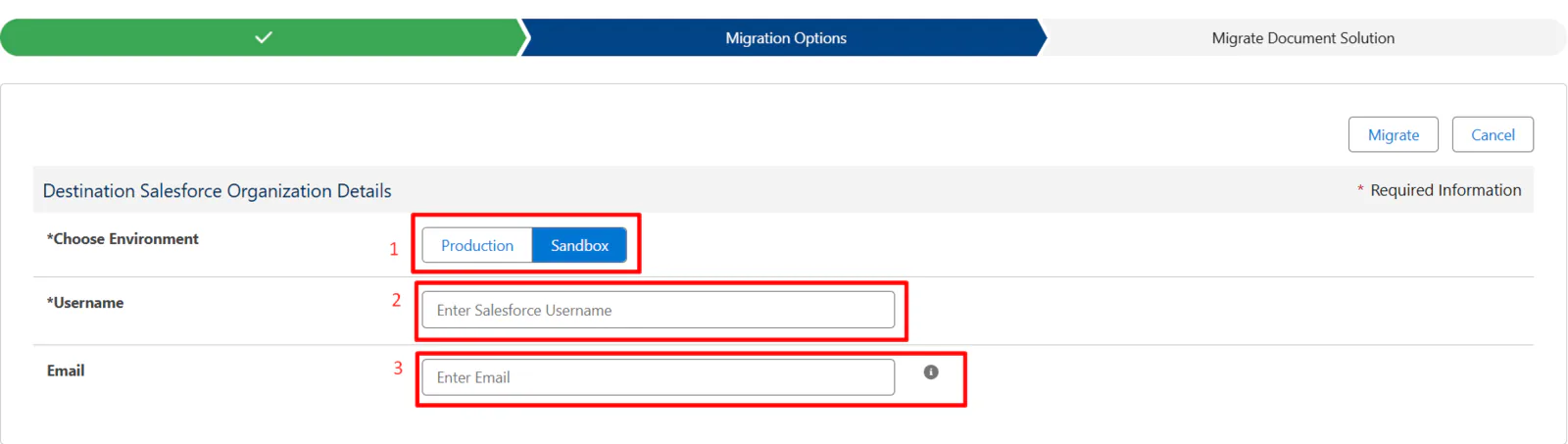
When everything is confirmed, the migration starts automatically.
You receive an email notification when the migration completes successfully.
Related: Assign licenses and permission sets · Docs Made Easy Pro v1.17.0 release notes