
The pv0 (parameter value zero) parameter makes a document query return only the data related to the record you generate the document from. For example, if a query gathers contacts, you pass the ID of the master record into the pv0 filter. The query then returns only that record's contacts instead of every contact in your org.
How pv0 works
- Record-specific data.
pv0filters the query to data related to the master record ID, instead of returning all data. - Dynamic filters. The filter value comes from the record at generation time, so the data in your documents always matches the current record.
To add a dynamic filter to a query, you must use the pv0 parameter. If a query has more than one dynamic filter, reference the values as pv0, pv1, pv2 and so on.
Create the solution and query
Click the App Launcher (the nine-dot icon at the top left), search for
Docs Made Easyand select the app. The Document Setup page opens.Click Launch Wizard to create a button for your document templates.
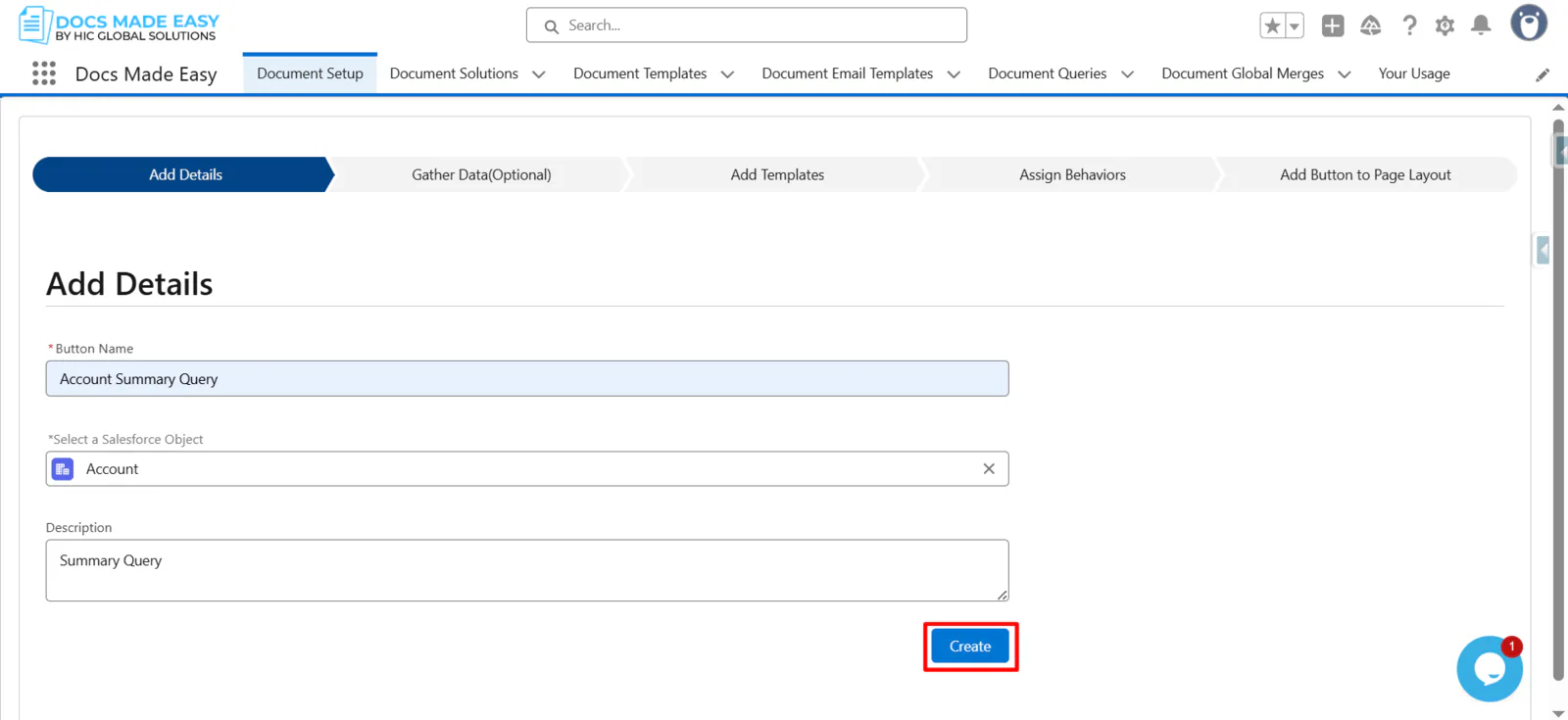
Add the solution details, including the name of the button.
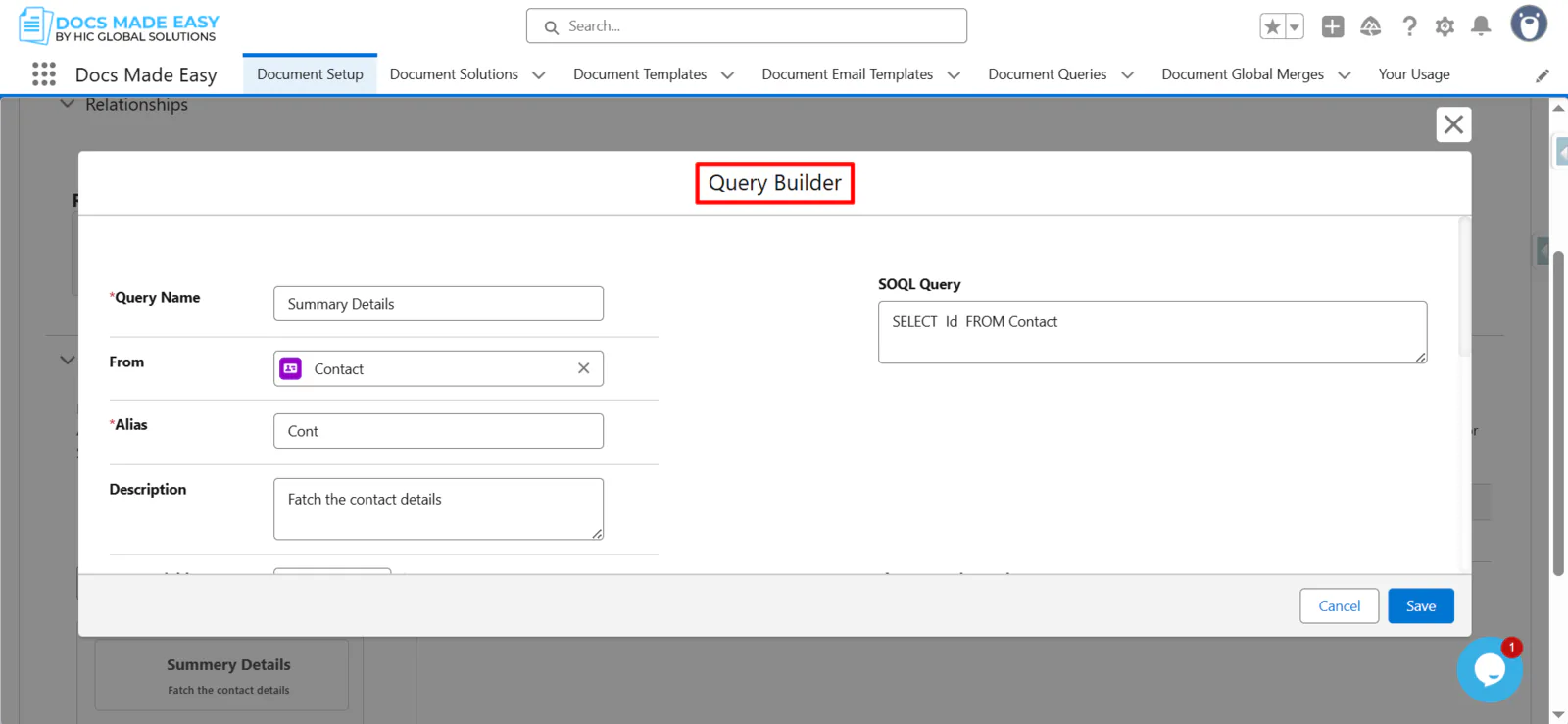
Click Create New Query. In the window that opens, enter the query details. The Alias field is required. Enter a unique alias for each query, because the template mapping uses it.
Use the search bar to find the fields to include. You can search by field label.
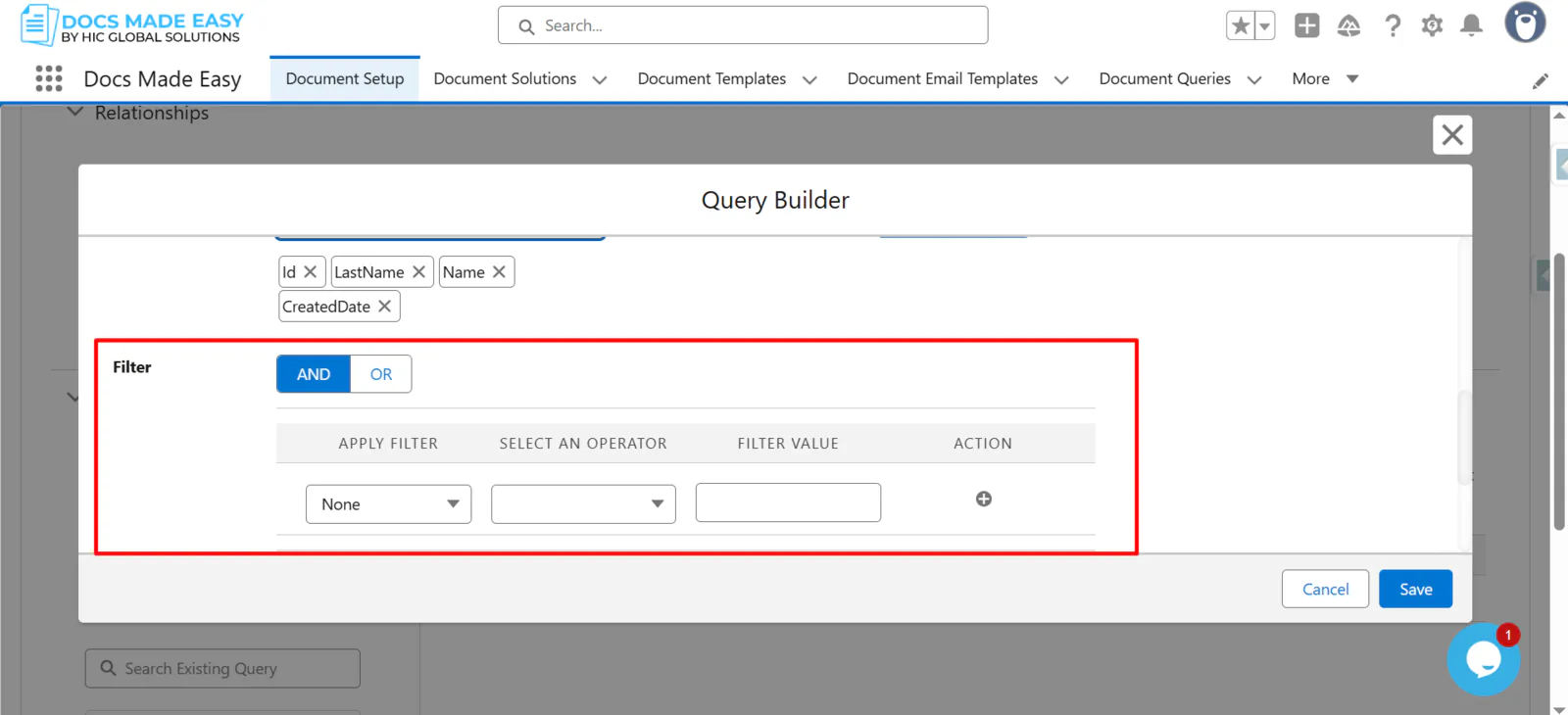
Optionally, add filter conditions in the filter section to narrow down the records the query returns. You can add one or more conditions based on the selected fields.
Optionally, use Order By to sort the records by a field, such as Created Date or Name, in ascending or descending order. Use Limit to set the maximum number of records to return. For example, to return only the latest record, set the limit to 1.
Click Add Parameter to set up dynamic query filters such as
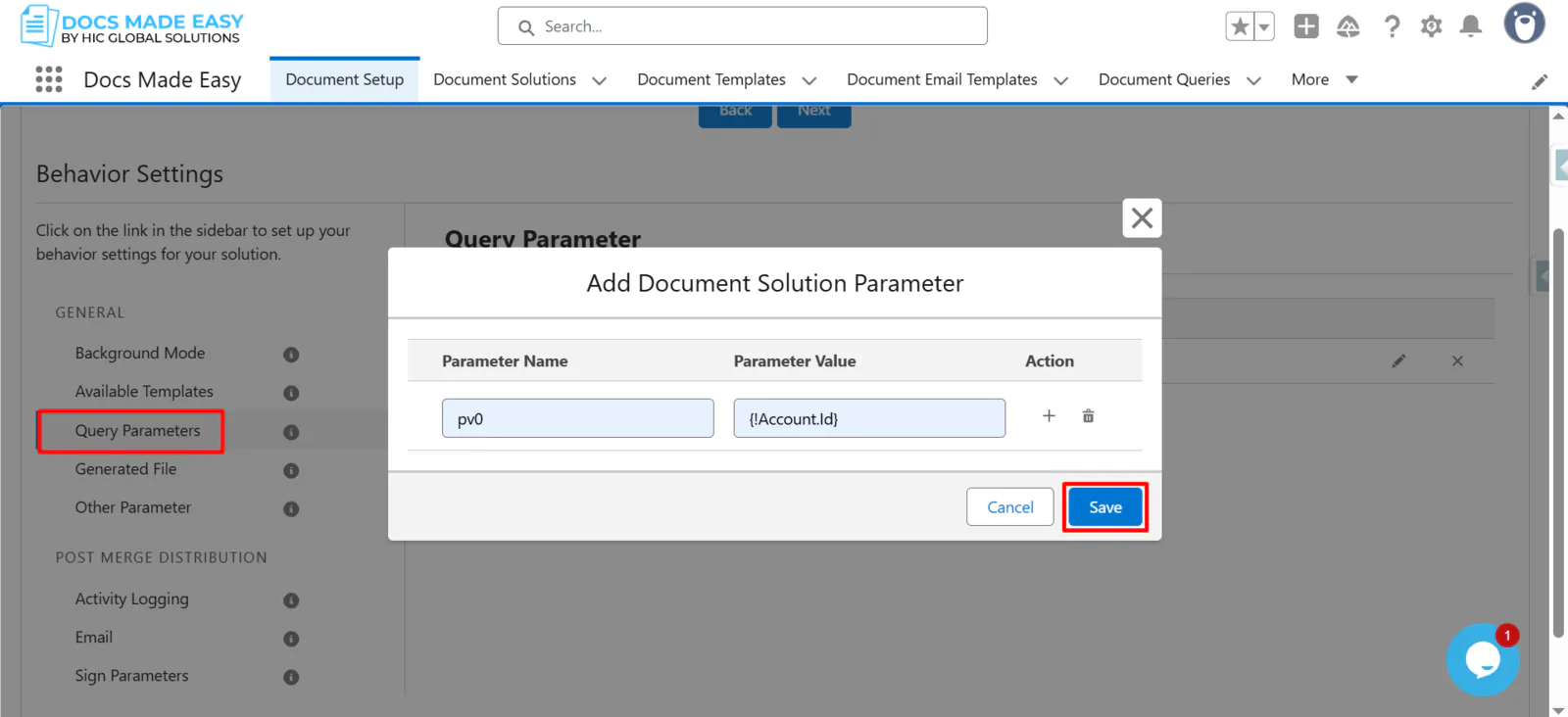
pv0andpv1. Assign thepv0value for your query and click Add. In this example,pv0 = Account.Id.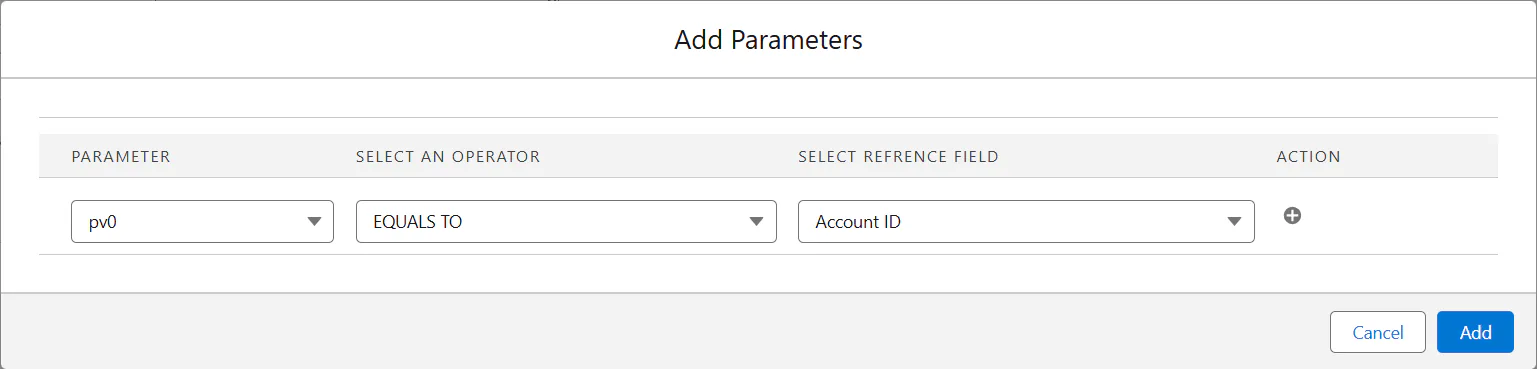
Click Save, then click Next.
Add the query to a template
Click Create New Document Template to view and use the query syntax. In the window that opens, click Merge Field Helper. It lists the correct merge fields for the queries you created.
Click the SOQL Query Fields tab and select your query.
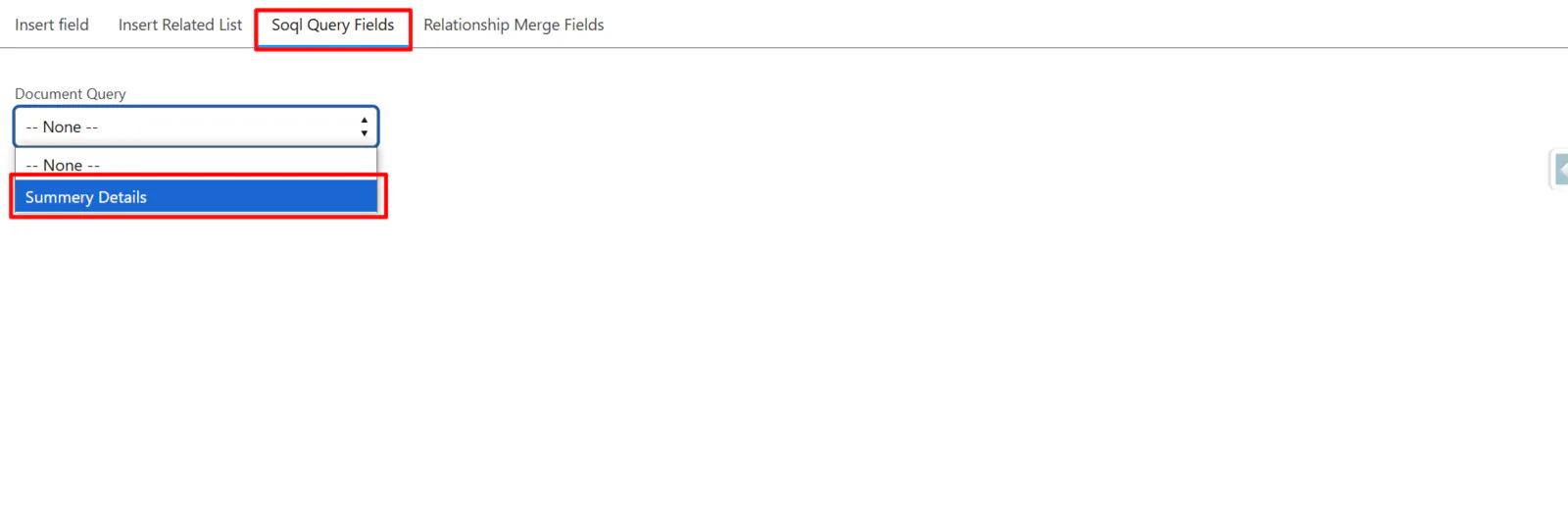
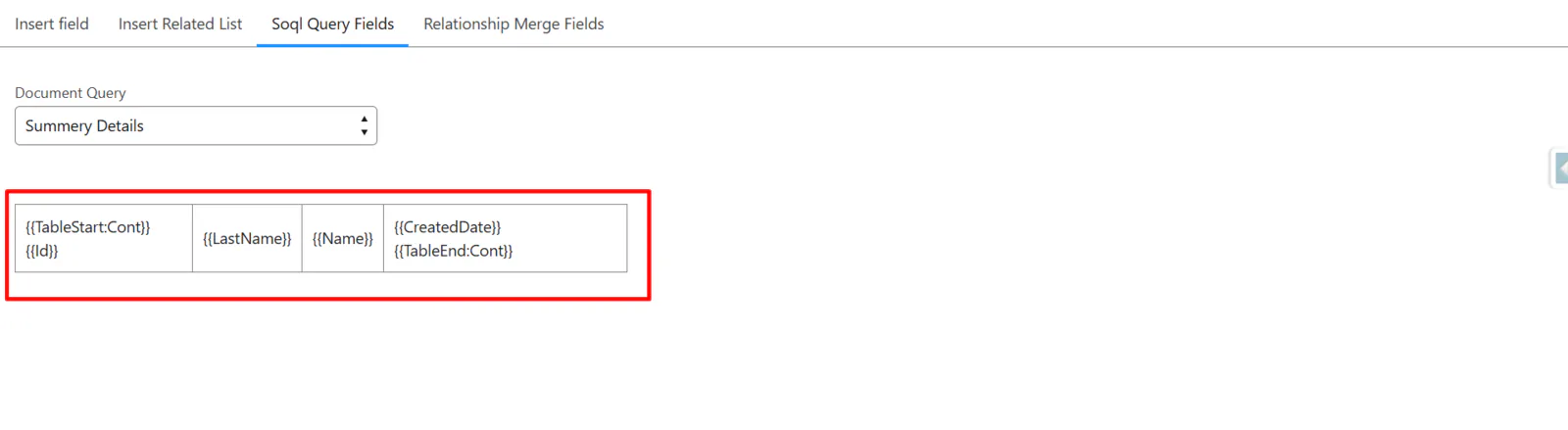
Copy the table and paste it into your Word template where you want the data to appear, then save the Word template.
Click Upload, select your saved Word template, then click Save. Click Next. The Assign Behaviors step opens.
Add the required query parameter, for example the record ID or another specific value. Click Save, then click Next.
Add the button to the page layout
Click Go to Page Layouts. The page layouts open in a new tab.
Click the layout for your object, in this example Account Layout. The page layout editor opens.
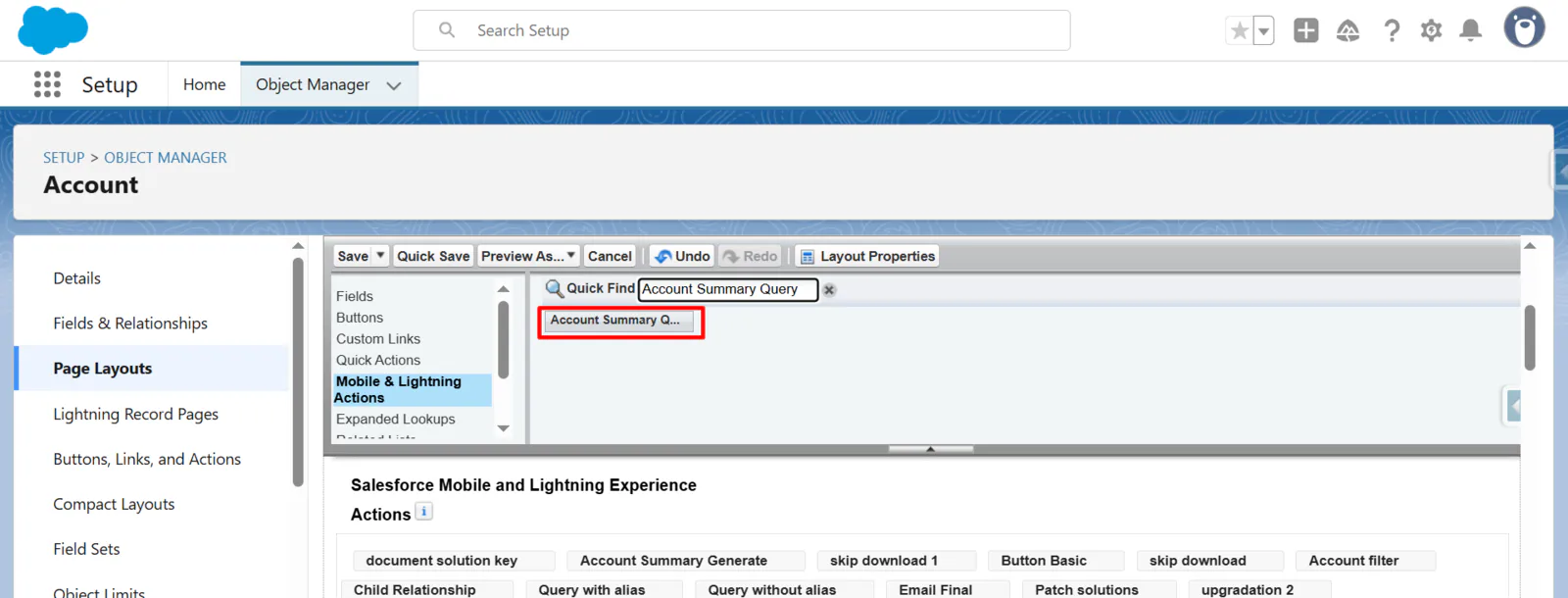
Click Mobile & Lightning Actions and find the button you created.
Drag the button to Salesforce Mobile and Lightning Experience Actions, next to Post, then click Save.
Generate the document
Open an account record and click the button you created. The Composer page opens.
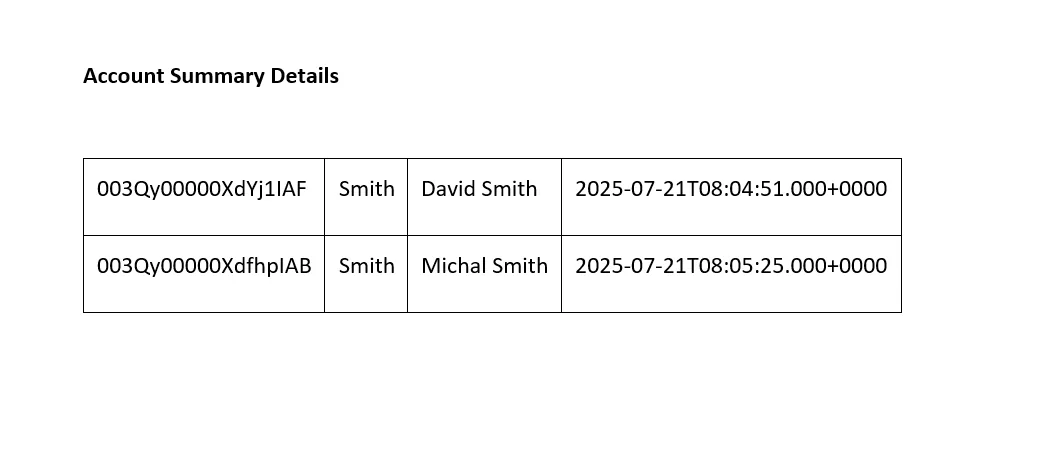
Click Download (Template). Docs Made Easy generates the document with the query results.
Related: Use SOQL queries in Docs Made Easy · Can I filter child relationship records in a template?