
Use the Relationships feature on the Gather Data page to pull fields from objects related to your base object into a template. For example, a quote solution built on Opportunity can also use fields from Account, Opportunity Product and Contact.
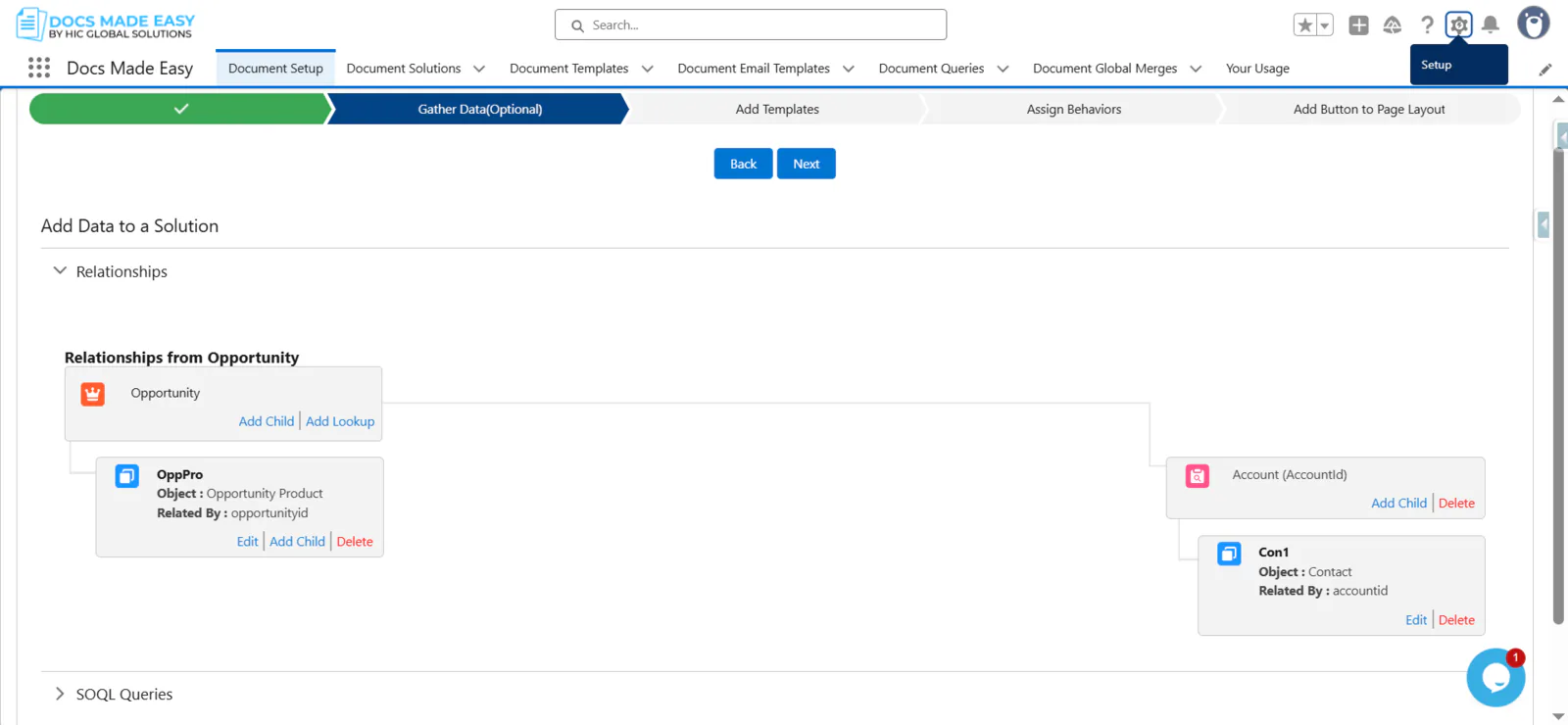
With relationships, you can:
- Define and view the child and lookup objects related to the base object you selected in Document Setup.
- Get accurate merge field syntax for those related objects automatically.
- Use related object fields in your document templates.
Add a relationship
- Go to Document Setup, then Gather Data. The relationship layout starts with the base object of your solution, for example Opportunity.
- Add the related objects you need:
- Click Add Child to include a related list object, for example Opportunity Products.
- Click Add Lookup to include an object reached through a lookup field, for example Account through
AccountId.
- Optionally, give each added object an alias and set a filter or sort order. The relationships appear as a map that shows the direction, object names and linking fields.
Get the merge syntax
After you set up the relationships, get the syntax for your template from either place:
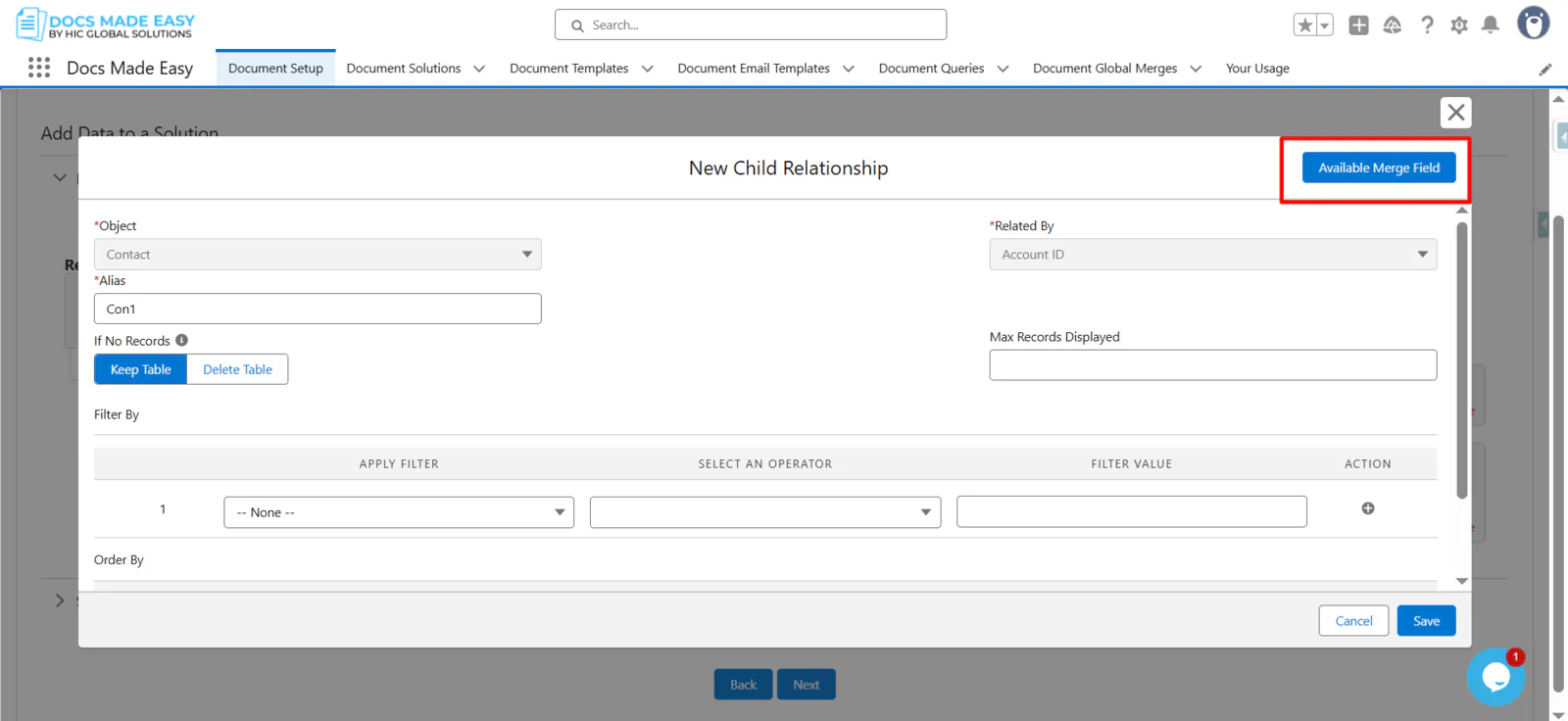
The Available Merge Field button in each Add/Edit window:
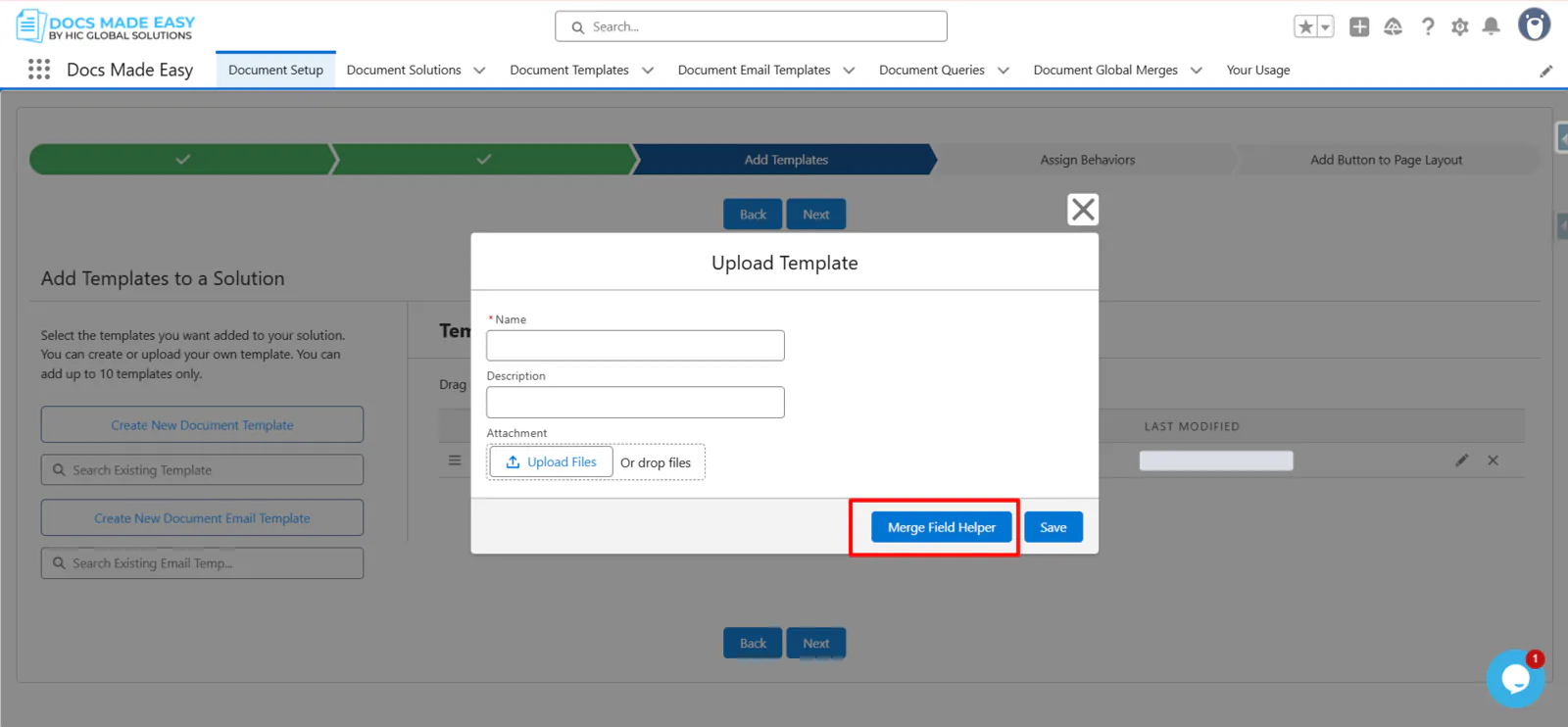
Merge Field Helper, in the Upload Template window when you upload a template:
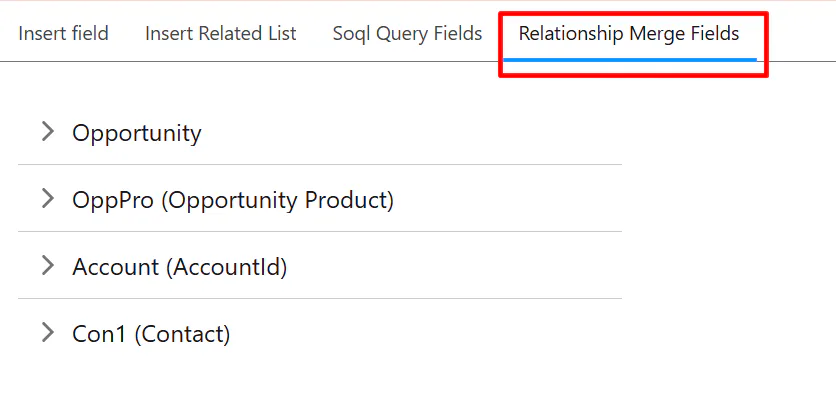
Open the Relationship Merge Fields tab to see the syntax for each related object by alias:
Best practices
- Use short, clear aliases for child objects, for example
Con1orOppPro. - Check your relationships before you design the template.
- Test the template with the Merge Field Helper to confirm the fields are available.
- Add only the relationships you need, to keep performance fast.
Related: Where do I find merge fields? · Use SOQL queries in Docs Made Easy