
A Document Solution Collection groups several document solutions so users can pick from them in one place on a record page. Create the collection in Docs Made Easy, then add the Document Solution Collection component to the record page.
Before you begin: Create the document solutions you want to group. Document Solution Collections are a Docs Made Easy Pro feature.
Create the collection
Log in to Salesforce. In the App Launcher, search for
Collection, then click Document Solution Collection.Click Create New.
Enter the Collection Name and click Next. The list of available solutions opens.
Select the solutions you need from the available solutions list. The selected solutions appear in the Collection panel on the right.
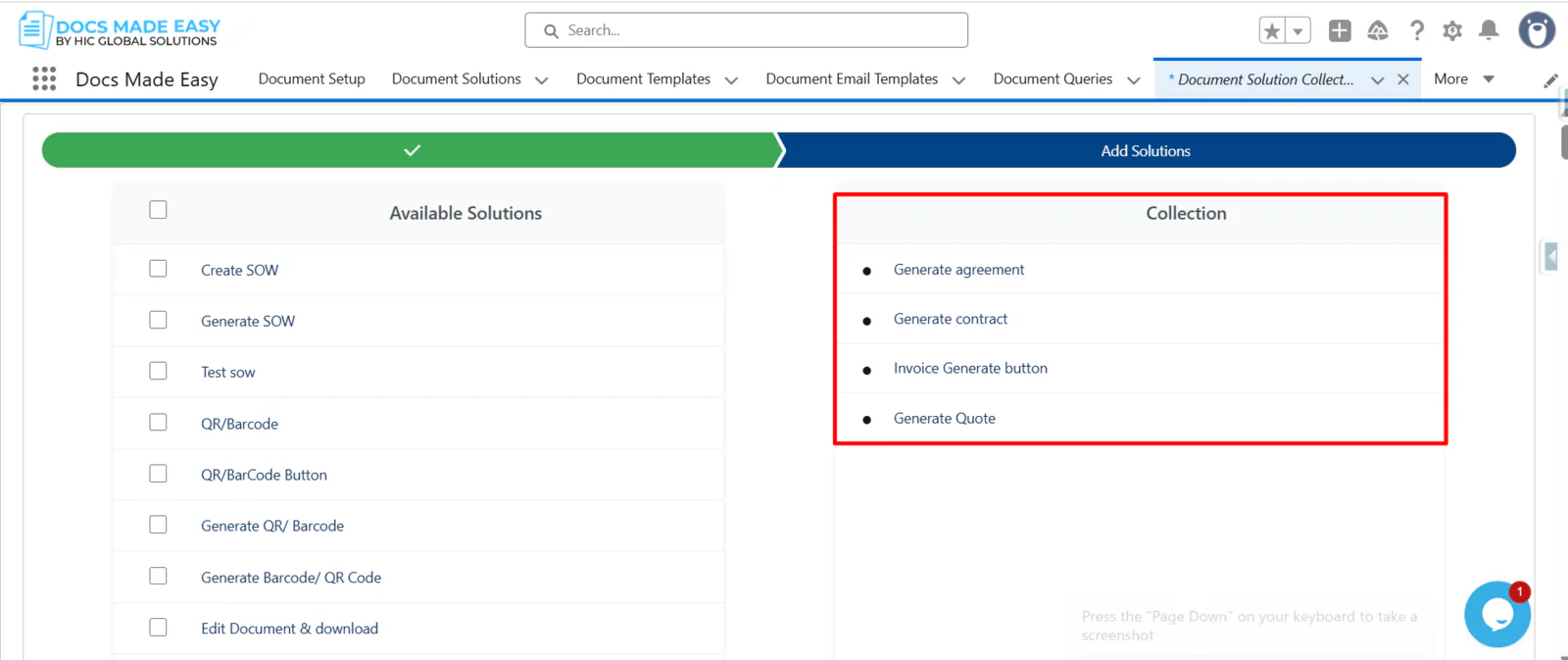
Click Next to save the collection.
Add the collection to a record page
Open a record of the object your solutions are built on, click the Gear icon, and select Edit Page. The Lightning App Builder opens.
From the component panel, drag the Document Solution Collection component onto the record page.
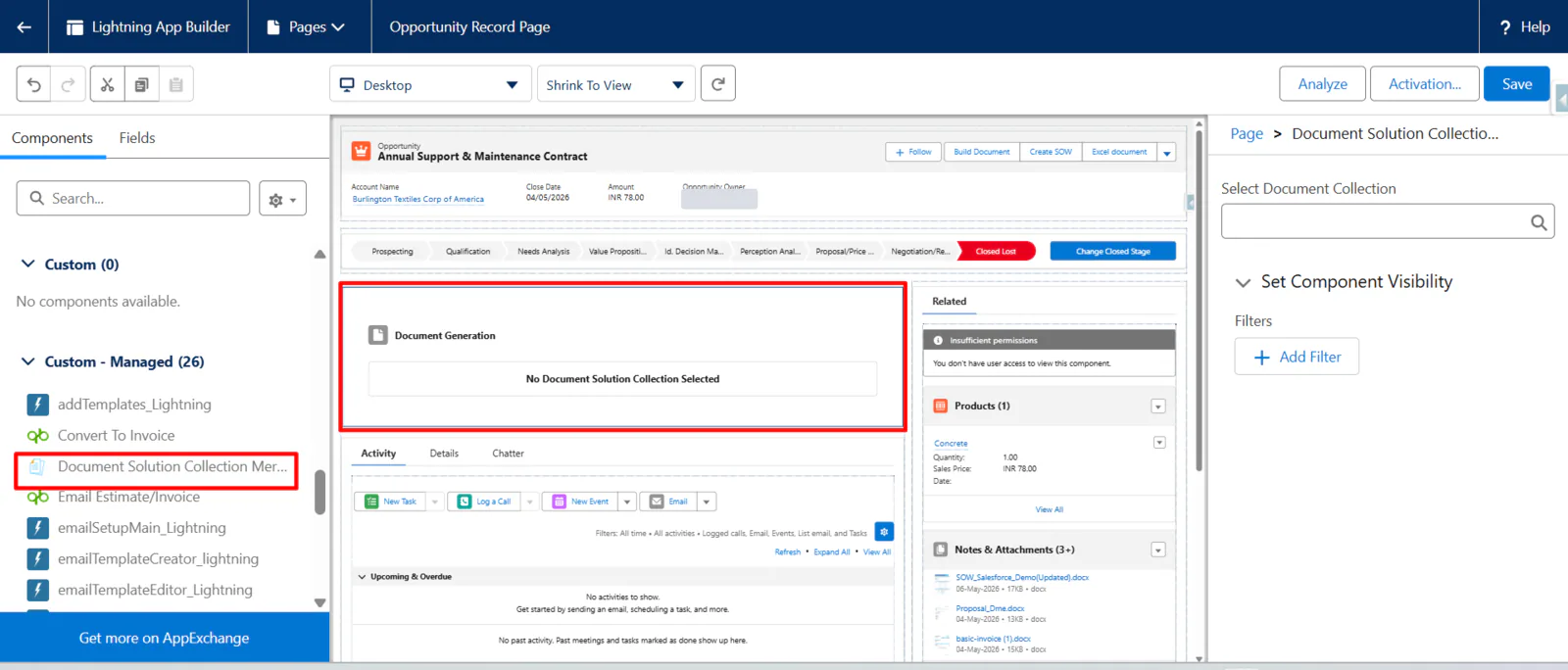
Select the collection you created, then click Save.
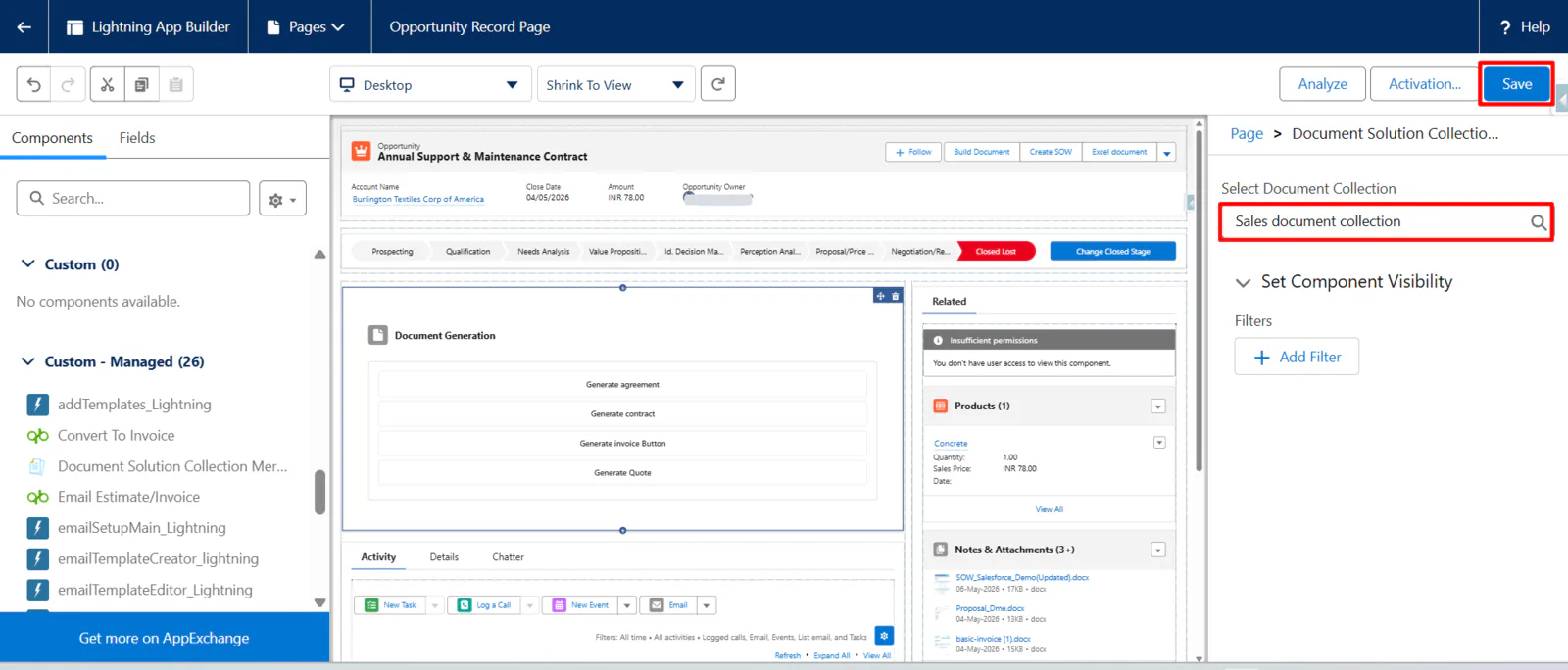
Generate a document from the collection
Open the record. The solutions in the collection appear in the Document Generation section.
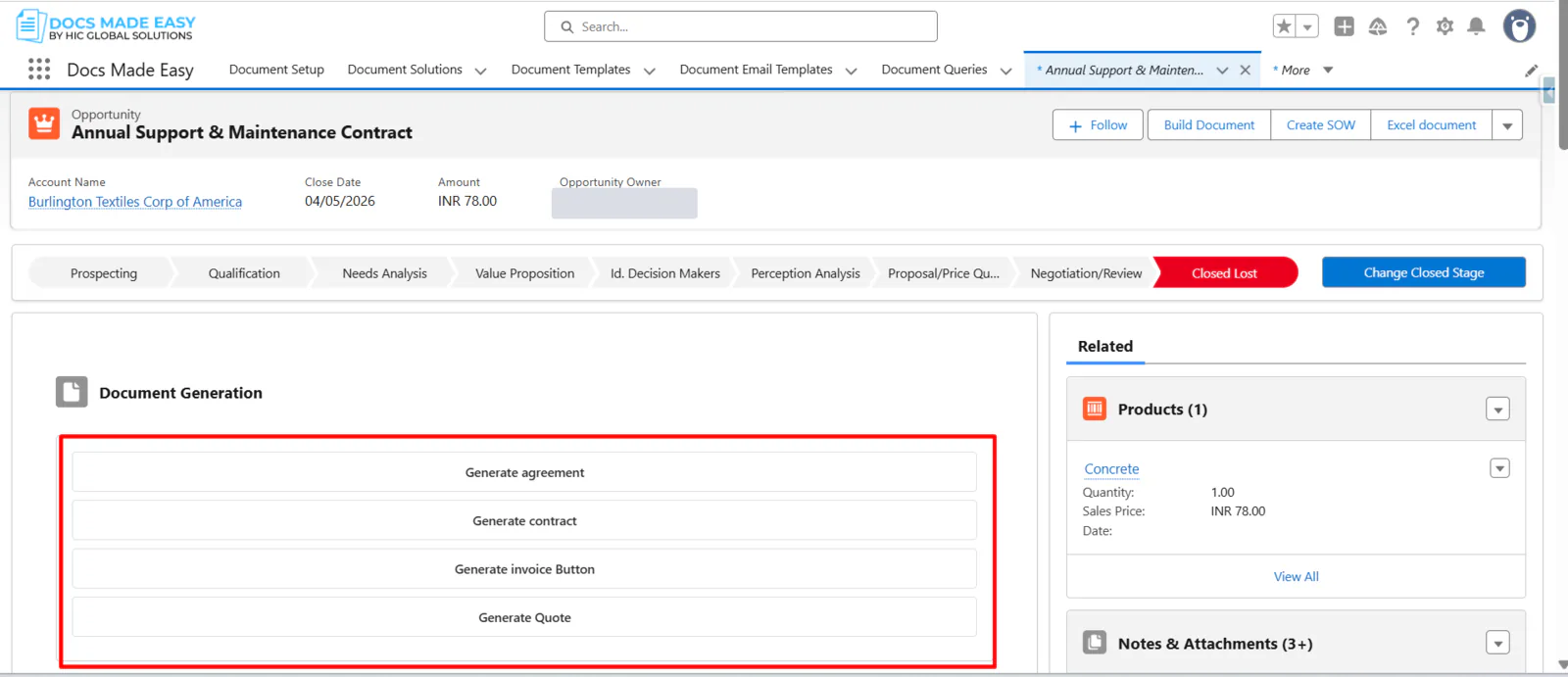
Select a solution and click Merge & Download. Docs Made Easy processes the selected solution and generates the document.
Related: Create a template with the Document Automation Wizard · Docs Made Easy Pro release notes v1.17.0