
Use a QVar parameter to choose document templates dynamically. A document query finds the templates, and two Other Parameters on your document solution pass the query result to the button. When users click the button, they see only the templates that match the query.
For how QVars work, see Use QVars in Docs Made Easy.
Create the document query
Open Docs Made Easy in Salesforce, click Document Queries, and then click New. The new document query form opens.
In Query Name, enter a name for the query. From the From list, select the object to query, for example Account.
In the SOQL Query section, write the query.
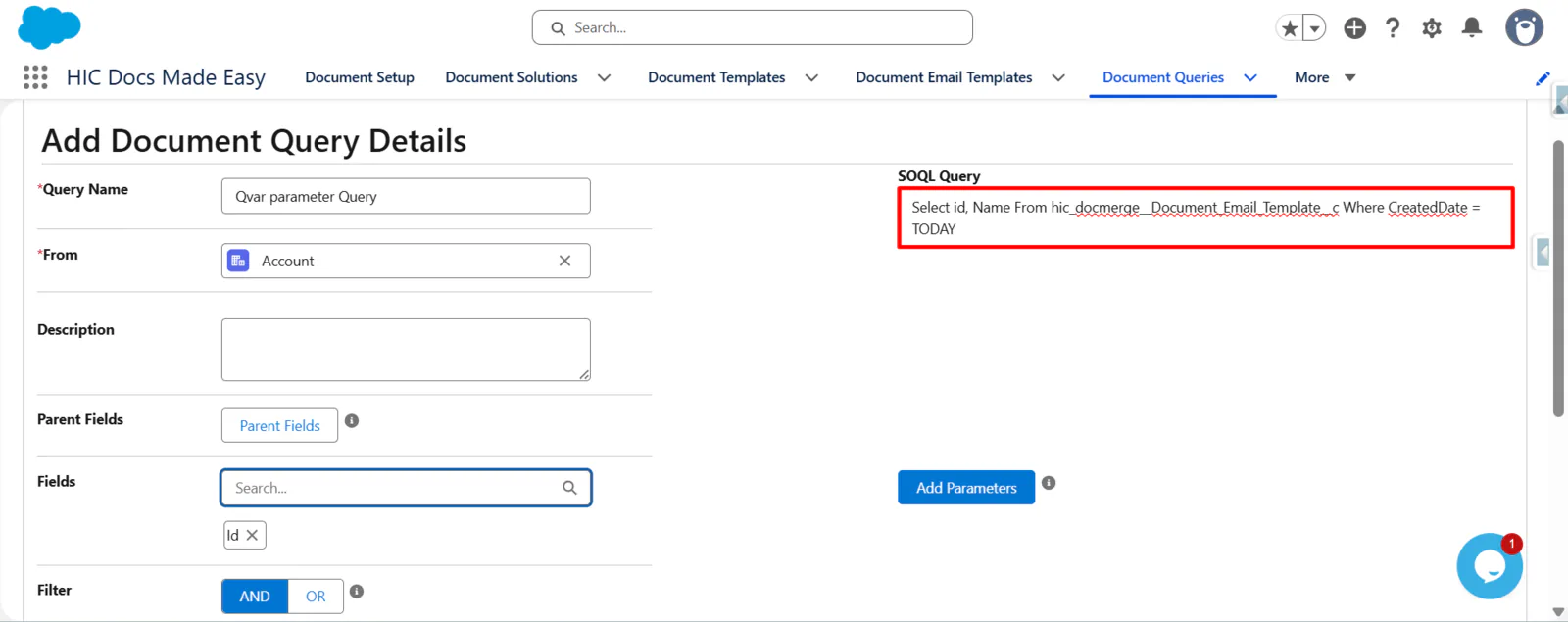
Scroll down and click Save. The query appears in the Document Queries list.
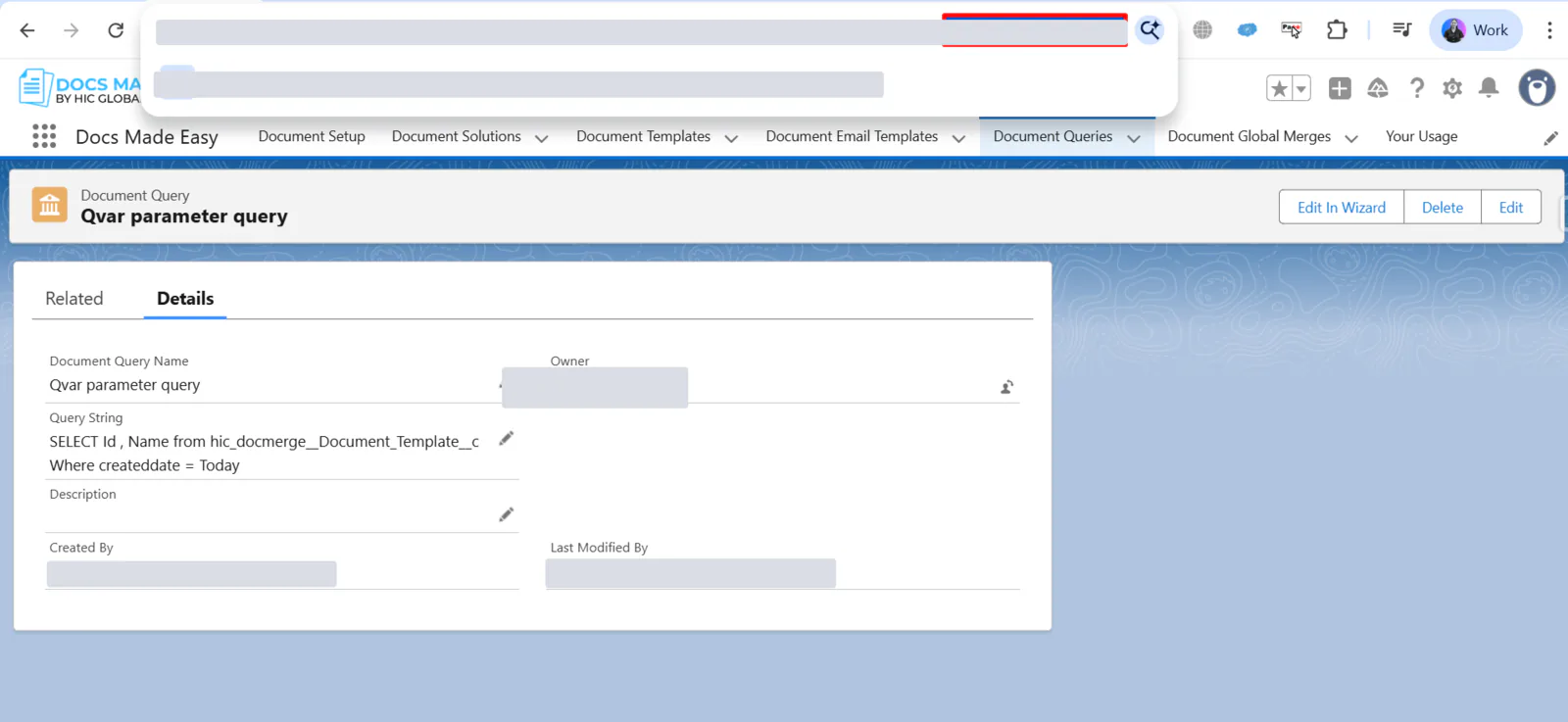
Click the document query to open it, and copy the Document Query ID.
Add the QVar parameters to the solution
Go to Document Solutions, open the document solution you need, and click Edit in Wizard. The wizard opens.
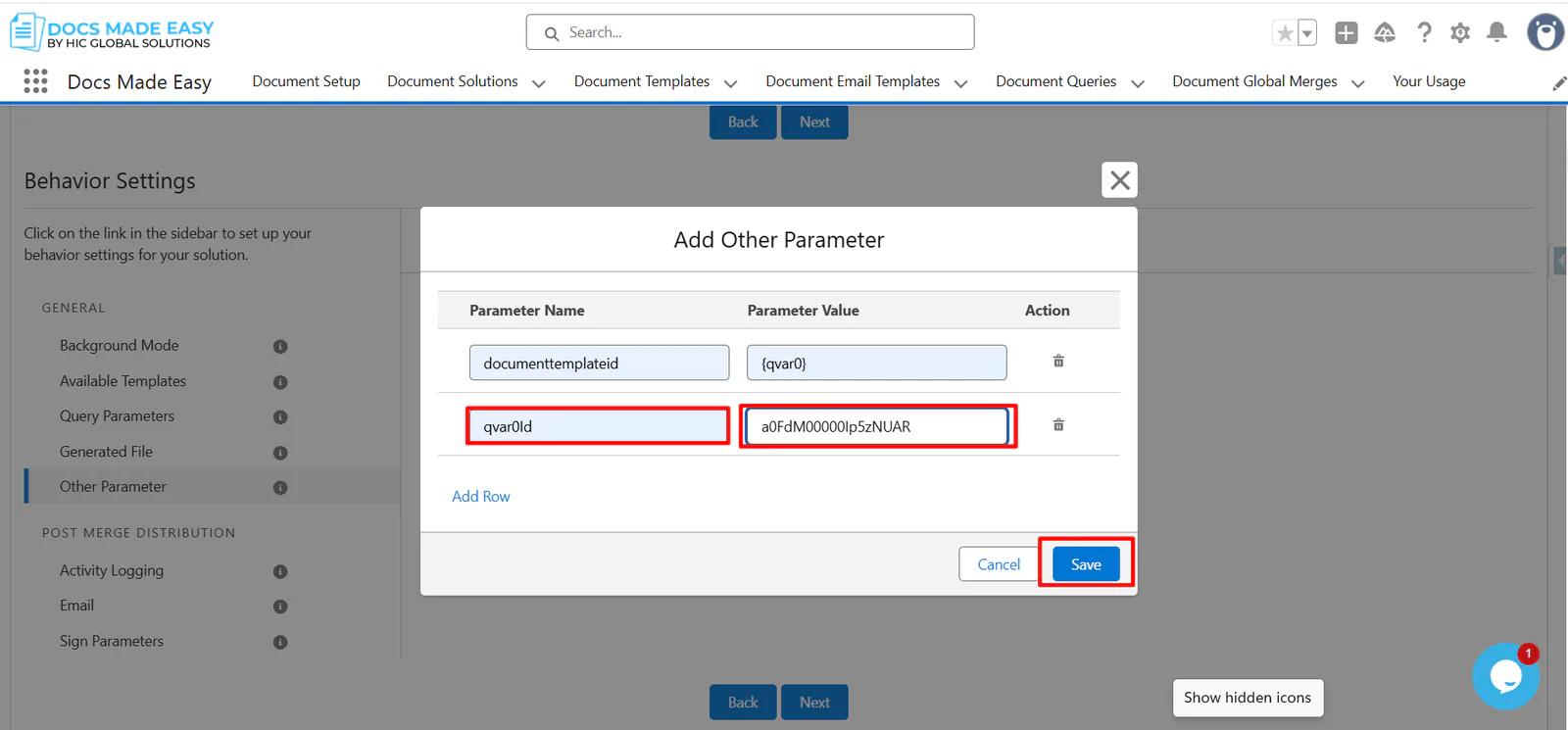
Click Assign Behaviors, click Other Parameter in the Behavior Settings sidebar, and then click Add Other Parameter. A row with Parameter Name and Parameter Value fields appears.
Enter the first parameter:
- Parameter Name:
documenttemplateid - Parameter Value:
{qvar0}
- Parameter Name:
Click Add Row, the blue link under the first row. A new blank row with Parameter Name and Parameter Value fields appears.
Enter the second parameter, then click Save:
- Parameter Name:
qvar0Id - Parameter Value: the Document Query ID you copied
- Parameter Name:
Test the button
Go to a record of the object the solution is built on and click the solution's button.
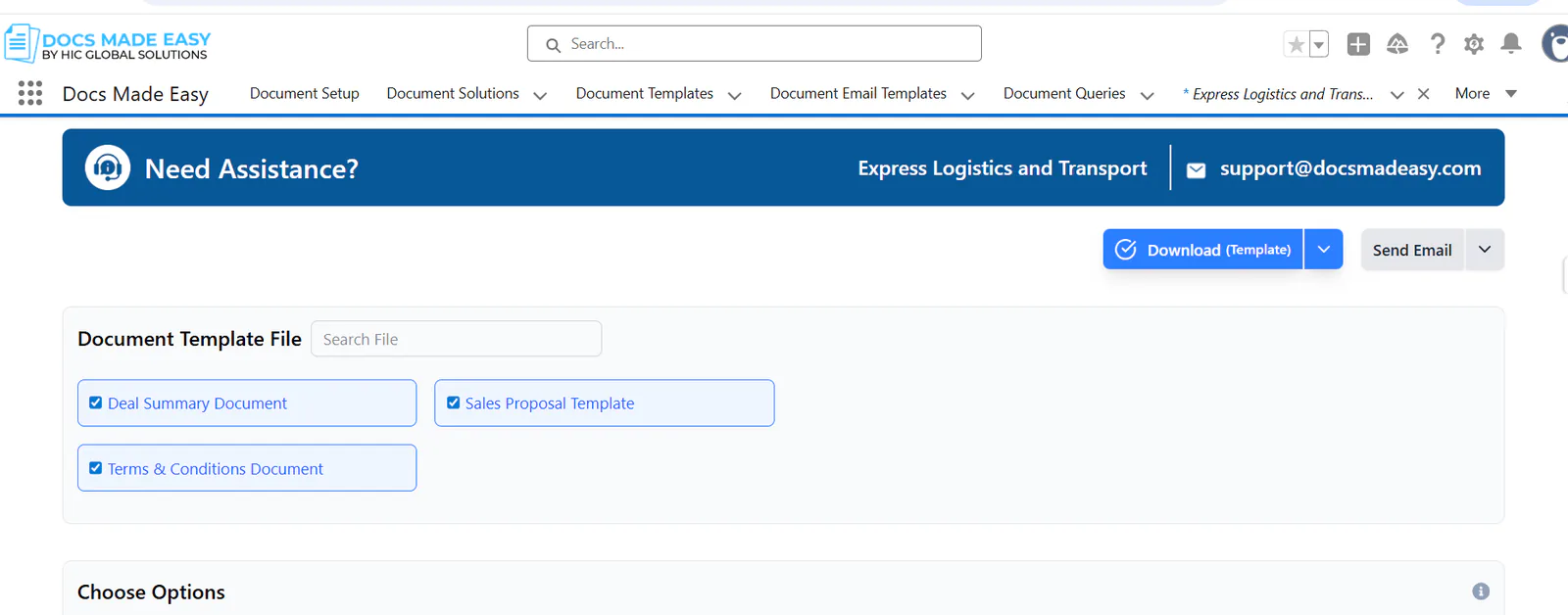
Check the Document Template File section. It lists all document templates that match the query.
Related: Use QVars in Docs Made Easy · Use SOQL queries in Docs Made Easy