
A QVar (query variable) runs a configured query when a document is generated and stores the result so another parameter can reuse it. Instead of hardcoding a value, such as a Contact ID for an email recipient or a template ID, you let a query find the value based on the record the document is generated from.
Use a QVar when a value that another parameter needs isn't fixed but depends on data elsewhere in Salesforce. For example:
- Find the right contact to email based on the opportunity's primary contact role.
- Select one or more templates based on opportunity stage, account type, industry or product.
- Pull any other record-specific value that another parameter needs.
QVar parameters
| Parameter | Purpose |
|---|---|
QVar0Id | The ID of the query that QVar 0 runs. Its result becomes available for reuse. |
QVar0Format | Optional. Controls how the query result is formatted before it's passed on, for example when the query returns multiple values. |
{QVar0} | A reference to the result of QVar 0. Use it inside another parameter to insert the result as that parameter's value. |
The number (0 in these examples) identifies a specific QVar. To use more than one query variable, continue the pattern: QVar1Id, QVar1Format, {QVar1} and so on.
Example: choose an email recipient dynamically
A document is generated from an opportunity. Instead of hardcoding who receives the emailed document, Docs Made Easy looks up the opportunity's primary contact and emails that person automatically.
Create a query, here called "Fetch Primary Contact", that returns the Contact ID of the opportunity's primary contact. For example, query OpportunityContactRole, filtered to the current opportunity and
IsPrimary = true.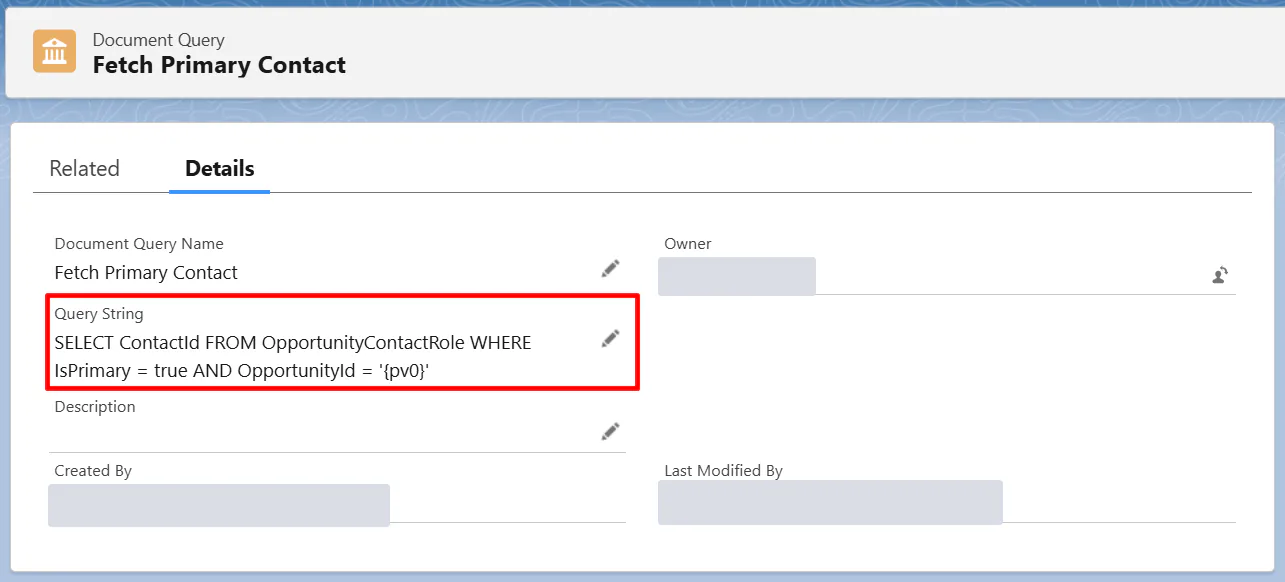
Pass the ID of this query to
QVar0Id: in the solution's Assign Behaviors > Other Parameter, add a row with the Parameter NameQVar0Idand the query ID as the Parameter Value.Reference the result in the email recipient:
EmailToId = {QVar0}. In the solution's email settings, this is the To field.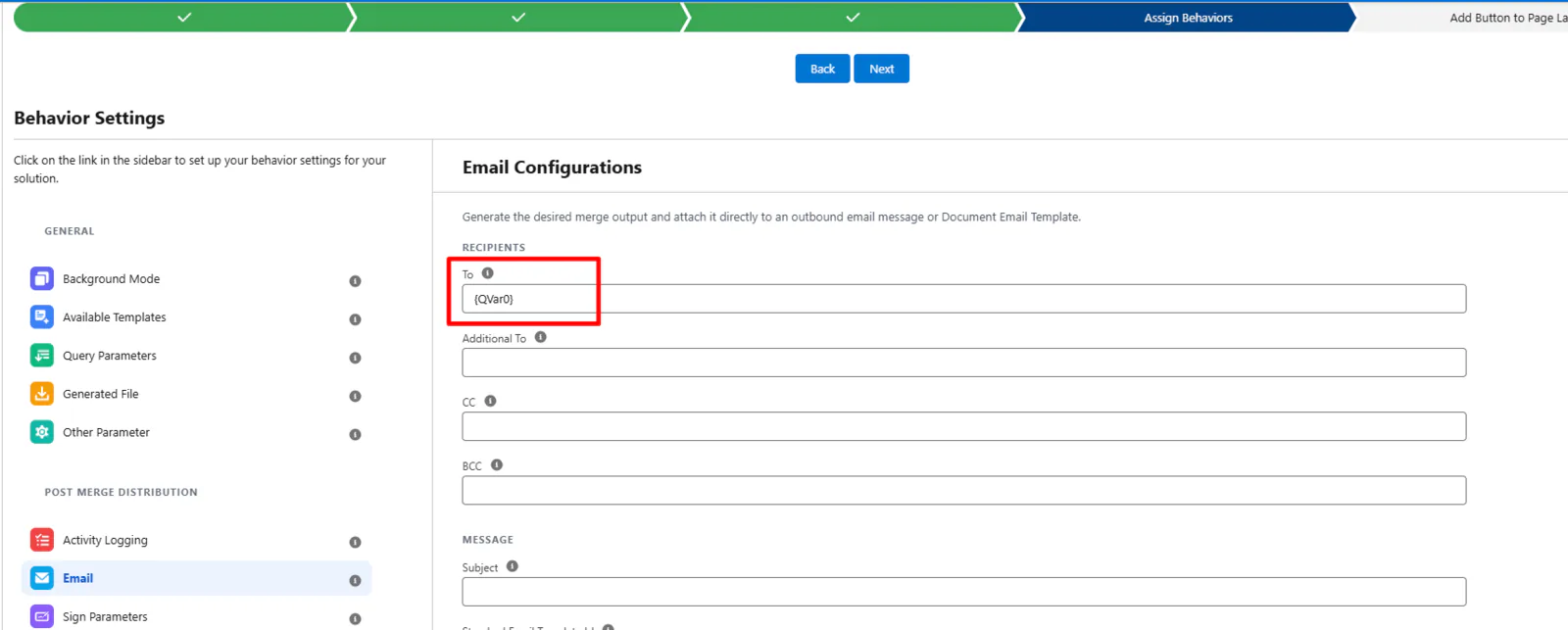
Generate the document. Docs Made Easy emails it to that contact automatically, with no manual recipient selection.
QVar0 retrieves the Contact ID when the document is generated, and EmailToId uses that value to send the document to the right contact.
Example: merge an additional template dynamically
A document is generated from a primary template, but a second template, "Terms and Conditions", must be merged into the same file. A query looks up the "Terms and Conditions" template by name, and its ID is combined with the primary template ID.
Create a query on the Document Template object, filtered to
Name = 'Terms and Conditions'. It returns the ID of that template record.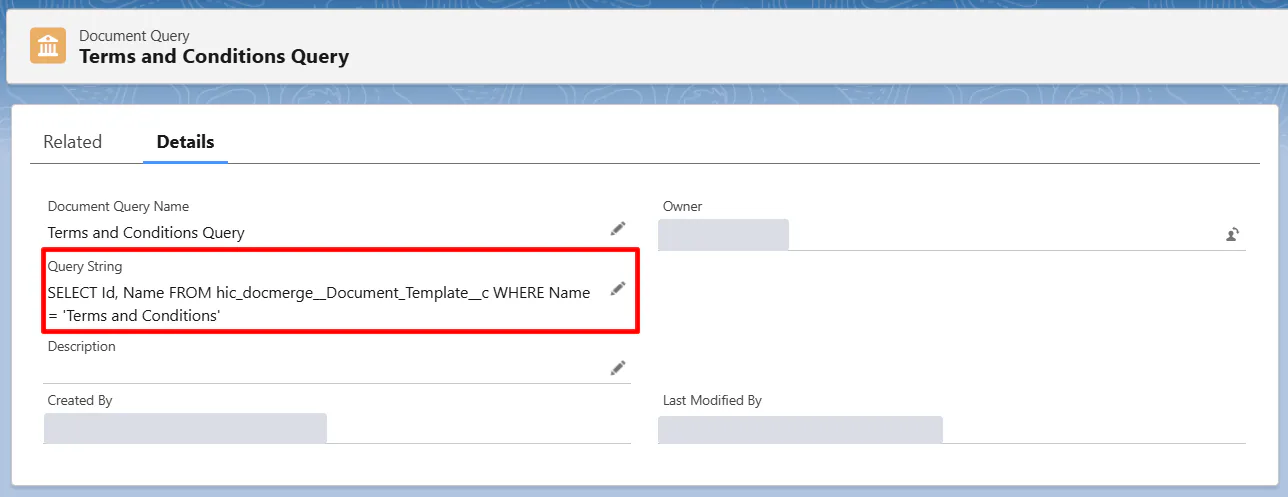
Pass the ID of this query to
QVar0Idin Other Parameter, as in the previous example.Reference the result in
documenttemplateIdtogether with the primary template ID, separated by a comma, for example<primary template ID>,{QVar0}. The example also setsMergeDocumentto1.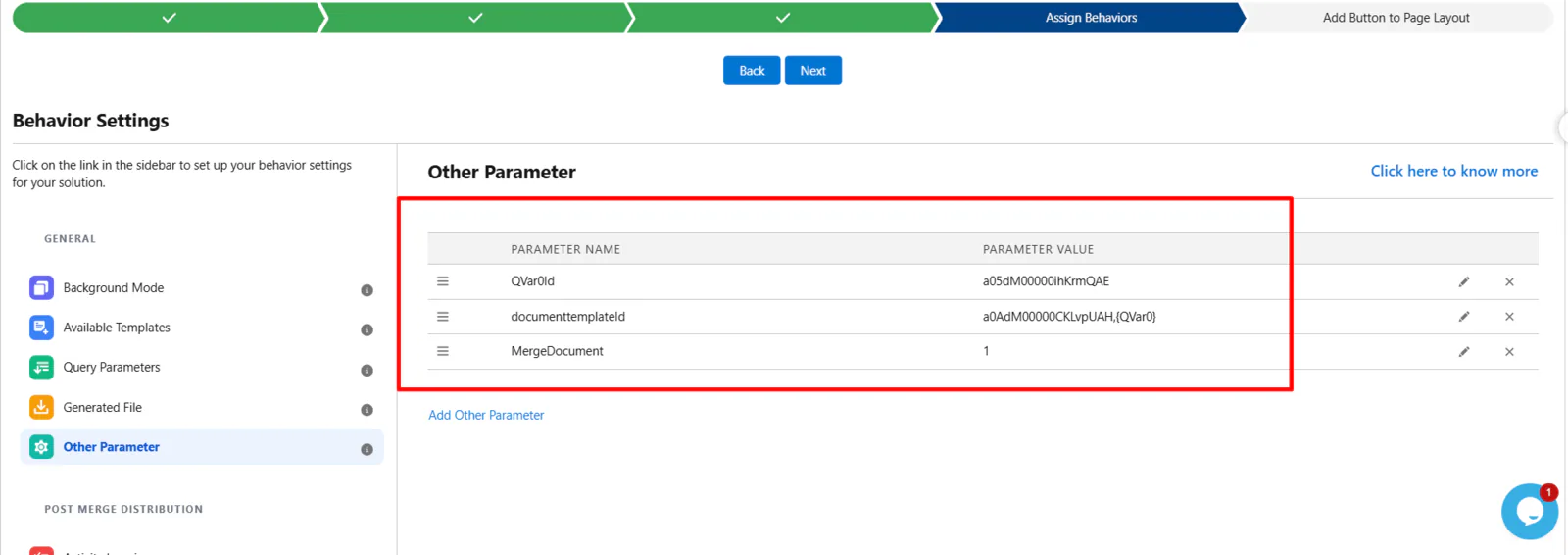
Generate the document. Both templates are merged into a single file.
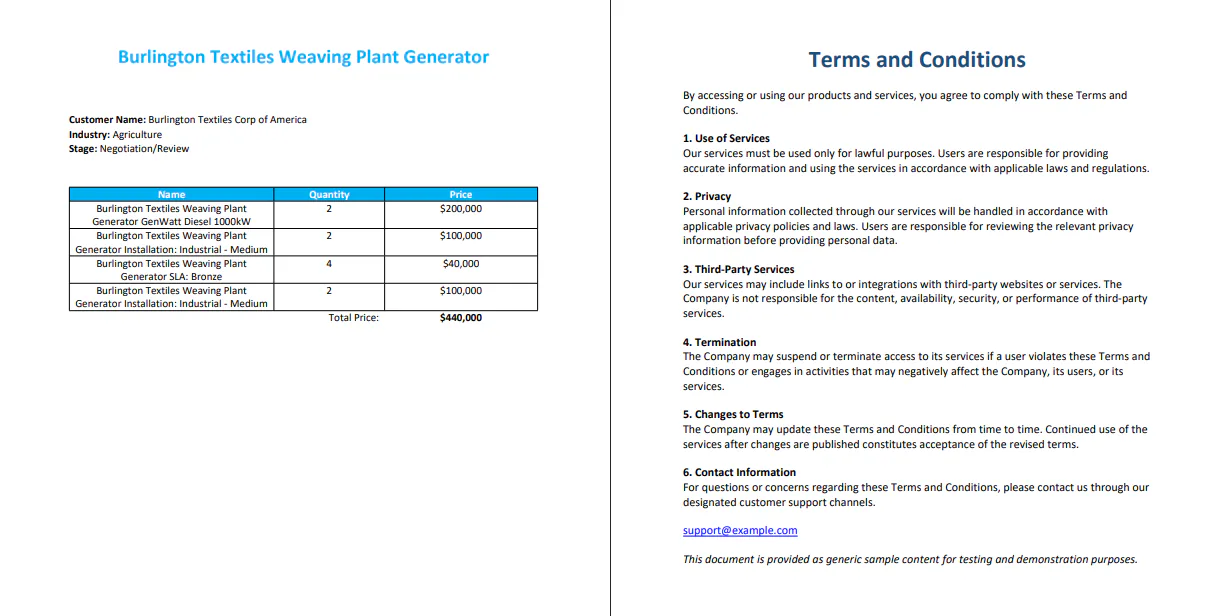
The query in QVar0Id finds the Document Template record named "Terms and Conditions" and returns its ID, which QVar0 stores. documenttemplateId then resolves to the primary template ID plus {QVar0}, so the generated document contains both the primary template and the "Terms and Conditions" template.
Format the result with QVarFormat
QVarFormat controls how the raw query result is packaged before it's inserted into the rest of the URL. This matters most when a query can return multiple rows, for example several email addresses, rather than a single value.
The format code has six digits:
| Digit | Controls | Values |
|---|---|---|
| A (1st) | Separator between values | 1 = comma · 2 = pipe (|) · 3 = semicolon · 4 = colon · 5 = hyphen · other = none |
| B (2nd) | Remove duplicate values | 1 = remove duplicates · other = keep duplicates |
| C (3rd) | Quotes around each value | 1 = single quotes · 2 = double quotes · other = no quotes |
| D (4th) | Space after the separator | 1 = add a space · other = no space |
| E (5th) | Limit each value's length | 1 = limit to 15 characters · other = keep the full value |
| F (6th) | Wrap the whole result | 1 = ( ) · 2 = [ ] · 3 = { } · other = no wrapping |
For example, if a QVar returns three values (Apple, Orange, Banana):
| Format code | Meaning (A–F) | Result |
|---|---|---|
100000 | Comma separator, keep duplicates, no quotes, no space, no length limit, no wrapping | Apple,Orange,Banana |
100100 | Comma separator and a space, everything else off | Apple, Orange, Banana |
Related: Set up a QVar parameter for dynamic document templates · Merge Document parameter