
The MergeDocument parameter combines several templates into one output document. Use it to generate a single document, such as a proposal with its terms and conditions, without building one large template.
Syntax
As an Other Parameter on the solution's Assign Behaviors page:
Parameter Name:  MergeDocument
Parameter Value: 1
In the solution button's URL:
&MergeDocument=1
Values
| Value | Effect |
|---|---|
1 | Processes all templates in the solution and merges them into one document, in the order they are configured. The solution must contain more than one template. |
Where to add it
Add it as an Other Parameter on your solution's Assign Behaviors page: click Other Parameter, then click Add Other Parameter. Enter MergeDocument and 1, then click Save.

When the parameter is on:
- Docs Made Easy processes all templates in the solution.
- It merges them into one document.
- It combines the templates in the order they are configured.
Example
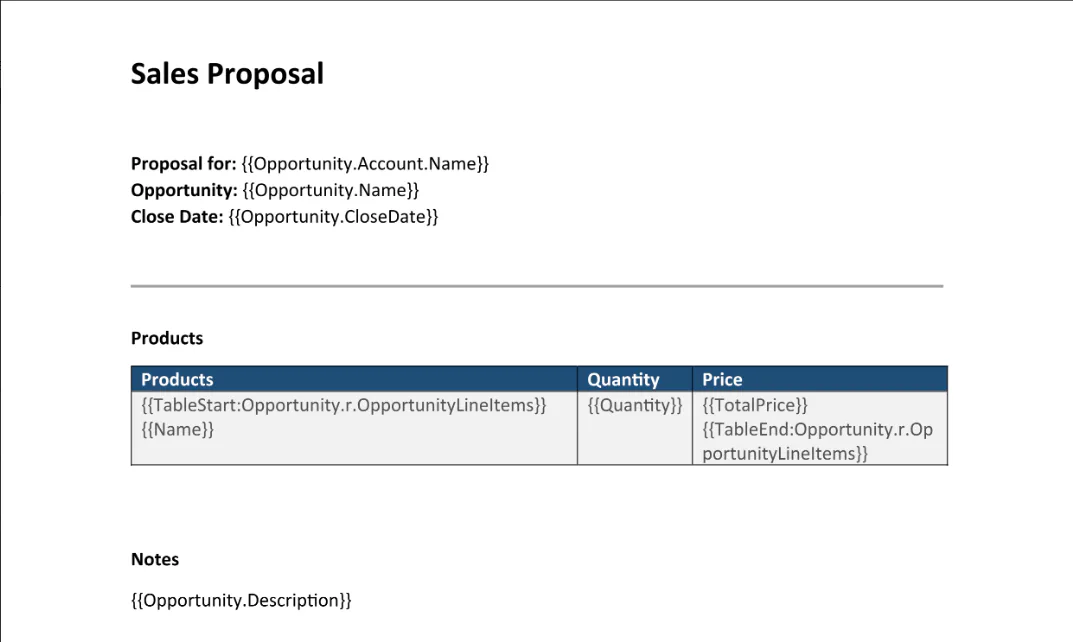
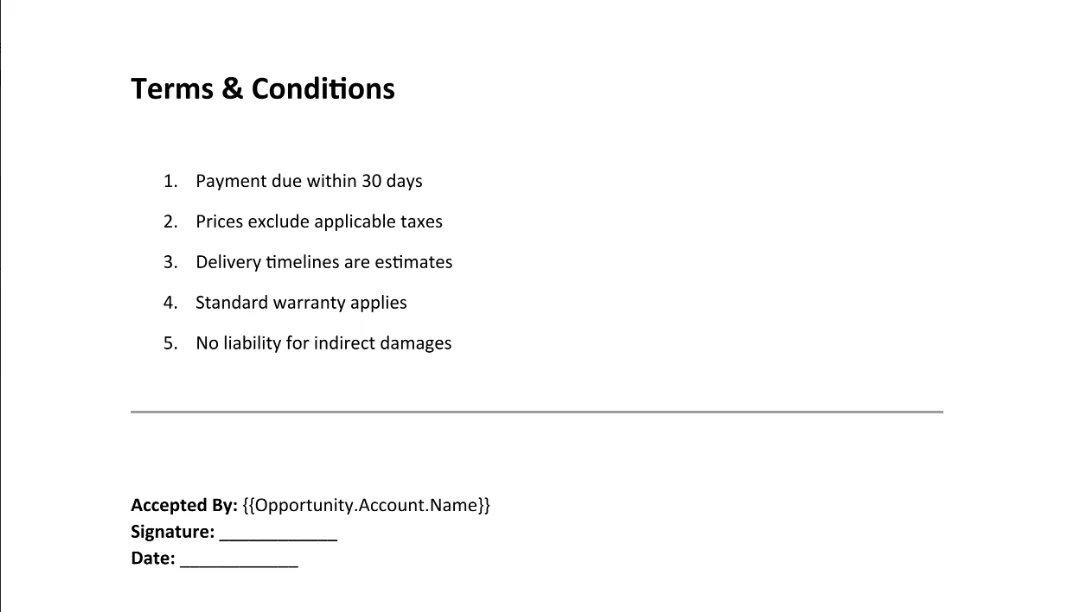
- Input: a solution with two templates, configured in this order: a proposal (or quote), then the terms and conditions.
- Syntax: the Other Parameter
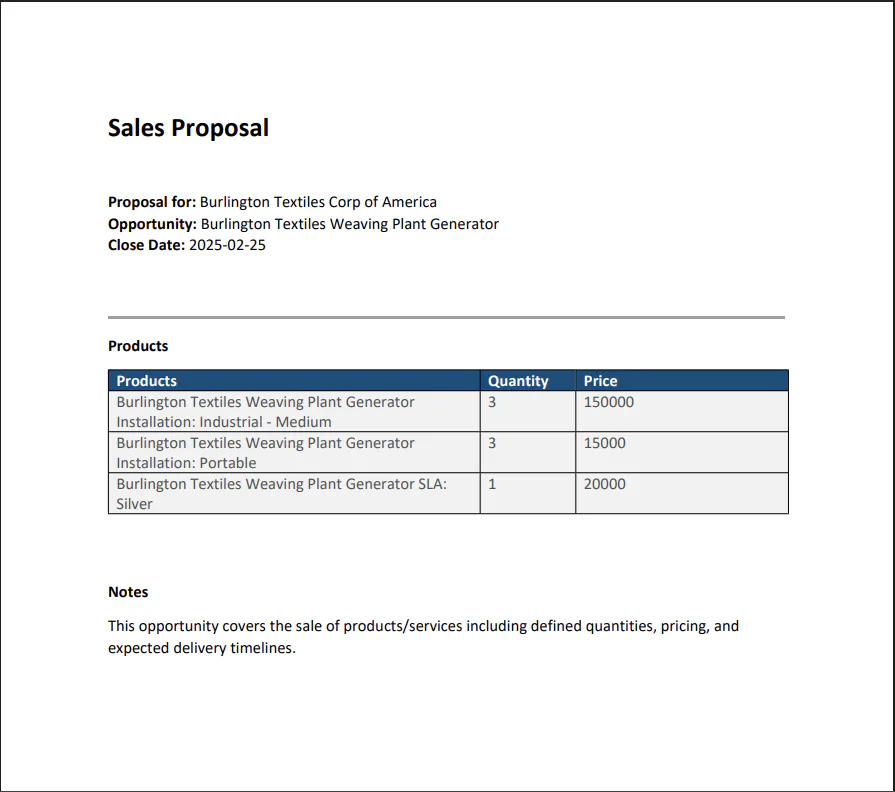
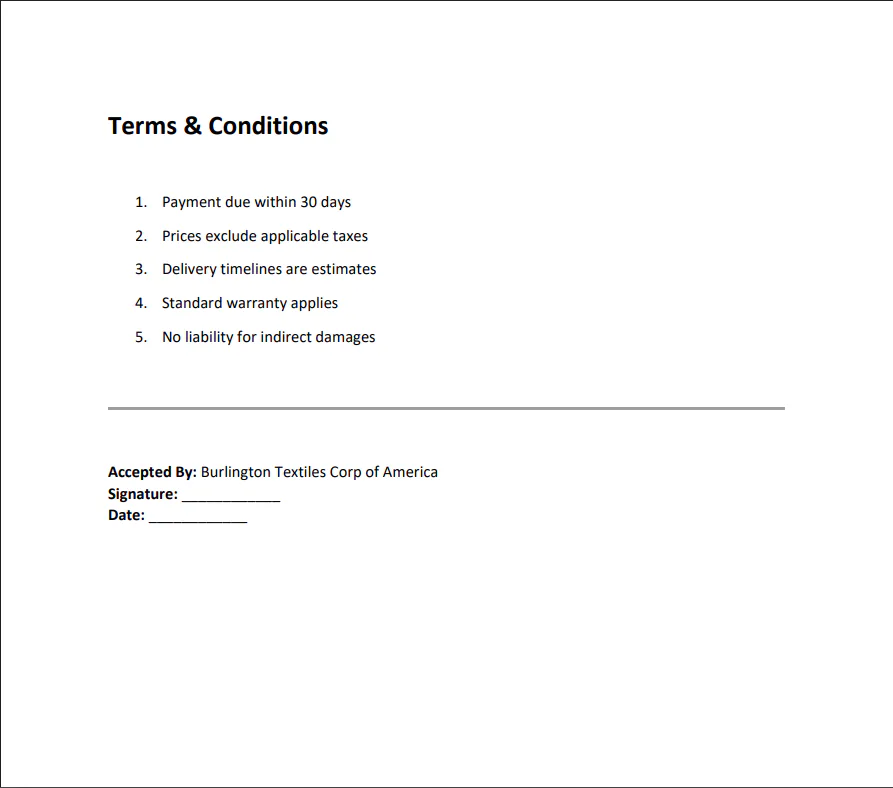
MergeDocument=1. - Output: one document. Page 1 contains the proposal and page 2 the terms and conditions.
The main document, a proposal or quote:
The secondary document, the terms and conditions:
The generated document contains both. Page 1:
Page 2:
Works in
MergeDocument works in Basic and Pro. The example merges Word templates. It can also combine Word templates and PDF forms into one PDF, and each template keeps its own formatting in the merged file.
PDF form, Excel and PowerPoint templates need Pro. On a Basic license, a merge that includes one of them fails with "merge is not allowed in this basic version" (DME-LIC-002); see Merge several templates into one document.
Notes
- Template order matters. The final document keeps the order in which the templates are configured. To change the order, drag the templates on Add Template.
MergeDocumentcombines the templates of one solution. Global Merge is a different feature: you create a solution on the Document Global Merge object.
Combine with
- PageBreak: type
{{_PageBreak_}}in a template where a new page should start. - docfamily: groups templates with Document Template Family.
- A QVar that returns a template ID: picks the second template at generation time. See Merge several templates into one document.
Common errors
- You get only one template's content. The solution contains one template, or
MergeDocumentisn't saved. Add the other templates and check that the Other Parameter list showsMergeDocument=1. - The templates are in the wrong order. Drag them into reading order on Add Template.
- "Document is too large to process". A template file can be at most 5 MB. Make the large template smaller, for example by compressing its images. See DME-DOC-001.
- "… merge is not allowed in this basic version". One template is PDF, Excel or PowerPoint on a Basic license. See DME-LIC-002.