
The bgm (Background Mode) parameter controls what happens to a document after it is generated: whether it is downloaded, saved to the record, or both. It also skips the Composer page, which makes it a good fit for one-click and automated document workflows.
Syntax
As an Other Parameter on the solution's Assign Behaviors page:
Parameter Name:  bgm
Parameter Value: 1 | 2 | 3 | 5 | 10
In the solution button's URL (Docs Made Easy adds each Other Parameter to the button URL for you; see Parameters explained):
&bgm=1
Values
| Value | Effect | In the Background Mode list as |
|---|---|---|
1 | Saves the file to Files on the record and downloads it. | File (bgm=1) |
2 | Saves the file to the record's Attachments and downloads it. | Attachment (bgm=2) |
3 | Posts the file to the record's Chatter feed and downloads it. | Chatter (bgm=3) |
5 | Saves the file to Salesforce Documents and downloads it. | Document (bgm=5) |
10 | Downloads the file only. Nothing is saved in Salesforce. | Not listed: add it as an Other Parameter |
Every value skips the Composer page.
Where to add it
Set bgm on your solution's Assign Behaviors page, in either of two ways.
In the Background Mode setting (values 1, 2, 3 and 5)
In the sidebar, click Background Mode.
Turn on Would you like to enable background mode?.
In Select background mode option, select a value, then click Save.
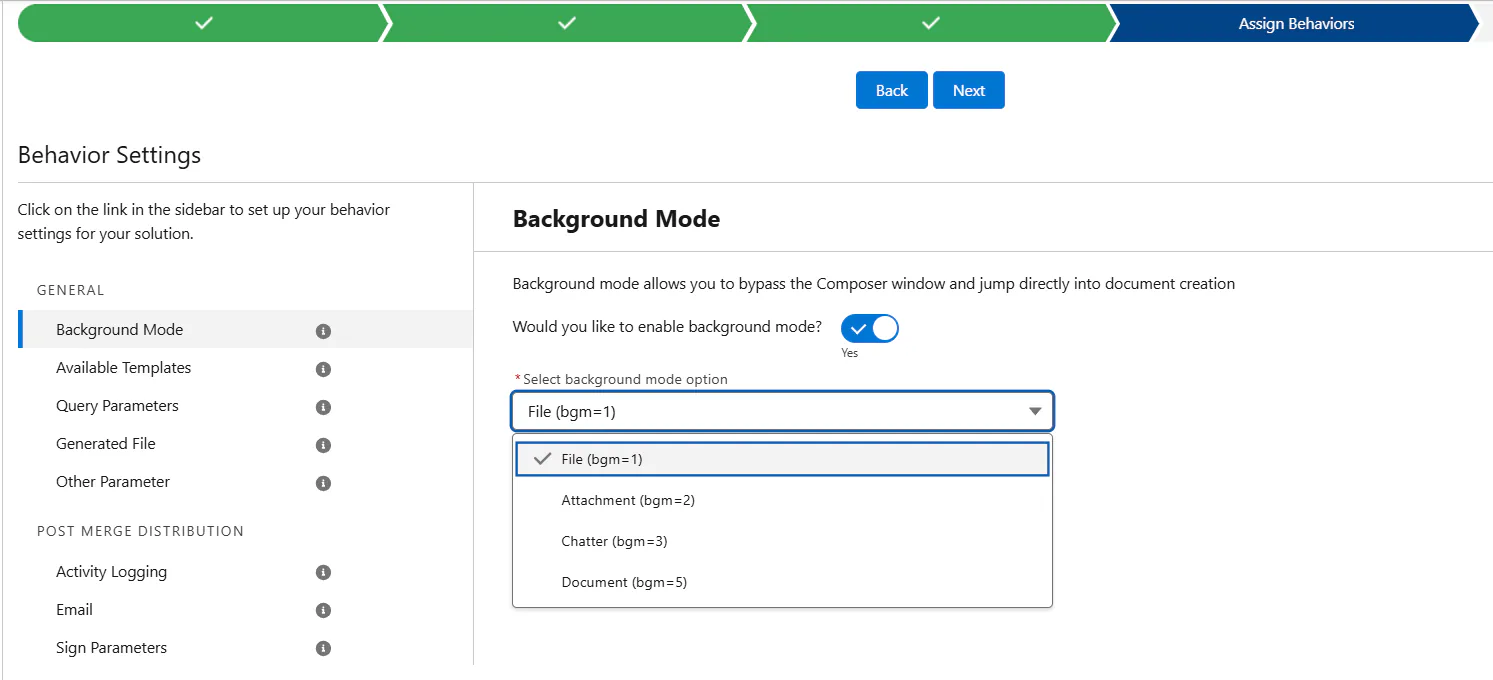
As an Other Parameter (any value, and the only way for 10)
In the sidebar, click Other Parameter, then click Add Other Parameter.
Enter
bgmin Parameter Name and the value, for example10, in Parameter Value, then click Save.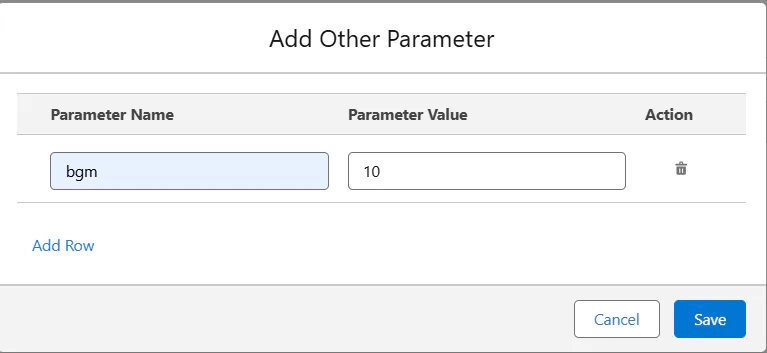
Example
A contract solution should save the PDF to the record and give the user a copy in one click.
- Input: a user clicks the solution's button on a contract record.
- Setting: Background Mode on, with File (bgm=1) selected (the button URL then carries
&bgm=1). - Output: the Composer page is skipped, the PDF is saved to the contract's Files, and a copy downloads to the user's computer.
To save it without the download, also add SkipDownload=1 as an Other Parameter.
Works in
bgm is set on the solution, not written in a template, and decides where the generated file goes when a user generates the document. Background mode is available in Basic and Pro.
It doesn't change where documents generated by Flow or bulk generation (Pro) go: those always appear in both Files and Notes & Attachments on the record, whatever the solution's bgm value.
bgm=1: save to Files
bgm=1 saves the generated document to Salesforce Files on the parent record and downloads it to the user's computer at the same time. Use it when users need the document both stored in Salesforce and on their computer.
Other Parameter: name
bgm, value1.
Background Mode setting: select File (bgm=1).

To save to Files without downloading, also add SkipDownload.
bgm=2: save to Attachments
bgm=2 saves the generated document to the Attachments of the parent record and downloads it to the user's computer at the same time. Use it in older orgs that still use the Attachment object instead of Files; otherwise use bgm=1.
Other Parameter: name
bgm, value2.
Background Mode setting: select Attachment (bgm=2).

bgm=3: post to Chatter
bgm=3 posts the generated document as a file in the Chatter feed of the related record and downloads it to the user's computer at the same time. Use it when the document should be visible in the record's collaboration feed. See also Can File and Chatter File be ticked by default?.
Other Parameter: name
bgm, value3.
Background Mode setting: select Chatter (bgm=3).

bgm=5: save to Documents
bgm=5 saves the generated document to Salesforce Documents and downloads it to the user's computer after generation. Salesforce Documents isn't shown in Lightning Experience, so prefer bgm=1 unless you need Documents (where documents are saved).
Other Parameter: name
bgm, value5.
Background Mode setting: select Document (bgm=5).

bgm=10: download only
bgm=10 downloads the generated document silently: Docs Made Easy doesn't show the Composer page and doesn't save the file anywhere in Salesforce. Use it when users need only a download, with no copy on the record.
bgm=10 isn't in the Select background mode option list, so add it as an Other Parameter: name bgm, value 10.

Combine with
- SkipDownload: add
SkipDownload=1to save the file without downloading it.SkipDownloadneeds a validbgmvalue; without one, the result may be unpredictable. - Don't combine with directemailpreview or Save a copy (SC). Background mode bypasses the interactive screens those parameters use.
Common errors
- The file isn't saved to the record, or Salesforce reports insufficient access. The user needs access to the record and permission to add files, attachments or Chatter posts to it. See DME-SF-004.
- The Composer page still opens. Check that Would you like to enable background mode? is on and a value is selected, or that the
bgmOther Parameter is saved. Then work through the document didn't generate checklist. - The file isn't where you expected. Each value saves to a different place. See Where generated documents are saved.