
The SkipDownload parameter stops the generated document from downloading to the user's computer. Instead, Docs Made Easy processes the file in the background and handles it according to the Background Mode (bgm) value, for example by saving it to Files, Attachments or Chatter.
Syntax
As an Other Parameter on the solution's Assign Behaviors page:
Parameter Name:  SkipDownload
Parameter Value: 1
In the solution button's URL:
&SkipDownload=1
Values
| Value | Effect |
|---|---|
1 | The document isn't downloaded. It is handled according to the bgm value, which must also be set. |
Where to add it
On your solution's Assign Behaviors page, click Other Parameter in the sidebar, then click Add Other Parameter.
Enter
SkipDownloadin Parameter Name and1in Parameter Value, then click Save.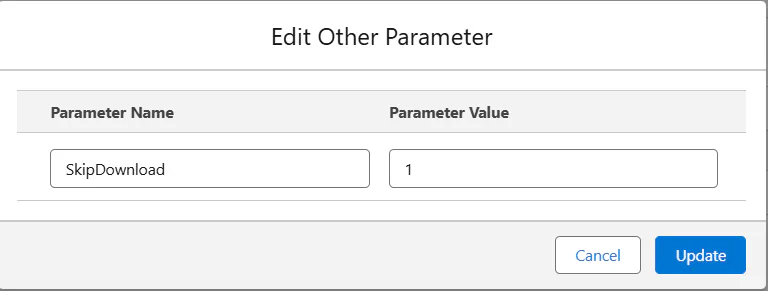
Example
- Input: a user clicks the solution's button on an opportunity.
- Settings: Background Mode set to File (bgm=1), plus the Other Parameter
SkipDownload=1(the button URL carries&bgm=1&SkipDownload=1). - Output: the document is saved to the opportunity's Files and nothing downloads to the user's computer.
Works in
SkipDownload is set on the solution, not written in a template. It works together with a bgm value.
Combine with
- Background Mode (bgm): required. For example,
bgm=1withSkipDownload=1saves to Files with no download. - redirecttourl: sends the user back to a page, such as the record, after the file is saved.
Common errors
- Unpredictable result, or the file isn't saved anywhere. Set a valid
bgmvalue that saves the file, such asbgm=1. See Where generated documents are saved. - The file isn't saved to the record, or Salesforce reports insufficient access. The user needs access to the record and permission to add files to it. See DME-SF-004.