
The CustomLabel parameter shows the value of a Salesforce custom label in your generated document. When you pass a language code with the language parameter, Docs Made Easy replaces each custom label with its translation for that language. Use it to produce the same document in several languages or locales.
Syntax
It has two parts. In your template:
{{CustomLabel.LabelName}}
On the solution, to choose the language, as an Other Parameter:
Parameter Name:  language
Parameter Value: fr
Docs Made Easy adds each Other Parameter to the solution's button URL (see Parameters explained), where it reads:
&language=fr
Values
| Part | Value | Effect |
|---|---|---|
LabelName | The name of a Salesforce custom label, for example CreatedDate | Shows that custom label's text. |
language | A language code, for example fr | Replaces each custom label with its translation for that language. |
The custom labels and their translations must already exist in Salesforce.
Where to add it
In your Word template, add
{{CustomLabel.LabelName}}where you want the label text to appear.On your solution's Assign Behaviors page, click Other Parameter, then click Add Other Parameter.
Enter
languagein Parameter Name and the language code in Parameter Value, then click Save.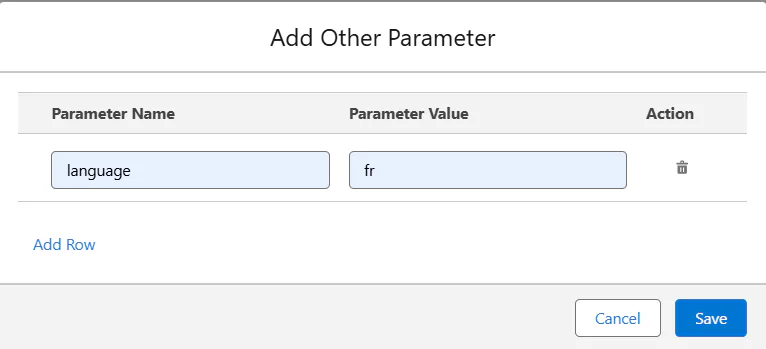
Example
| Label value | Syntax | Output with language=fr |
|---|---|---|
| Created Date | {{CustomLabel.CreatedDate}} | Date de création |
Works in
Word (DOCX) templates: the example on this page is a Word template field.
Common errors
- The document shows the tag, or a blank, instead of the label. Check that the label name matches the custom label in Salesforce exactly, and retype the whole tag in one go. See Merge fields are blank or show their tags.
- The label isn't translated. Check the
languageOther Parameter is saved on the solution and that the custom label has a translation for that language in Salesforce.