
The directemailsender parameter sends the email automatically, without the preview step. When it is on, Docs Made Easy skips the email preview screen and sends the email directly using your configured email settings.
Syntax
As an Other Parameter on the solution's Assign Behaviors page:
Parameter Name:  directemailsender
Parameter Value: 1
In the solution button's URL (specify the template and recipient in the button):
&directemailsender=1
Values
| Value | Effect |
|---|---|
1 | Skips the email preview screen and sends the email directly, using the solution's email settings. |
Where to add it
On your solution's Assign Behaviors page, click Other Parameter in the sidebar, then click Add Other Parameter.
Enter
directemailsenderin Parameter Name and1in Parameter Value, then click Save.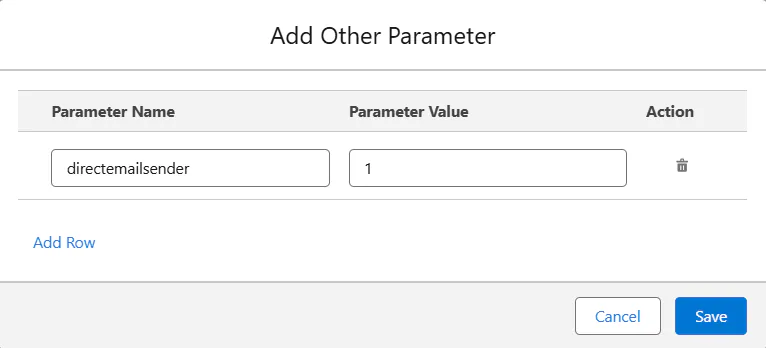
Docs Made Easy adds the Other Parameter to the button URL for you, and you don't need to click Update Button URL for it to take effect. You can also add directemailsender=1 to the button URL yourself.
Example
- Input: a solution with an email template and a recipient set under Assign Behaviors > Email.
- Parameter:
directemailsender=1. - Output: when the user clicks the button, the document is merged and sent by email to the recipient without additional clicks.
Works in
directemailsender is set on the solution, not written in a template. It uses the solution's email settings, so the solution needs an email template and recipients. It works with custom Docs Made Easy email templates.
It also works in background mode (bgm): to send the merged PDF as an email attachment in background mode, use directemailsender. (directstandardemail only previews a Salesforce standard email template before sending.)
The email is sent through Salesforce, so Salesforce email limits apply, and the sent email is recorded in the record's activity history.
Common errors
- The email isn't sent, or the recipient never gets it. Check deliverability, the recipient and the From address. See Email not sent or missing the attachment.
- The email arrives without the document. If the document is too large, the email is sent without the attachment. Also check that the template is added to the solution and your version. See Email not sent or missing the attachment.
- Nothing generates at all. Work through the document didn't generate checklist.