
The directemailpreview parameter skips the Composer page and opens the email preview screen directly. Use it when users only need to review the generated document and send it by email, with no extra navigation.
Syntax
As an Other Parameter on the solution's Assign Behaviors page:
Parameter Name:  directemailpreview
Parameter Value: 1
In the solution button's URL (Docs Made Easy adds each Other Parameter to the button URL for you; see Parameters explained):
&directemailpreview=1
Values
| Value | Effect |
|---|---|
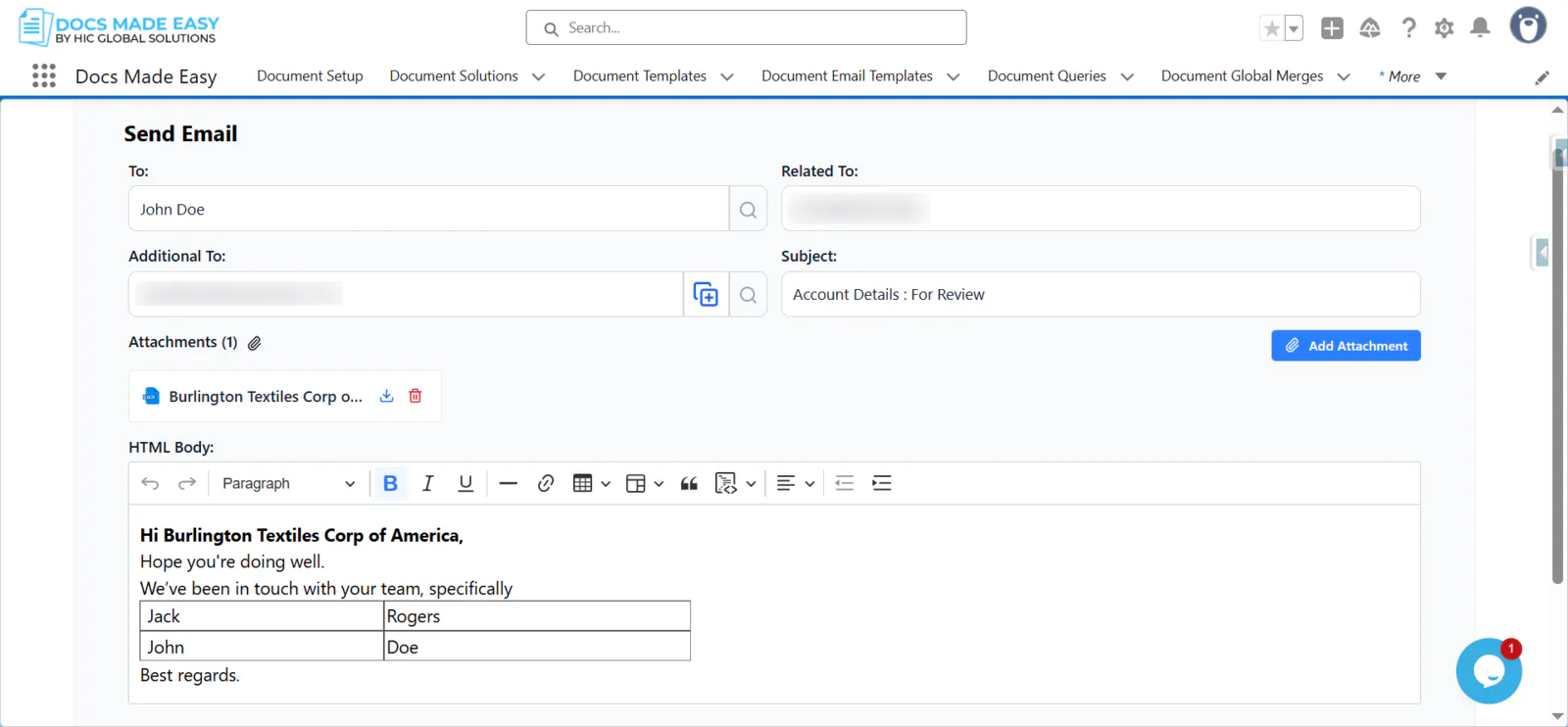
1 | Skips the Composer page and opens the Send Email screen with the generated document attached. |
Where to add it
On your solution's Assign Behaviors page, click Other Parameter in the sidebar, then click Add Other Parameter.
Enter
directemailpreviewin Parameter Name and1in Parameter Value, then click Save.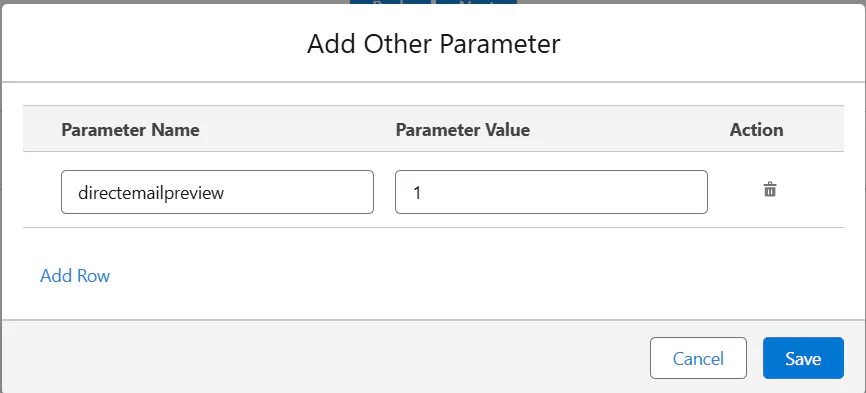
Example
- Input: a user clicks the solution button on a record.
- Parameter:
directemailpreview=1. - Output: the Composer page is skipped and the Send Email screen opens with the recipient, subject, email body and the generated document already attached. The user reviews it and sends.
Works in
directemailpreview is set on the solution, not written in a template, and changes which screen opens after generation.
Combine with
- Don't combine with Background Mode (bgm). Background mode bypasses all interactive screens, including the email preview.
- To send without showing the preview, use directemailsender instead.
- To open the merge preview of the document directly instead of the email preview, use the
enablePreviewparameter. It also skips the Composer page.
Common errors
- The Send Email screen doesn't open. Check that the solution doesn't also use
bgm, which skips all interactive screens. - The email never arrives, or arrives without the document. See Email not sent or missing the attachment.
- Nothing generates at all. Work through the document didn't generate checklist.