
The docfamily parameter groups document templates that belong to the same functional or business context, so you can tell one set of templates apart from another.
Syntax
On the document template record:
Document Template Family: AccountTemplate
As an Other Parameter on the solution's Assign Behaviors page:
Parameter Name:  docfamily
Parameter Value: AccountTemplate
In the solution button's URL (Docs Made Easy adds each Other Parameter to the button URL for you; see Parameters explained):
&docfamily=AccountTemplate
Values
| Value | Effect |
|---|---|
Any group name, for example AccountTemplate | Links the solution's behavior settings to the templates whose Document Template Family has the same value. |
Use exactly the same value on the template and on the Assign Behaviors page.
Where to add it
Open the document template record and set Document Template Family to the group name. This puts the template in that group.
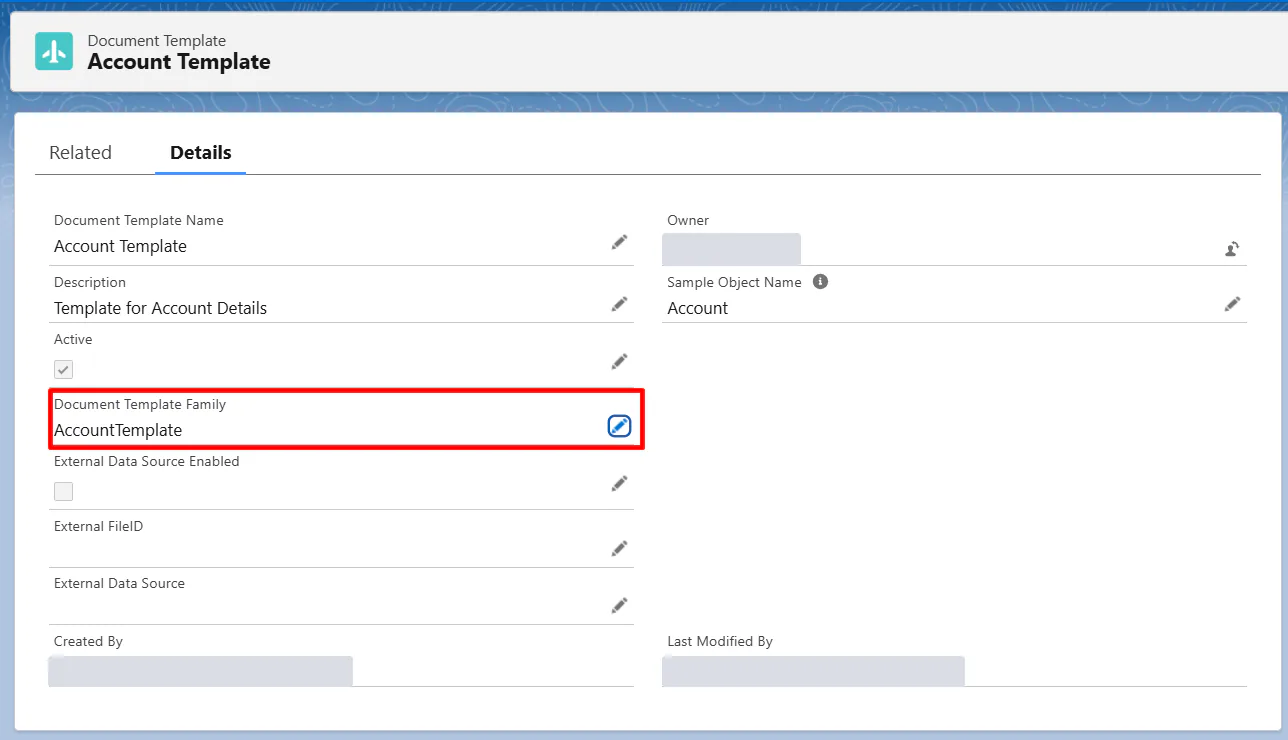
On your solution's Assign Behaviors page, click Other Parameter, then click Add Other Parameter.
Enter
docfamilyin Parameter Name and the same group name in Parameter Value, then click Save. This links the solution's behavior settings to the right group.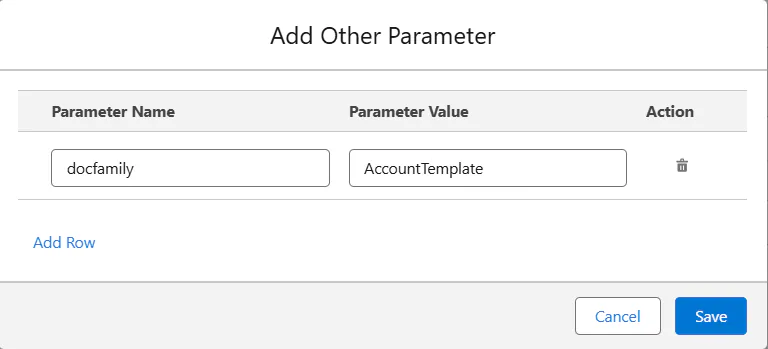
Example
- Input: account templates whose Document Template Family is
AccountTemplate. - Parameter:
docfamily=AccountTemplate. - Output: the solution's behavior settings are linked to the
AccountTemplategroup. The generated document's content and formatting don't change.
Works in
docfamily doesn't change the content or formatting of the document. It is only a classification marker that Docs Made Easy uses internally for grouping and traceability.
Common errors
- The solution doesn't pick up the templates you grouped. Check that Document Template Family and the
docfamilyvalue are exactly the same. - The document didn't generate. Work through the document didn't generate checklist.