
The Output File Name (ofn) parameter sets the name of the generated file. Use it so files follow a predictable, meaningful naming convention that makes them easier to find, index and archive.
Syntax
In the solution's Generated File > Filename setting, or as an Other Parameter:
Parameter Name:  ofn
Parameter Value: {!ObjectAPIName.FieldName}
In the solution button's URL:
&ofn={!Opportunity.Name}
Values
| Value | Effect |
|---|---|
A static name, for example Invoice Template | Every file gets that name. |
A Salesforce merge field, for example {!Opportunity.Name} | The file is named after the field's value on the record. |
The {{TODAY}} tag | Adds today's date to the name. |
A combination, for example {!Account.Name} - {{TODAY}} | Joins fixed text, field values and the date. |
File names can include letters, numbers, spaces, dashes, underscores and periods. Spaces are kept, so Invoice INV-0042 names the file Invoice INV-0042. Exclamation points and braces are allowed only in dynamic text, written in the format {!ObjectApiName.FieldName}.
You don't need to type the file extension: for PDF output, .pdf is added automatically.
Where to add it
Open your document solution and go to the Assign Behaviors step.
In the sidebar, click Generated File.
Enter the file name in Filename, then click Save.
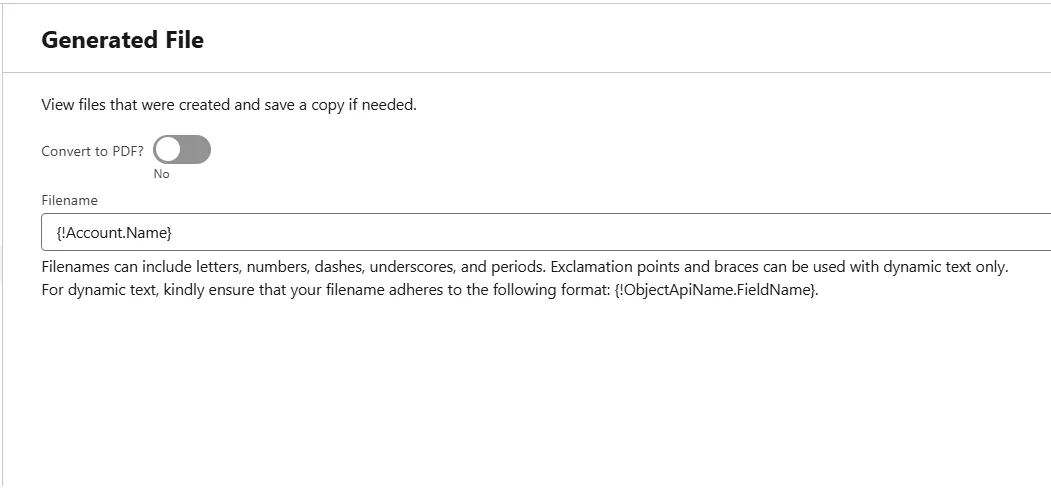
You can also add ofn to the solution's button URL, for example &ofn={!Opportunity.Name}.
Example
| Use case | Parameter value | Record data | Resulting file name |
|---|---|---|---|
| Static name | Invoice Template | (none) | Invoice Template |
| Merge field | {!Opportunity.Name} | Opportunity Name: Acme Expansion Deal | Acme Expansion Deal |
| Merge field and date | {!Account.Name} - {{TODAY}} | Account Name: ACME, generated on 10 July 2025 | ACME - 10-Jul-2025 |
| Object API field | {!Account.AccountNumber} | Account Number: CD656092 | CD656092 |
Works in
ofn is set on the solution, not written in a template. The articles use it to name Word and PDF output, for example with Convert to PDF? in the recipe guides.
Combine with
- Default PDF: turn on Convert to PDF? in the same Generated File section for a named PDF.
Common errors
- Generation fails with an invalid field error. Check the object and field API names in
{!Object.Field}. See DME-SF-002. - The file name looks wrong or characters are missing. Use only letters, numbers, spaces, dashes, underscores and periods outside the
{!…}dynamic text. - The date in the name isn't in the format you want. See Wrong date, number or currency format.