
The Checkbox parameter shows a checked box (☑) or an empty box (☐) in your document, depending on whether a Salesforce field matches a value you specify. Use it for yes/no values, selected options and picklist-driven checklists in contracts, forms and checklists.
Syntax
{{Checkbox:Object.Field:ExpectedValue}}
Values
| Component | Effect |
|---|---|
Object.Field | The field to check, for example Account.Rating. |
ExpectedValue | The value that produces a checked box (☑). Any other value produces an empty box (☐). |
Where to add it
Type the Checkbox merge field in your Word template where you want the box to appear.
Example
| Syntax | Field value | Output |
|---|---|---|
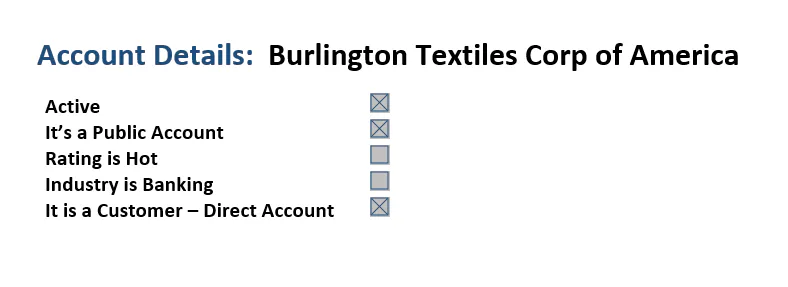
{{Checkbox:Account.Active__c:Yes}} | Yes | ☑ Checked |
{{Checkbox:Account.Ownership:Public}} | Public | ☑ Checked |
{{Checkbox:Account.Rating:Hot}} | Warm | ☐ Unchecked |
{{Checkbox:Account.Industry:Banking}} | Apparel | ☐ Unchecked |
{{Checkbox:Account.Type:Customer - Direct}} | Customer - Direct | ☑ Checked |
The generated document shows the boxes like this:
Works in
The examples on this page use a Word template.
Common errors
- The box is always empty. Any value other than
ExpectedValuegives an empty box. Open the record and compare the field's value withExpectedValue. - The document shows the tag or the field's value as text. Check the tag's spelling, and retype it if Word split it with mixed formatting. See Merge fields are blank or show their tags.
- An error names the field. The field name is wrong or you can't see the field. See DME-SF-002.