
The Default PDF setting makes PDF (Adobe Acrobat) the default output type when documents are generated from a solution.
Syntax
Default PDF is a behavior setting on your document solution, not a template tag or an Other Parameter:
Assign Behaviors > Generated File > Convert to PDF? Yes
Values
| Value | Effect |
|---|---|
| Yes | Sets PDF as the default output type, so generated documents are converted to PDF. |
| No | PDF isn't the default output type. |
Where to add it
Open your document solution and go to the Assign Behaviors step.
In the sidebar, click Generated File.
Turn on Convert to PDF?, then click Save.
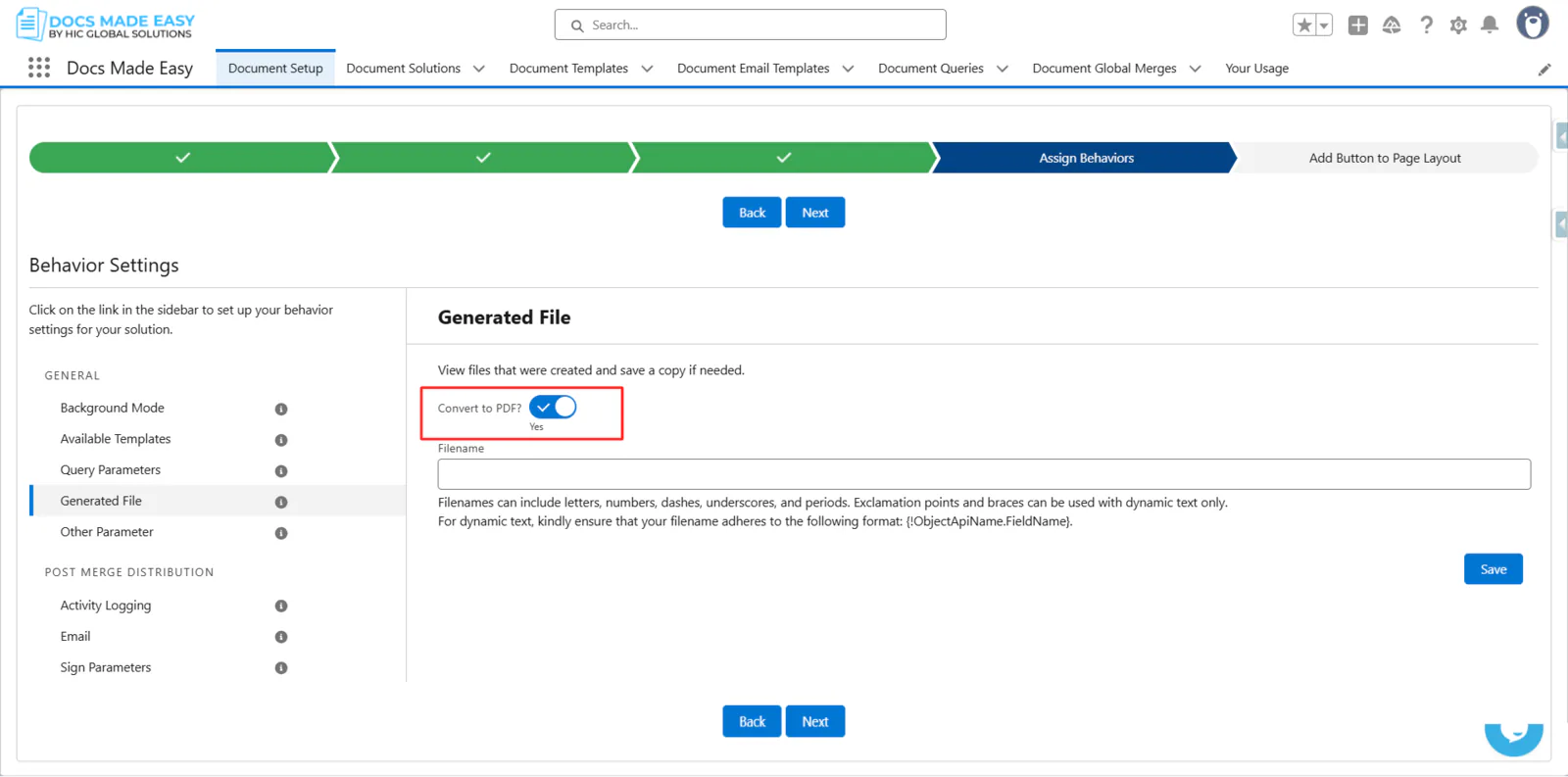
Example
- Input: a Word quote template in a solution.
- Setting: Generated File > Convert to PDF? on.
- Output: the generated quote is a PDF, so customers get a document they can't edit. The recipe guides, such as Generate a quote, use this setting.
Works in
Convert to PDF? is available in Basic and Pro. In both editions, a Word (.docx) template can be generated as a Word document or, with this setting on, as a PDF.
You set it in the solution's settings only. You don't need to edit the button URL or click Update Button URL for it to take effect.
Combine with
- Output file name (ofn): set Filename in the same Generated File section to name the PDF.
- Background Mode (bgm):
bgm=1saves the PDF to the record's Files. See Where generated documents are saved.
Common errors
- The PDF looks different from the Word template (fonts, page breaks, floating images). See The PDF looks different from my Word template.
- The document comes out as Word. Check that Convert to PDF? is on and saved in the solution's Generated File section.
- The document didn't generate. Work through the document didn't generate checklist.