
The WATERMARK parameter adds a text watermark to your Word document, using the value of a Salesforce field as the text. You can set the font, width, height, rotation angle and color, for example to mark a document as draft or confidential.
Syntax
{{WATERMARK:FieldName:Font:Width:Height:Rotation:ColorCode}}
Values
| Component | Effect |
|---|---|
FieldName | The Salesforce field whose value becomes the watermark text, for example Account.Name. |
Font | Font family, for example Arial, Times New Roman or Calibri. |
Width | Width of the watermark in pixels. |
Height | Height of the watermark in pixels. |
Rotation | Rotation angle in degrees, for example 45 or -30. |
ColorCode | Hex code of the text color, for example #D3D3D3 for light gray. |
Where to add it
Type the WATERMARK merge field anywhere in the body of your Word template. Don't put it in a header or footer. The watermark appears on every page of the generated document.
Example
| Use case | Syntax | Field value | Output |
|---|---|---|---|
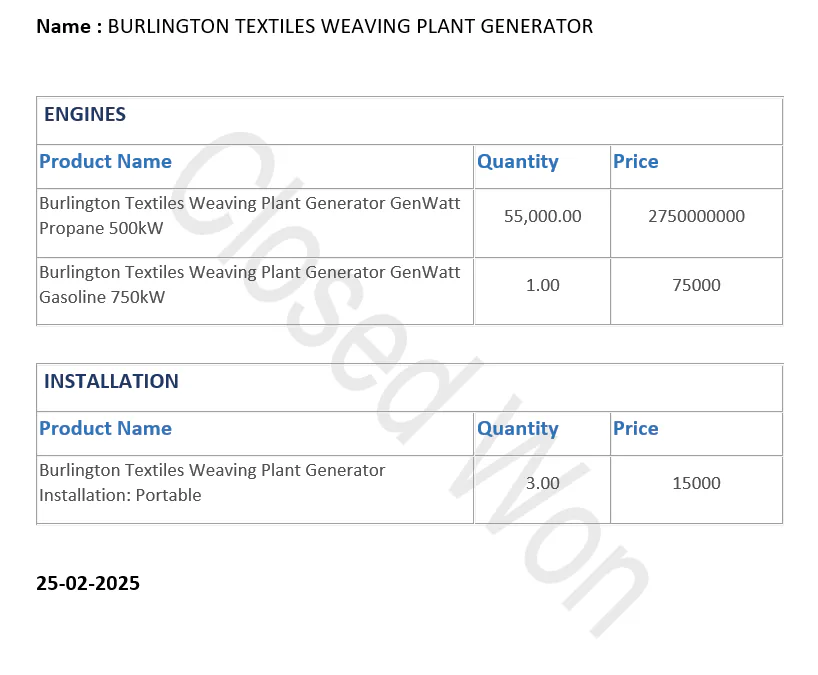
| Opportunity stage watermark | {{WATERMARK:Opportunity.StageName:Arial:400:100:45:#D3D3D3}} | Closed Won | "Closed Won" diagonally in gray |
The generated document with the watermark:
Works in
Word documents.
Notes
The watermark text comes from a Salesforce field. Make sure the field contains suitable display text, especially with fields such as Opportunity.StageName or RecordType.Name.
Common errors
- No watermark appears. The field is empty on the record, so there is no text to show. See Merge fields are blank or show their tags.
- An error names the field. The field name is wrong or you can't see the field. See DME-SF-002.
- A template syntax error. Compare the tag with the syntax on this page, part by part, with colons between the parts. See DME-TPL-000.