
The EmailFromId parameter sets the From address when Docs Made Easy sends emails. It uses an organization-wide email address that is already set up in Salesforce as the sender.
Syntax
As an Other Parameter on the solution's Assign Behaviors page:
Parameter Name:  EmailFromID
Parameter Value: 0D2XXXXXXXXXXXX
In the solution button's URL (Docs Made Easy adds each Other Parameter to the button URL for you; see Parameters explained):
&EmailFromID=0D2XXXXXXXXXXXX
Parameter names aren't case-sensitive, so EmailFromID and EmailFromId both work.
Values
| Value | Effect |
|---|---|
The 15-character Salesforce ID of an organization-wide email address, usually starting with 0D2 | Emails that Docs Made Easy sends use that address as the From address. |
The organization-wide address must already exist. To set one up, go to Setup > Organization-Wide Addresses. The ID is different in every org, so update it after a sandbox refresh or migration.
Where to add it
On your solution's Assign Behaviors page, click Other Parameter in the sidebar, then click Add Other Parameter.
Enter
EmailFromIDin Parameter Name and the address ID in Parameter Value, then click Save.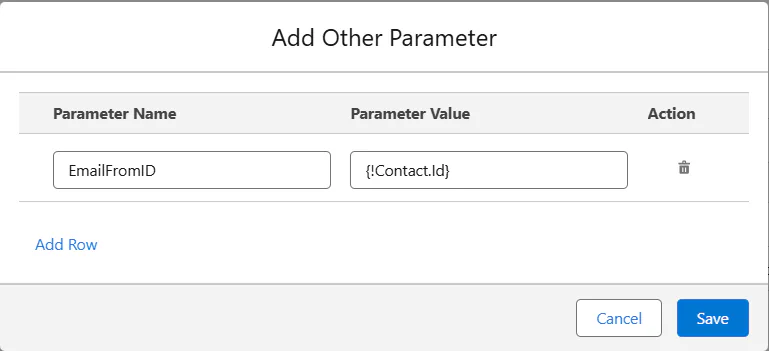
Example
- Input: an organization-wide address such as a shared sales address, with the ID
0D2XXXXXXXXXXXXin Setup > Organization-Wide Addresses. - Parameter:
EmailFromID=0D2XXXXXXXXXXXX. - Output: the email that Docs Made Easy sends shows that organization-wide address as the From address, instead of the sending user's own address.
Works in
EmailFromId is set on the solution, not written in a template, and affects only the email that sends the document.
Notes
Common errors
- The email comes from your own address instead of the organization-wide address. Check that the address exists, is verified and is available to the sender's profile, and that the ID comes from this org. See Email not sent or missing the attachment.
- The email isn't sent. See Email not sent or missing the attachment.