
Activity logging makes Docs Made Easy log a task or activity on the record automatically when a document is generated. You choose whether an activity is logged, its subject, when to follow up and the task status.
Syntax
Activity logging is a behavior setting on your document solution, not a template tag or an Other Parameter:
Assign Behaviors > Post Merge Distribution > Activity Logging
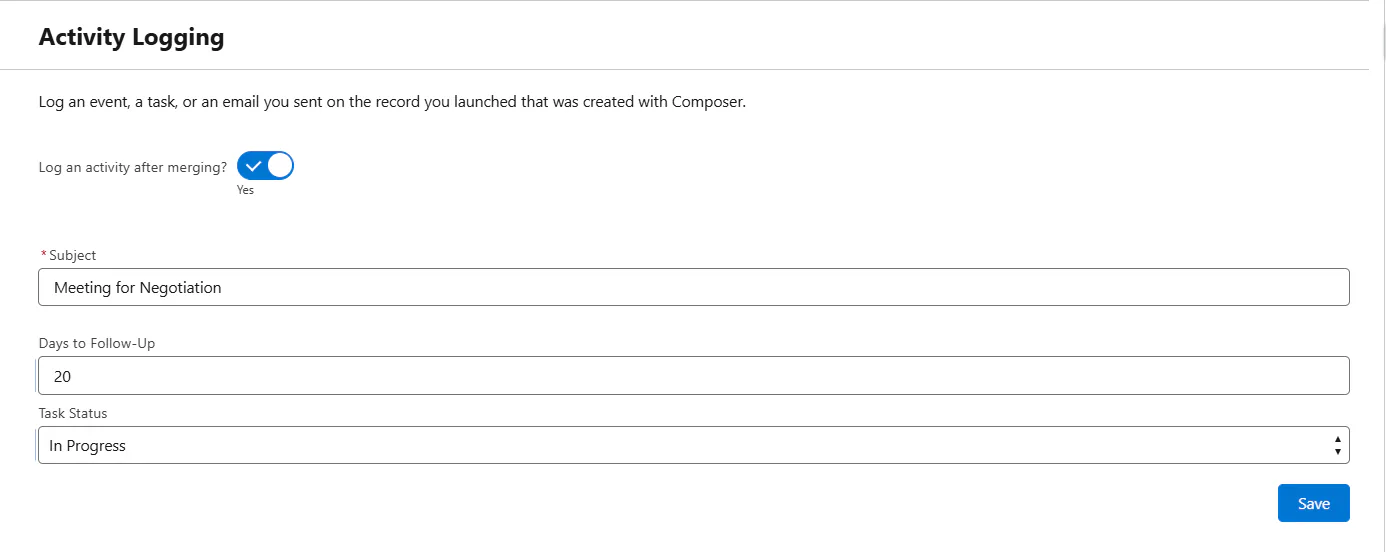
  Log an activity after merging?  Yes
  Subject:                        Meeting for Negotiation
  Days to Follow-Up:              20
  Task Status:                    In Progress
Values
| Setting | Value and effect |
|---|---|
| Log an activity after merging? | Yes logs an activity each time a document is generated. No turns logging off. |
| Subject (required) | The subject of the logged activity, for example Meeting for Negotiation. |
| Days to Follow-Up | When the follow-up is due, for example 20. |
| Task Status | The status of the logged task, for example In Progress. |
Where to add it
Open your document solution and go to the Assign Behaviors step.
In the sidebar, under Post Merge Distribution, click Activity Logging.
Turn on Log an activity after merging?.
Fill in the settings, then click Save.
Example
- Input: a user generates a document from an opportunity with this solution.
- Setting: Log an activity after merging? on, Subject
Meeting for Negotiation, Days to Follow-Up20, Task Status In Progress. - Output: a task with the subject Meeting for Negotiation and the status In Progress is logged on the opportunity, with its follow-up set by the 20 days you entered.
Works in
Activity logging is set on the solution, not written in a template. It logs a task on the record when a document is generated.
You set it in the solution's settings only. You don't need to edit the button URL or click Update Button URL for it to take effect.
Common errors
- No task appears on the record. Check that Log an activity after merging? is on and that Subject is filled in (it's required), then click Save again.
- Salesforce reports insufficient access. The user needs access to the record and permission to create tasks on it. See DME-SF-004.
- The document didn't generate at all. Work through the document didn't generate checklist.