
The redirecttourl parameter sends the user back to a page they were already on, such as the record page they started from.
Syntax
As an Other Parameter on the solution's Assign Behaviors page:
Parameter Name:  redirecttourl
Parameter Value: /{!Account.Id}
In the solution button's URL:
&redirecttourl=/{!Account.Id}
Values
| Value | Effect |
|---|---|
A relative URL path, for example /{!Account.Id} | Sends the user to that page, here the Account record, after Docs Made Easy finishes. |
Use Salesforce button syntax, {!Object.Field}, for the record ID, and use the ID field of your object, for example /{!Opportunity.Id}.
Where to add it
On your solution's Assign Behaviors page, click Other Parameter in the sidebar, then click Add Other Parameter.
Enter
redirecttourlin Parameter Name and the path in Parameter Value, then click Save.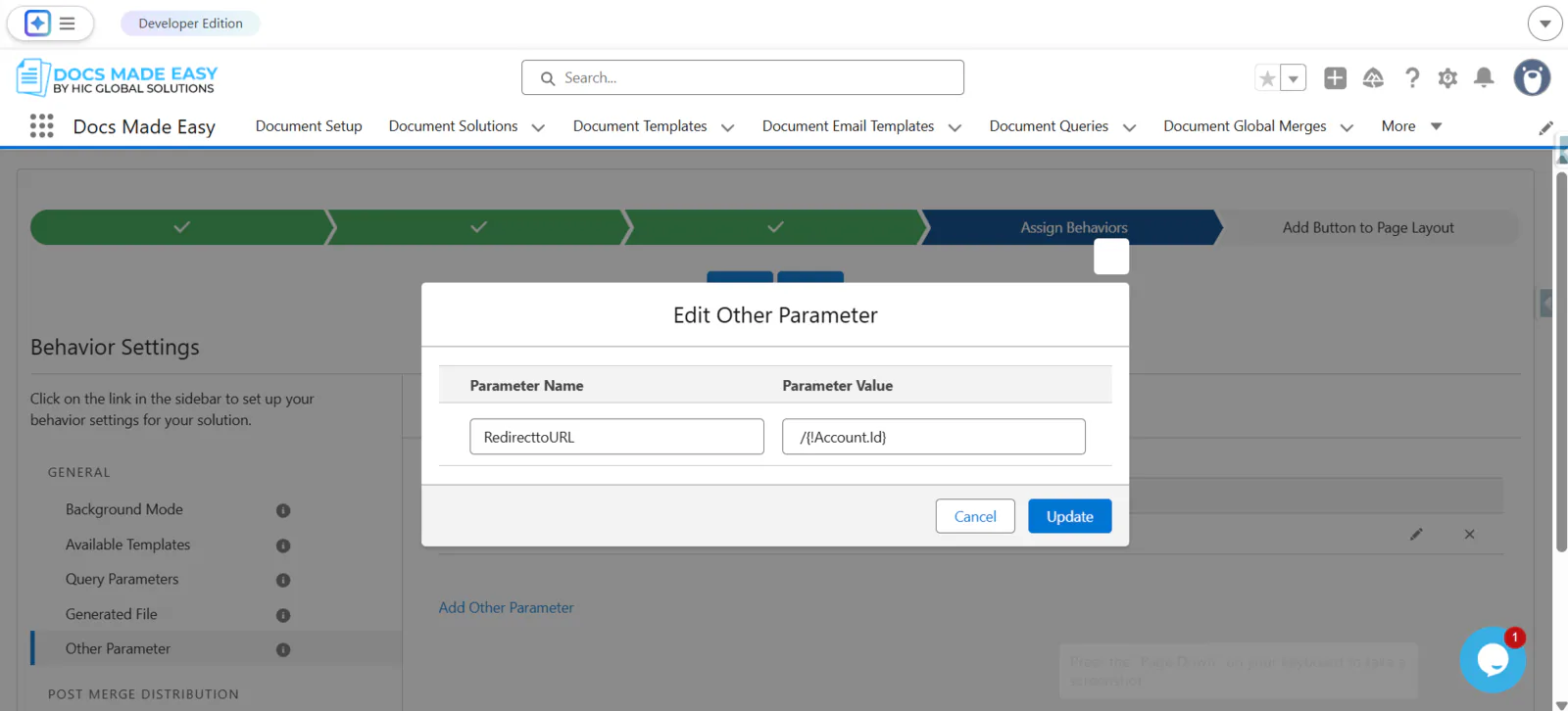
Example
- Input: a user generates a document from an opportunity.
- Syntax:
bgm=1,SkipDownload=1andredirecttourl=/{!Opportunity.Id}as Other Parameters. - Output: the document is saved to the opportunity's Files, nothing downloads, and the user lands back on the opportunity record.
Works in
redirecttourl is set on the solution, not written in a template. The articles use it with SkipDownload and background mode, and in the eSignature setup.
Combine with
- SkipDownload and Background Mode (bgm): save the file without a download, then return the user to the record. See Where generated documents are saved.
Common errors
- The user lands on the wrong page or an error page. Check that the value starts with
/and uses the ID field of your object, for example/{!Contract.Id}on a contract solution. - The document didn't generate. Work through the document didn't generate checklist.