
A SOQL query pulls live Salesforce data into a document at the time it is generated, so the document always reflects the current record. Queries can fetch fields from standard or custom objects, apply filters and pull in related records through parent-child relationships.
Create a query
Go to Document Setup, then Gather Data, and click SOQL Queries.
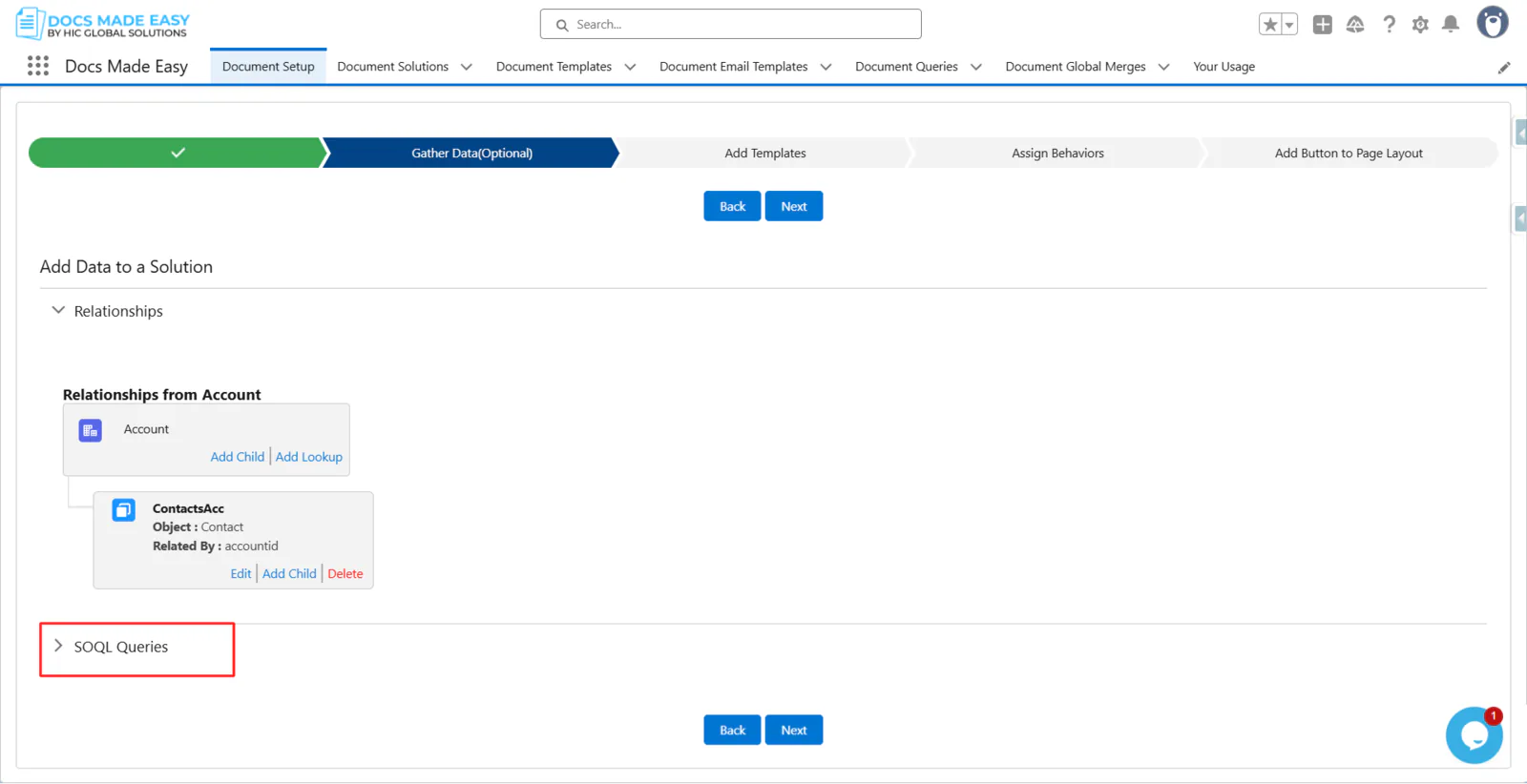
Click Create New Query. The query builder opens.
Enter a name for the query, select the object to fetch data from (for example, Account) and enter an Alias. Optionally, add a description, such as the purpose of the query or the data it fetches.
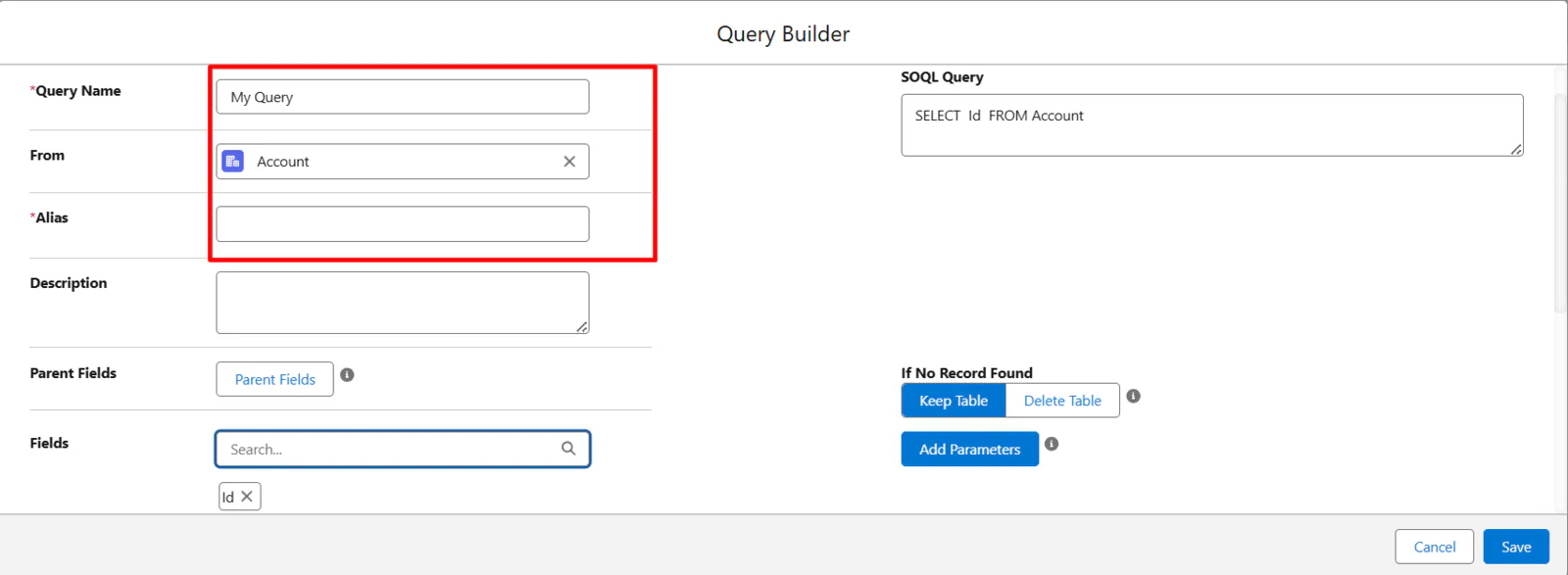
Search for a field in the field search bar and select it to add it to the query. To include parent fields, such as Parent Account, or Account for a Contact query, click Parent Fields.
Choose what happens to the table when the query returns no records: click Keep Table to show it or Delete Table to hide it.
Optionally, add filters in the filter section and choose a filter condition, for example Account Name equals Joe. The filter appears in the query.
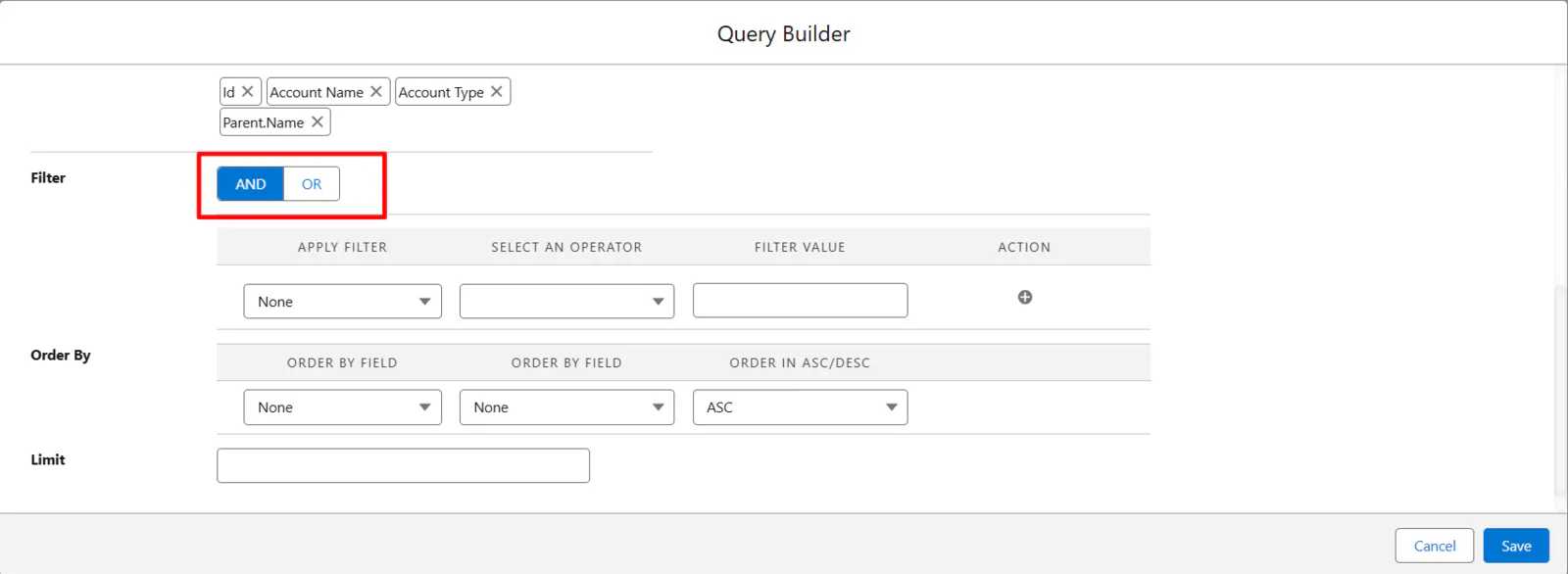
Optionally, set a sort order in the Order By section, choosing a field and the sort direction (ascending or descending).
Optionally, enter a Limit: the maximum number of records to show in the document.
Add the
pv0parameter to make the query dynamic, so it returns data for the record the document is generated from.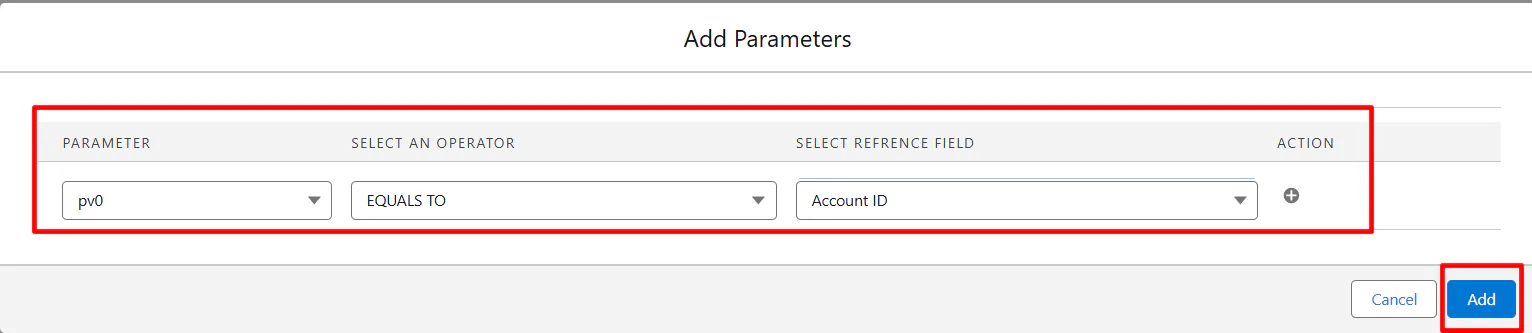
The query is now ready to use.
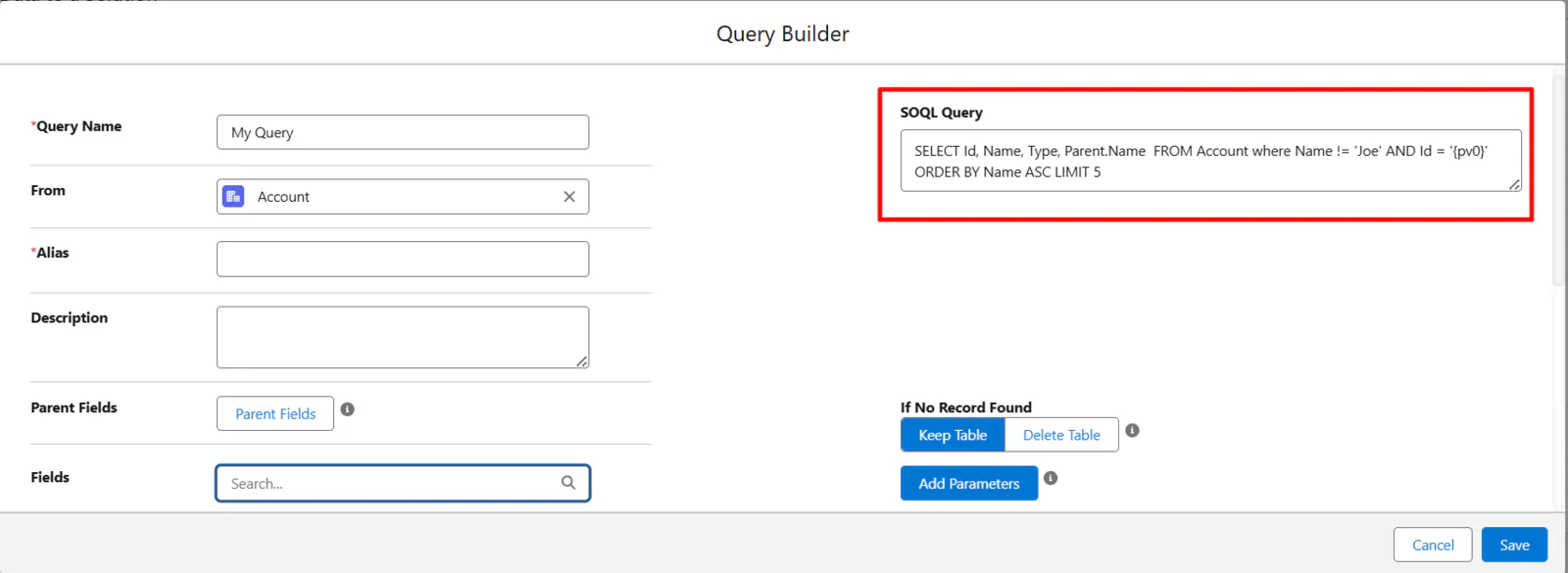
Click Save. The query appears in the SOQL Queries section. If you don't see it, search for it in the search bar and select it.
Add the query data to a template
While you upload the template, open the Merge Field Helper to find your query fields.
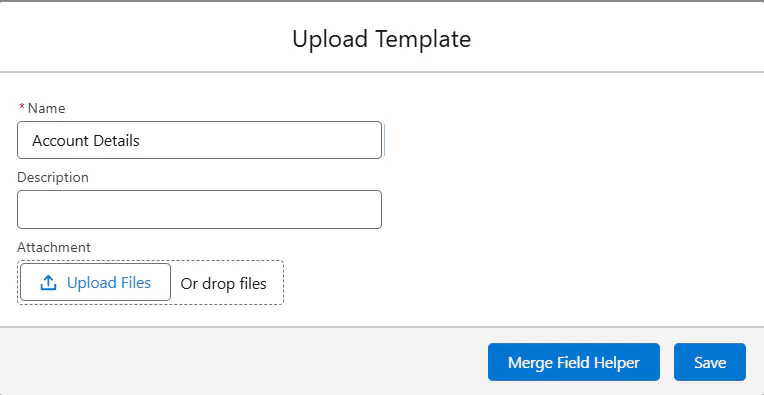
Select the syntax, copy it and paste it into your template.
In the Assign Behaviors step, add the
pv0parameter in the Other Parameter section.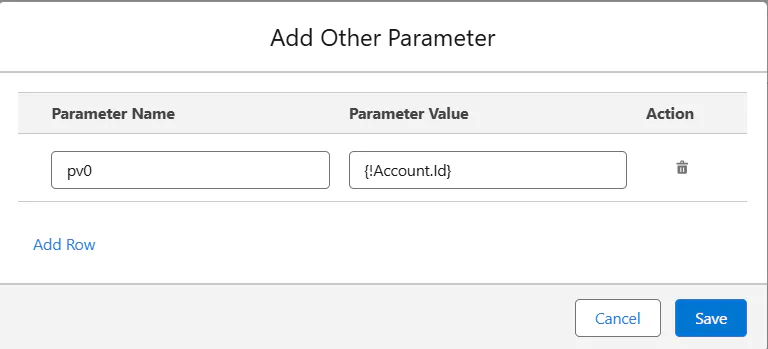
Next steps: Create a document query with the pv0 parameter · Use SOQL query merge fields in Excel · Use QVars in Docs Made Easy