
Conditional statements control what content appears in a generated document based on the values of Salesforce fields or parameters. One template can then produce documents tailored to each recipient, without separate template versions.
This article uses Microsoft Word IF fields. For most templates, use the native {{IF}} syntax instead. It works inside tables and supports escape sequences for special characters. See A guide to native conditional statements.
Insert an IF field
Open your template in Microsoft Word.
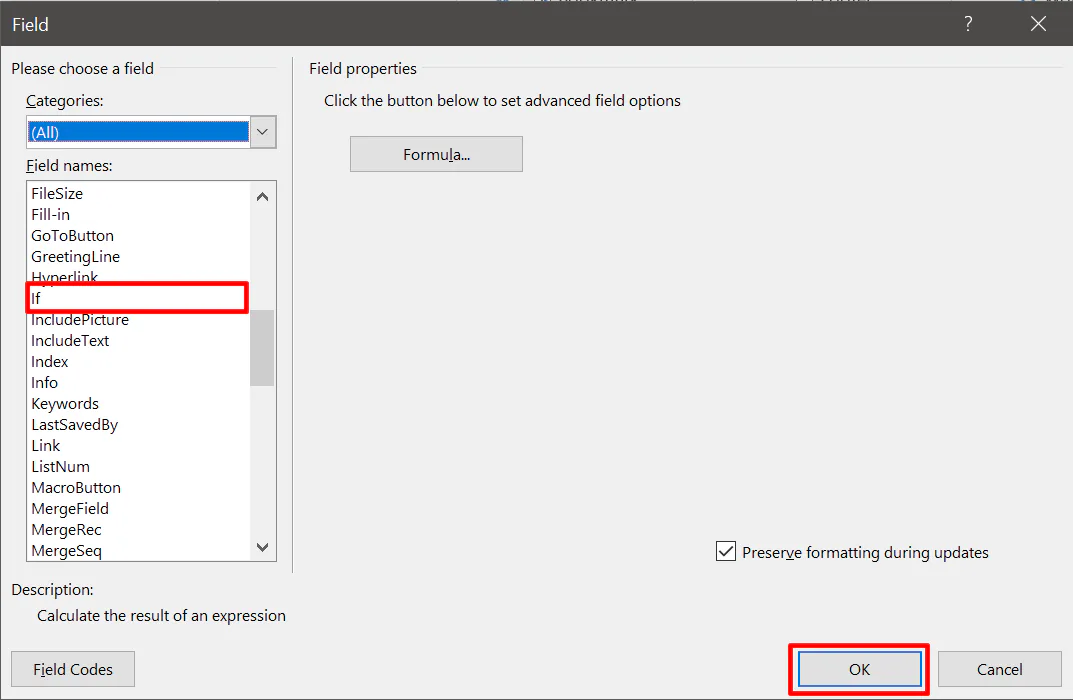
On the Insert tab, click Quick Parts, then select Field…. The Field dialog opens.
In the Field names list, select IF, then click OK. Word inserts the placeholder text "Error! Missing test condition."
Right-click the placeholder text and select Toggle Field Codes. The field code appears in braces.
Enter your condition. In this example, the document shows one sentence when the
UpsellOpportunity__cfield is "Yes" and another sentence otherwise:{ IF "{{Account.UpsellOpportunity__c}}"="Yes" "This account has an active upsell opportunity under review." "No upsell opportunities are currently identified for this account." \* MERGEFORMAT }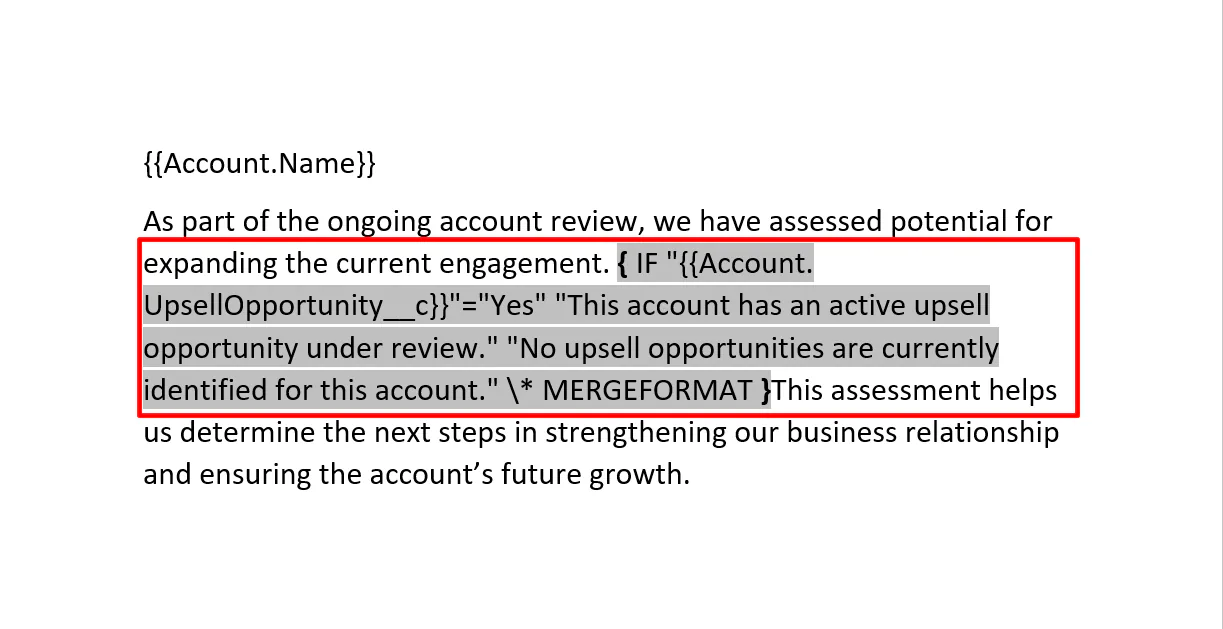
Right-click the field code and select Toggle Field Codes again to switch back to the normal view. Your template is ready to use.
Example output
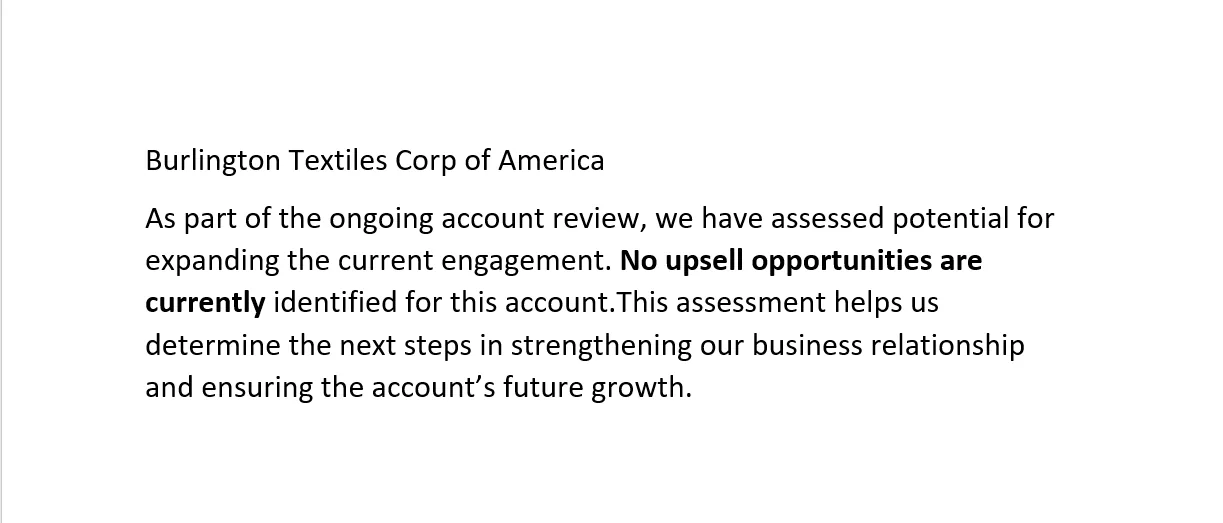
When Upsell Opportunity is "No" on the account record, the generated document shows the "No upsell opportunities" sentence:
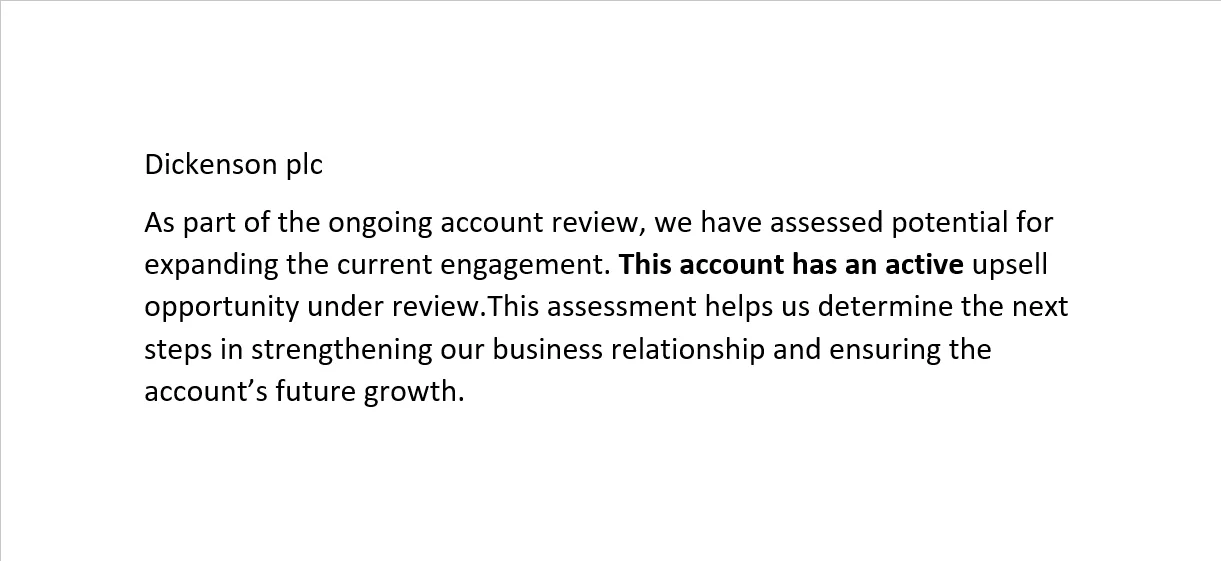
When Upsell Opportunity is "Yes" on the account record, the generated document shows the "active upsell opportunity" sentence:
Related: A guide to native conditional statements · Handle special characters in IF conditions