
At a glance
- Edition: Basic
- Action required: Upgrade to get these changes.
- Highlights:
- Pull a parent's child records into one template with nested queries.
- Show currency amounts in each reader's local format with CurrencyCulture.
- Swap characters or text in a field value with REPLACE.
This release adds nested queries, upper case and lower case parameters, the Global Merge feature, phone number formatting, the CurrencyCulture parameter and the REPLACE parameter. Together they give you more flexibility and control over the documents you generate.
Get the latest version · Check your installed version and upgrade
New features
1. Nested queries
Nested queries, also known as subqueries, retrieve related data from child objects based on a parent object. You can fetch information from related records without running several separate queries.
Nested SOQL query syntax
A nested SOQL query can display each child account with all its open opportunities, recent cases and active contacts, followed by the next child account with the same details.
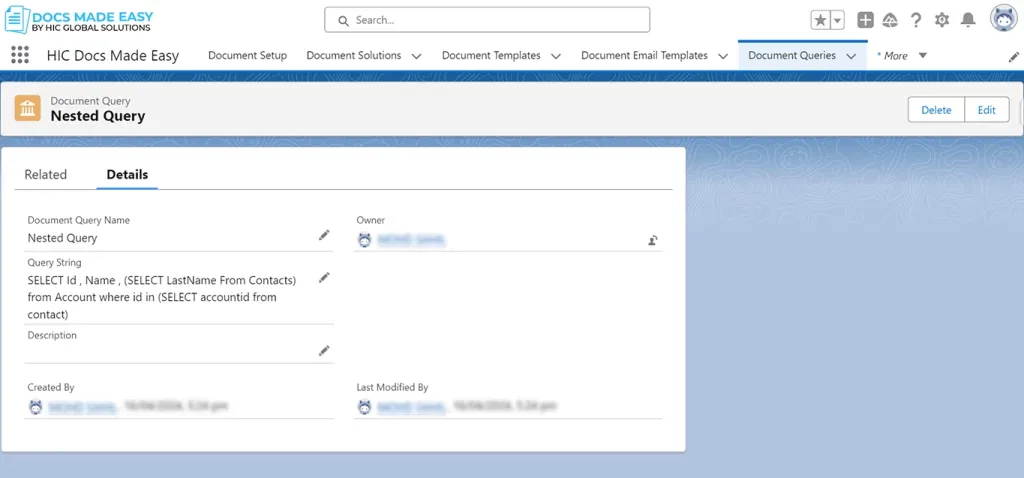
Use nested query data in a Word template
You can use the data from nested queries directly in Word templates to include related records in your documents.
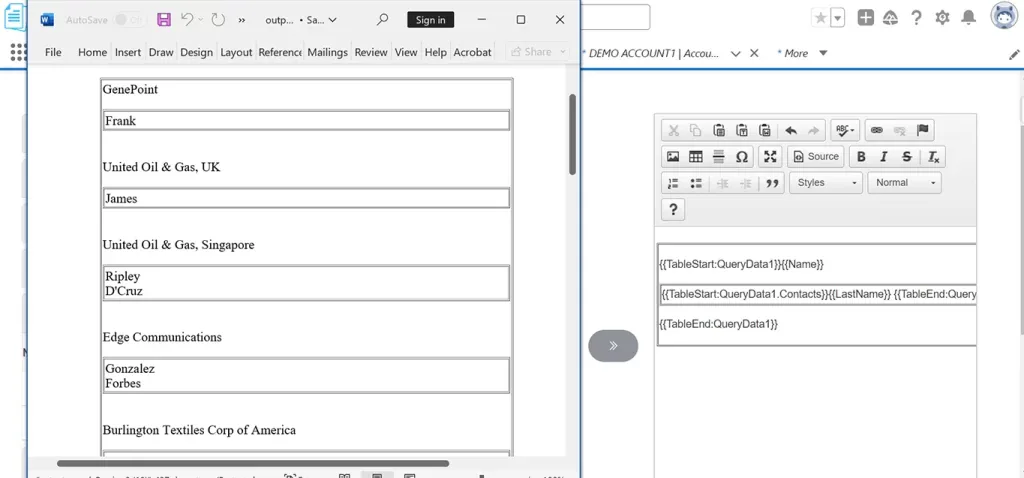
See Use nested queries and nested tables in a template.
2. Lower case and upper case parameters
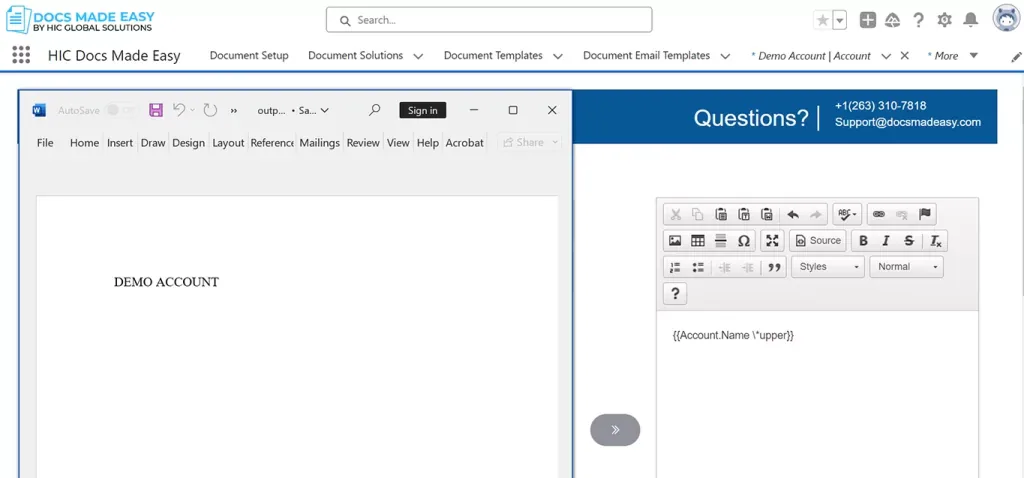
New parameters convert text to upper case or lower case in your document templates, so you can keep text formatting consistent.
The upper case parameter, for example {{Contact.Name \* upper}}:
The lower case parameter, for example {{Account.Name \* lower}}:
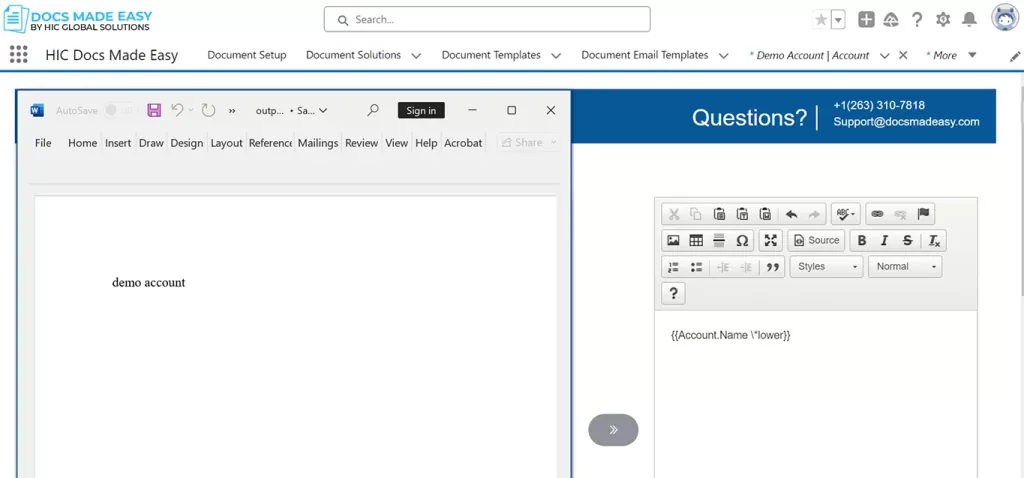
See Upper case and Lower case.
3. Global Merge
The new Global Merge feature merges documents from different sources into a single document. It gives you one place to combine data from multiple objects or records.
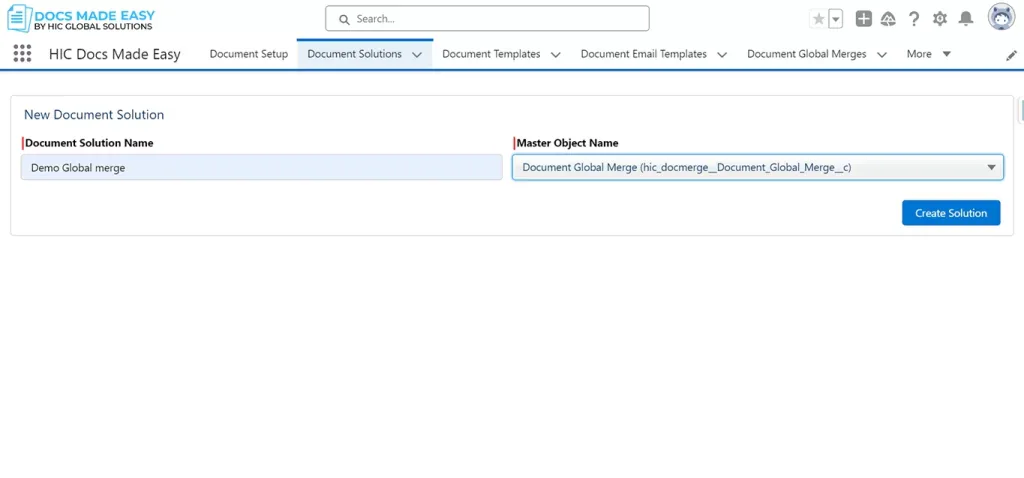
Global Merge is a separate feature from the MergeDocument parameter. To use it, you create a solution on the Document Global Merge object.
To combine the templates in one solution into a single document instead, see Merge several templates into one document.
4. Phone number formatting
You can now apply predefined formats to phone numbers in document templates, so they display consistently.
| Format | Example |
|---|---|
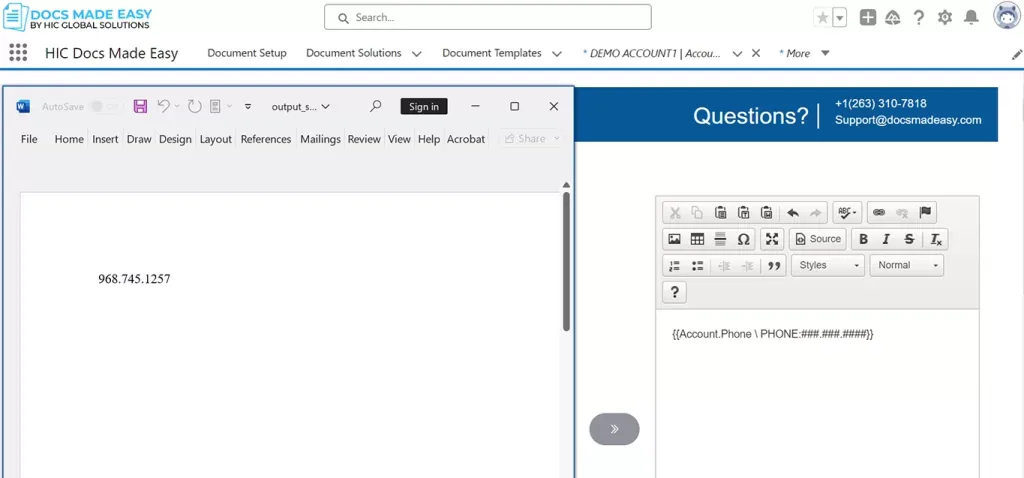
\ Phone:###.###.#### | {{Account.Phone \ Phone:###.###.####}} |
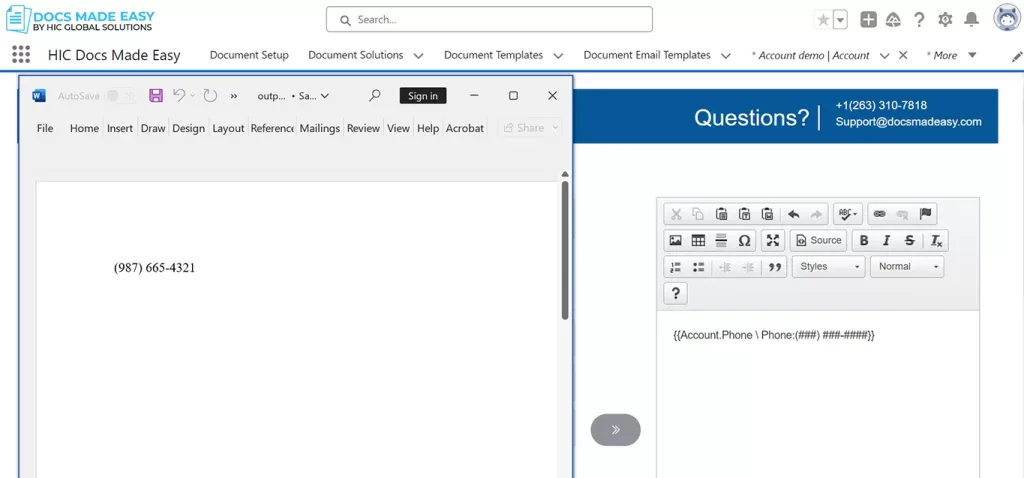
\ Phone:(###) ###-#### | {{Account.Phone \ Phone:(###) ###-####}} |
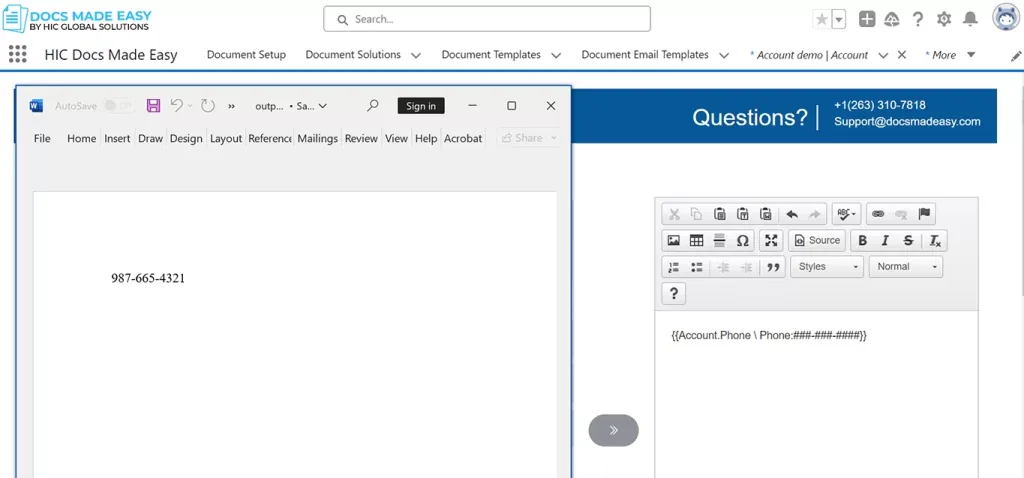
\ Phone:###-###-#### | {{Account.Phone \ Phone:###-###-####}} |
\ Phone:###-###-####:INTERNATIONAL | {{Account.Phone \ Phone:###-###-####:INTERNATIONAL}} |
Format ###.###.#### in a template:
Format (###) ###-#### in a template:
Format ###-###-#### in a template:
Format ###-###-####:INTERNATIONAL in a template:
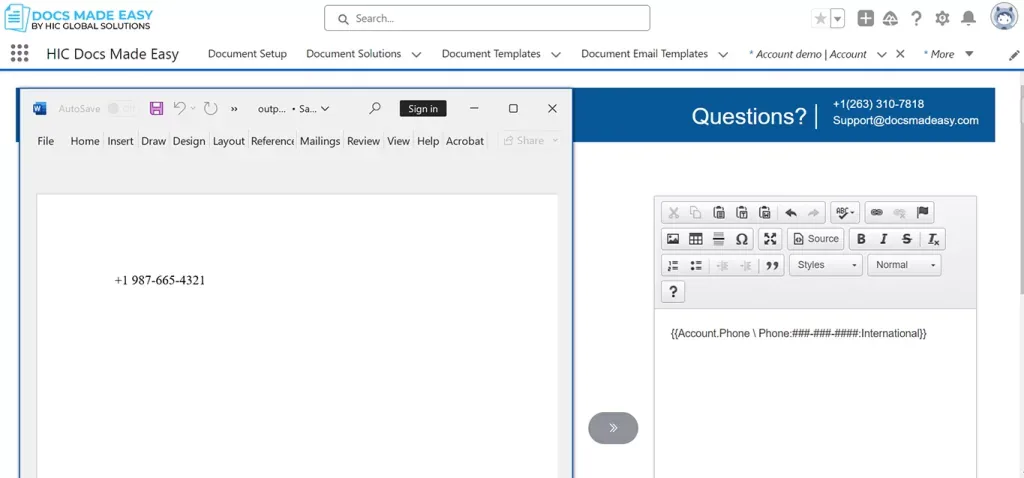
See Phone format.
5. CurrencyCulture
The CurrencyCulture parameter sets how currency values are displayed for a given culture or user locale, so amounts appear in a format that is familiar to each reader.
The parameter lets you customize currency formatting beyond the default culture settings. It can handle up to 5 different currency values at the same time and works in Word templates.
A culture code has two lowercase letters, a hyphen and two uppercase letters, for example en-US. The first two letters are the language and the last two are the country.
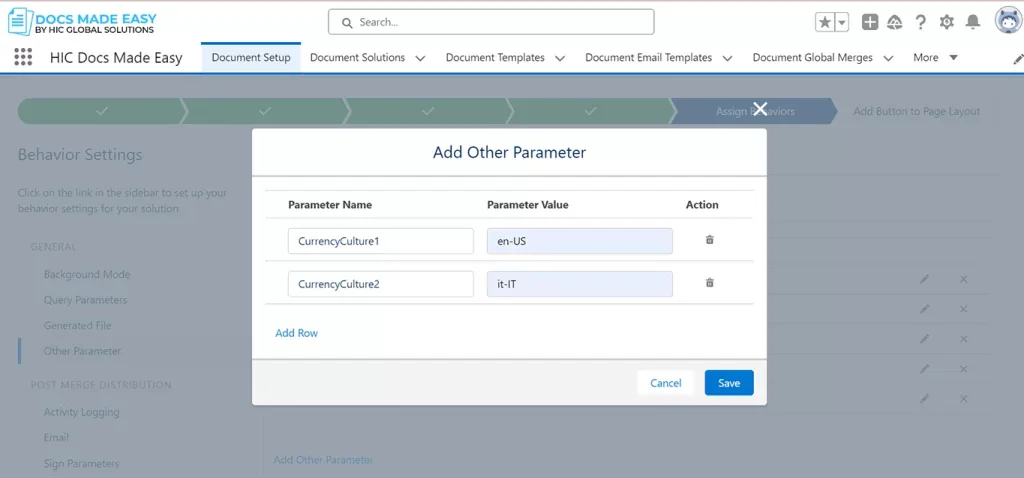
The generated document shows each amount in its culture's format.
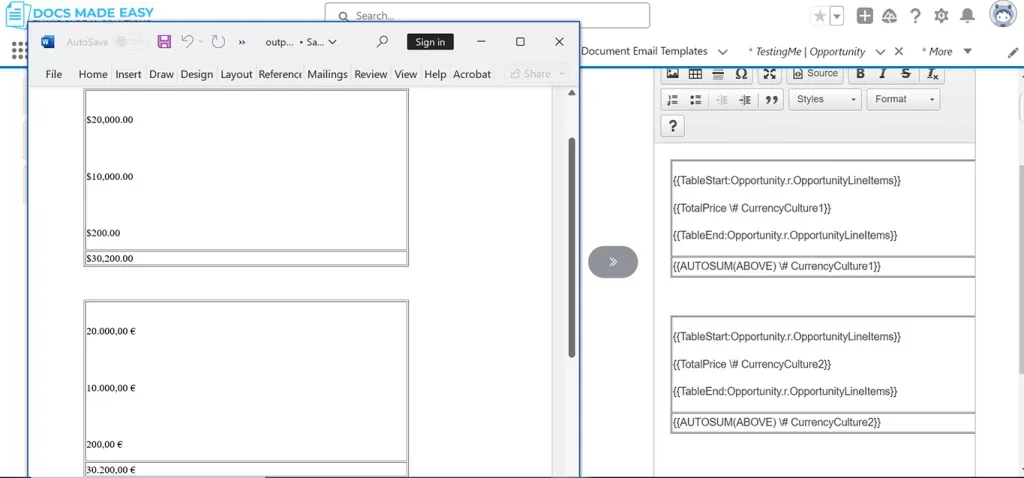
See CurrencyCulture.
6. REPLACE
The new REPLACE parameter replaces specific values in your documents.
Syntax: {{REPLACE:FieldName:FromValue:ToValue}}
Syntax for spaces, commas and similar characters: {{REPLACE:FieldName:FromValue:{COMMA}{SPACE} }}
Supported entries for FromValue and ToValue: {COMMA}, {COLON}, {SPACE}, {NEWLINE}, {PERIOD}, {SEMICOLON}
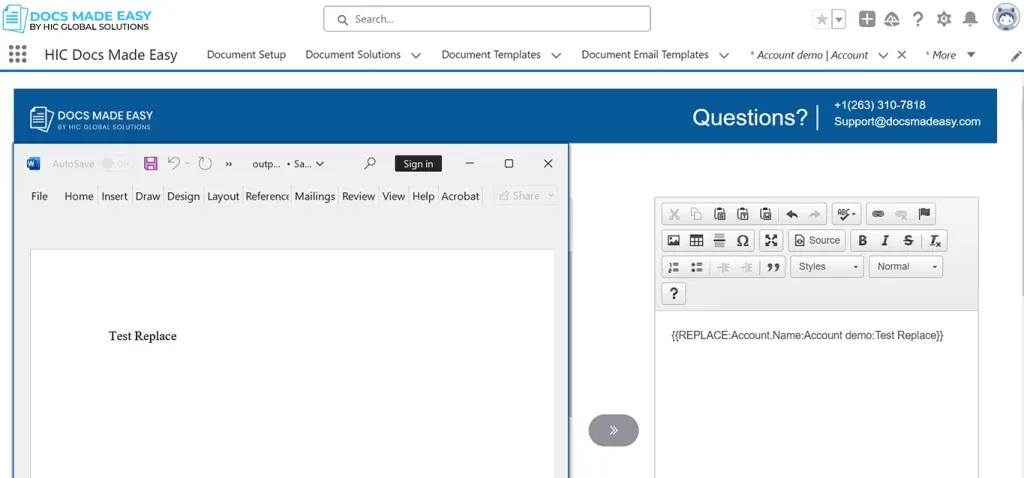
See REPLACE.
Bug fixes
- Fixed: Times (including AM/PM) didn't display accurately in generated documents. See Time and AM/PM.
- Fixed: You couldn't set an image's height and width in a document template. See Image H and W.
Enhancements
Along with the new features and bug fixes, the app is faster and performs better.
Related: Template syntax basics · Previous release: Release notes: February 2024 (v1.13.0) · Next release: Release notes: May 2024 (v1.20.0)