
For admins and template authors: build a Generate Invoice button on Opportunity that creates a numbered PDF invoice with line items, currency-formatted totals and a 30-day due date, and saves it to the opportunity's Files. It takes about 20 minutes with the sample template on this page.
What you'll build
For the sample opportunity Burlington Textiles Weaving Plant Generator, generated on November 20, 2026, the invoice reads:
INVOICE INV-0042 Date: 11/20/2026 · Due date: 12/20/2026 Bill to: Burlington Textiles Corp of America, 525 S. Lexington Ave, Burlington, NC 27215
| # | Description | Qty | Unit price | Amount |
|---|---|---|---|---|
| 1 | Burlington Textiles Weaving Plant Generator GenWatt Diesel 1000kW | 1 | $10,000.00 | $10,000.00 |
| 2 | Burlington Textiles Weaving Plant Generator SLA: Bronze | 2 | $1,000.00 | $2,000.00 |
| Total | $12,000.00 |
Payment is due within 30 days. Please quote invoice INV-0042 with your payment. The footer reads Page 1 of 1, and the file is saved as Invoice INV-0042.pdf.
The Description column shows the opportunity product's Name, which Salesforce builds from the opportunity name and the product name.
It uses these features:
- TableStart and TableEnd to repeat a row for each opportunity product
- RowNumber to number the lines
- CurrencyCulture and AUTOSUM(ABOVE) for currency formatting and the total
- Today and ADJUST for the invoice and due dates
- IF conditions for the payment terms
- PAGE and NUMPAGES in the footer
- Convert to PDF?, Filename (ofn) and bgm=1 to save a named PDF
All of these work in both Basic and Pro.
Before you begin
- Docs Made Easy is installed and you have a license and the permission set. See Assign licenses and permission sets.
- You can open Document Setup and edit the Opportunity page layout.
- You have an opportunity with products (opportunity line items) and an account with a billing address, to test with.
- Opportunity has an Auto Number field for invoice numbers. Auto Number keeps numbers unique without anyone typing them. To create it, in Salesforce Setup go to Object Manager > Opportunity > Fields & Relationships > New, choose Auto Number, enter
Invoice Numberas the label (API nameInvoice_Number__c) andINV-{0000}as the display format, and save. To number existing opportunities too, select Generate Auto Number for existing records.
1. Build the template
Download the sample template (.docx), ready to upload, or create a Word document with the content below. Replace anything in [square brackets] with your own details.
INVOICE {{Opportunity.Invoice_Number__c}}

Date: {{Today \@ MM/dd/yyyy}}
Due date: {{ADJUST:TODAY:0:0:30:0:0:0\@MM/dd/yyyy}}

Bill to:
{{Opportunity.Account.Name}}
{{Opportunity.Account.BillingStreet}}
{{Opportunity.Account.BillingCity}}, {{Opportunity.Account.BillingState}} {{Opportunity.Account.BillingPostalCode}}

Opportunity: {{Opportunity.Name}}

[Word table: 5 columns, 3 rows. Row 1 is the header. Row 2 repeats once per opportunity product. Row 3 holds the total.]
| # | Description | Qty | Unit price | Amount |
| {{TableStart:Opportunity.r.OpportunityLineItems}}{{RowNumber}} | {{Name}} | {{Quantity}} | {{UnitPrice \# CurrencyCulture1}} | {{TotalPrice \# CurrencyCulture1}}{{TableEnd:Opportunity.r.OpportunityLineItems}} |
|  |  |  | Total | {{AUTOSUM(ABOVE)\# CurrencyCulture1}} |

{{IF|Opportunity.Account.Type|EQ|Customer - Direct}}
Payment is due within 30 days. Please quote invoice {{Opportunity.Invoice_Number__c}} with your payment.
{{ELSE}}
Payment is due on receipt.
{{ENDIF}}

Thank you for your business.

[Footer]
Page {{PAGE}} of {{NUMPAGES}}
To turn this into a Word template:
- Paste the text into a new Word document. Replace each
[Word table …]block with a real Word table that has the same rows and cells, and put the[Footer]line in the page footer. - Keep each tag exactly as written, in one piece.
TableStartgoes in the first cell andTableEndin the last cell of the same row, so that row repeats for each product. - Check the API names against your org. When you upload the template in step 2, open the Merge Field Helper and copy any field whose name differs, for example if your invoice number field has another name. See Where to get merge fields.
The IF block shows 30-day terms only to accounts whose Type is Customer - Direct. Every {{IF}} needs its {{ENDIF}}.
2. Create the solution
- In Docs Made Easy, open Document Setup and click Launch Wizard.
- On Add Details, enter
Generate Invoiceas the Button Name, select Opportunity and click Create. The Gather Data page opens. - Click Next. The line-item table reads the opportunity's products through the
Opportunity.r.OpportunityLineItemsrelationship in the template, so you don't add anything here. - Click Add templates and choose Upload a document (before v1.25: Create New Document Template). To check the line-item tags, click Merge Field Helper > Insert Related List and select OpportunityLineItems. The helper generates the
Opportunity.r.OpportunityLineItemsform used here. - Enter
Invoiceas the Template Name, upload your Word file and click Save. Click Next. The Assign Behaviors page opens.
Each wizard screen is described in Create a template with the Document Automation Wizard.
You don't need a child relationship on Gather Data for opportunity products: Opportunity.r.OpportunityLineItems works as a related list and fetches all of them. Add a child relationship (and use its alias in the table tags) only if you want to sort, filter or limit the rows.
3. Set the behaviors
On the Assign Behaviors page, set the following. Click Save in each section, then click Next.
| Section | Setting | Value | Why |
|---|---|---|---|
| Generated File | Convert to PDF? | On | Invoices go out as PDF, so customers can't edit them. |
| Generated File | Filename | Invoice {!Opportunity.Invoice_Number__c} | Each file is named after its invoice number, so it's easy to find. |
| Background Mode | Would you like to enable background mode? | On, with File (bgm=1) | One click saves the PDF to the opportunity's Files and downloads a copy. |
| Other Parameter | CurrencyCulture1 | en-US | Formats prices and the total as US dollars with separators and two decimals, for example $10,000.00. AUTOSUM(ABOVE) needs it. Use the culture code for your currency. |
The space in the file name is kept, and .pdf is added automatically, so the file is saved as Invoice INV-0042.pdf.
4. Add the button
- On the last wizard page, click Go to Page Layouts and open Opportunity Layout.
- From Mobile & Lightning Actions, drag Generate Invoice into Salesforce Mobile and Lightning Experience Actions.
- Click Save.
If users don't see the button, see Users can't see or use the button.
5. Generate and check
Open an opportunity with products and click Generate Invoice. Background mode skips the Composer page, and the PDF downloads.
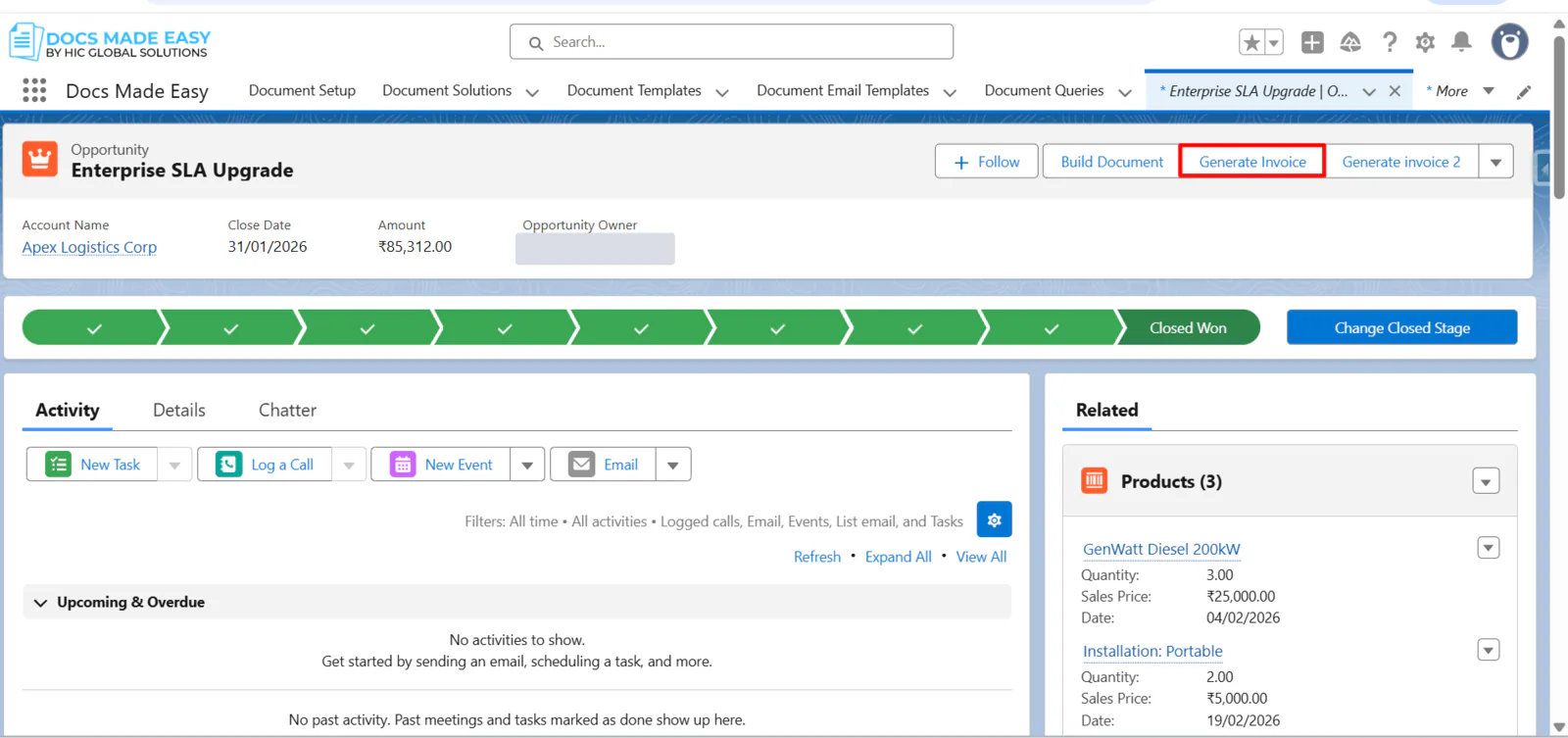
Check the invoice against the opportunity:
- The invoice number matches the opportunity's Invoice Number.
- The date is today and the due date is 30 days later.
- There is one numbered row per product, and Total equals the sum of the Amount column.
- Prices show the currency symbol for your
CurrencyCulture1. - The payment terms match the account's Type.
On the opportunity's Related tab, open Files.
Invoice INV-0042.pdf(with your invoice number) is listed.
Troubleshooting
| What you see | Fix |
|---|---|
A tag such as {{Opportunity.Invoice_Number__c}} shows as text, or a value is blank | The API name is wrong, the field is empty or you can't see it. Copy the tag from the Merge Field Helper. See Merge fields are blank or show as text and DME-SF-002. |
| The line-item table is empty or has only one row | Put TableStart and TableEnd in the same row with the same relationship name. See Tables are empty, show one row or repeat. |
| Prices or the total have no currency symbol, or the date is in the wrong format | Add CurrencyCulture1 as an Other Parameter and \# CurrencyCulture1 to each amount tag; check the date pattern's letter case. See Wrong date, number or currency format. |
| "Malformed conditional merge field" | An {{IF}} block is missing its {{ELSE}} or {{ENDIF}}. See DME-TPL-000. |
| The PDF layout differs from the Word file | Fonts or floating objects change in conversion. See The PDF looks different from my Word template. |
Take it further
- Choose where the file goes: save to Notes & Attachments, Chatter or only download. See Where generated documents are saved. To save without downloading, add SkipDownload.
- Email the invoice: add an email template to the solution and set recipients under Assign Behaviors > Email. To send the PDF in background mode without a preview, add directemailsender and use a Docs Made Easy email template. Email is sent through Salesforce and recorded in the opportunity's activity history.
- Collect a signature (Pro): add signature tags to the template before you upload it, or in the Template Editor. See Generate and send documents for eSignature.
- Invoice on Closed Won without a click (Pro): Automate document generation with Flow.
- Invoice many opportunities at once (Pro): Generate documents in bulk.