
For admins and template authors: build a Generate Agreement button on Account that produces a PDF services agreement with the client's details, a numbered table of the account's engagements (its opportunities), payment terms that depend on the account type, and a page-numbered footer. The PDF is saved to the account's Files. It takes about 20 minutes with the sample template.
What you'll build
For the sample account Burlington Textiles Corp of America (type Customer - Direct), the agreement reads like this:
SERVICES AGREEMENT This Services Agreement is made on November 20, 2026 between [Your company name] (the "Service Provider") and Burlington Textiles Corp of America, 525 S. Lexington Ave, Burlington, NC 27215, USA (the "Client").
2. Engagements covered by this agreement
# Engagement Stage Expected close Value 1 Burlington Textiles Weaving Plant Generator Closed Won February 6, 2026 $235,000.00 2 Burlington Textiles Support Renewal Proposal/Price Quote June 30, 2026 $18,000.00 3. Payment terms. The Client will pay each invoice within 30 days of the invoice date.
Services Agreement · Burlington Textiles Corp of America · Page 1 of 2 File saved as
Services Agreement - Burlington Textiles Corp of America - 20-Nov-2026.pdf
For an account of any other type, section 3 reads "The Client will pay each invoice on receipt."
It uses these features:
- Today's date and Date format (
\@) - TableStart and TableEnd to repeat a row per opportunity, with RowNumber and TableHide
- CurrencyCulture for the amounts
- A conditional statement (
IF … ELSE … ENDIF) for the payment terms - PAGE and NUMPAGES in the footer
- Default PDF, Output file name (ofn) and bgm=1
Before you begin
- Docs Made Easy is installed, and you have a license and the permission set. See Assign licenses and permission sets.
- You can edit the Account page layout.
- You have a test account with a billing address, a Type, and at least one opportunity with a Close Date and an Amount. Test with a second account that has no opportunities too.
- No custom fields are needed. Every field in the template is a standard Account or Opportunity field.
Everything in this recipe, including the conditional statement, CurrencyCulture, Convert to PDF? and background mode (bgm=1), works in both Basic and Pro. Only sending the agreement for eSignature (in Take it further) needs Pro.
1. Build the template
Download the sample template (.docx), ready to upload, or create a Word document with the content below. Replace anything in [square brackets] with your own details.
[HEADER, right-aligned]
Services Agreement · {{Account.Name}}

[BODY]
SERVICES AGREEMENT

This Services Agreement (the "Agreement") is made on {{Today \@ MMMM d, yyyy}}.

BETWEEN

[Your company name], [your company address] (the "Service Provider")

AND

{{Account.Name}}
{{Account.BillingStreet}}
{{Account.BillingCity}}, {{Account.BillingState}} {{Account.BillingPostalCode}}
{{Account.BillingCountry}}
(the "Client")

1. Scope of services
The Service Provider agrees to provide Salesforce-related services to the Client, including but not limited to Salesforce configuration and customization, and Apex, Lightning component and Flow development.

2. Engagements covered by this agreement
Each engagement below is covered by this Agreement and is described in its own order or statement of work.

[TABLE: 5 columns. Row 1 is the header; its first cell starts with the TableHide tag, so the whole table is left out when the account has no opportunities. Row 2 repeats once per opportunity.]
| {{TableHide:Account.r.Opportunities}}# | Engagement | Stage | Expected close | Value |
| {{TableStart:Account.r.Opportunities}}{{RowNumber}} | {{Name}} | {{StageName}} | {{CloseDate \@ "MMMM d, yyyy"}} | {{Amount \# CurrencyCulture1}}{{TableEnd:Account.r.Opportunities}} |
[END TABLE]

3. Payment terms
{{IF|Account.Type|EQ|Customer - Direct}}
The Client will pay each invoice within 30 days of the invoice date.
{{ELSE}}
The Client will pay each invoice on receipt.
{{ENDIF}}
Late payments may attract charges as agreed between the parties.

4. Confidentiality
Both parties agree to keep confidential all proprietary and sensitive information, including Salesforce data, credentials and business processes, and not to disclose it to any third party without prior written consent.

5. Term and termination
This Agreement starts on the date above and continues until either party ends it by giving 30 days' written notice.

6. Governing law
This Agreement is governed by and interpreted in accordance with the laws of [state or country].

IN WITNESS WHEREOF, the parties have signed this Agreement on the dates written below.

SERVICE PROVIDER: [Your company name]
Name: ______________________________
Title: ______________________________
Signature: ______________________________
Date: ______________________________

CLIENT: {{Account.Name}}
Name: ______________________________
Title: ______________________________
Signature: ______________________________
Date: ______________________________

[FOOTER, centered]
Services Agreement · {{Account.Name}} · Page {{PAGE}} of {{NUMPAGES}}
Create a Word document with this content. Lines in square brackets and capitals, such as [HEADER, right-aligned] and [TABLE: …], tell you where the text goes; don't type them. Build the table as a real Word table with 5 columns and 2 rows, one cell per |-separated value. The {{TableHide:Account.r.Opportunities}} tag goes in the header row's first cell, before the #. Replace the other bracketed text, such as [Your company name], with your own wording. Type each {{…}} tag in one go, without changing its formatting halfway, so Word doesn't split it.
To check or regenerate the table syntax, open the Merge Field Helper when you upload the template (step 2), click Insert Related List, select Opportunities in Available Related List, and choose the fields under Child Object Fields. Docs Made Easy generates the TableStart/TableEnd syntax for you to copy.
TableHide belongs in the header row. When the account has opportunities, the tag is removed from the output and the header shows as normal. When it has none, the whole table is left out.
2. Create the solution
- In the Docs Made Easy app, click Document Setup, then click Launch Wizard.
- Enter
Generate Agreementas the Button Name, select Account and click Create. The Gather Data page opens. - Click Next. The template reads opportunities through the standard
Account.r.Opportunitiesrelationship, so you don't need to add a child here. - Click Add templates and choose Upload a document (before v1.25: Create New Document Template). Enter
Services Agreementas the Template Name, upload your Word file and click Save. Then click Next.
For a description of every wizard page, see Create a template with the Document Automation Wizard.
3. Set the behaviors
On the Assign Behaviors page, set these, clicking Save in each panel, then click Next:
| Setting | Value | Why |
|---|---|---|
| Generated File > Convert to PDF? | On | Agreements go out as PDF, so the layout can't be edited by accident. See Default PDF. |
| Generated File > Filename | Services Agreement - {!Account.Name} - {{TODAY}} | Each file names the client and the date it was made. See Output file name. |
| Background Mode > Would you like to enable background mode? | On, with File (bgm=1) selected | One click saves the PDF to the account's Files and downloads a copy. The Composer page is skipped. See bgm=1. |
Other Parameter > CurrencyCulture1 | en-US | Formats the Value column as US dollars, for example $10,000.00. Use your own culture code. See CurrencyCulture. |
4. Add the button
- On the last wizard page, click Go to Page Layouts and open Account Layout.
- From Mobile & Lightning Actions, drag Generate Agreement into Salesforce Mobile and Lightning Experience Actions.
- Click Save.
If users still don't see the button, see Users can't see or use the Docs Made Easy button.
5. Generate and check
- Open your test account and click Generate Agreement. The PDF downloads.
- Check the PDF against the account:
- The date is today, written like November 20, 2026.
- The client name and address match the account's billing address.
- The table has one numbered row per opportunity on the account's Opportunities related list.
- Values show a currency symbol, thousands separators and 2 decimals.
- The payment terms match the account's Type.
- The footer shows the right page count, for example Page 1 of 2.
- On the account's Related tab, open Files. The agreement PDF is listed.
- Generate the agreement for the account with no opportunities. The engagements table is left out.
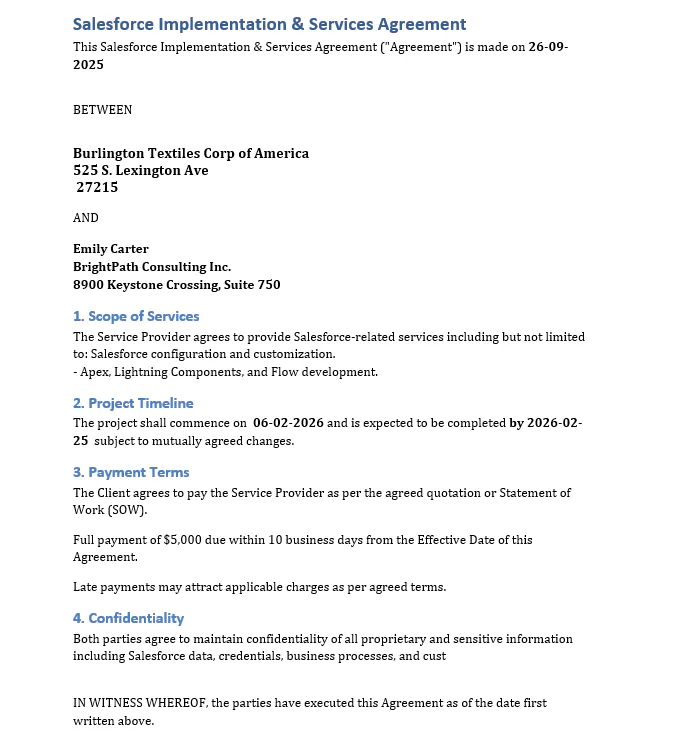
Your agreement looks similar to this, with your own styling:
Troubleshooting
| What you see | Fix |
|---|---|
An {{Account.…}} tag appears as text, or a value is blank | The API name is wrong, the field is empty, or you can't see it. Copy the syntax from the Merge Field Helper. See Merge fields are blank or show as {{…}} text. |
| The table shows one row, repeats wrongly or is empty | TableStart and TableEnd must be in the first and last cell of the same row and use the same name. See Related-list tables are empty, show one row or repeat. |
| Values show as 235000 with no symbol, or dates as 2026-02-06 | CurrencyCulture1 isn't saved on the solution, or the \# or \@ switch is missing from the tag. See Dates, numbers or currency show the wrong value or format. |
| "Malformed conditional merge field" | The IF block is incomplete. See DME-TPL-000. |
| The PDF's table, fonts or page numbers differ from Word | See The PDF looks different from my Word template. |
Take it further
- List only won deals: on Gather Data, add Opportunities as a child with a filter on Stage, then copy the table syntax from the Relationship Merge Fields tab of the Merge Field Helper. See Set up object relationships in Gather Data.
- Save without downloading: add
SkipDownload1as an Other Parameter. See Where generated documents are saved for the other save locations. - Collect signatures (Pro): send the agreement for eSignature with Sign Made Easy. The signature fields come from signature tags in the Word template: replace the
Signature: ____andDate: ____lines with signature tags before you upload the template, or add the tags later in the Template Editor. Signature tags aren't in the Merge Field Helper. See Generate and send documents for eSignature. - Email the agreement: add an email template to the solution, or send the PDF in background mode without a preview with
directemailsenderand a Docs Made Easy email template. - Generate it automatically (Pro), for example when an account becomes a customer: Automate document generation with Flow.