
The TABLEGROUPSTART and TABLEGROUPEND parameters group related records in a table by a shared field value. They work like TableStart, but add a heading for each group (for example by product, status or region) while still repeating a row for each related record.
Syntax
{{TABLEGROUPSTART:RelationshipName:GroupByField}} ... {{TABLEGROUPEND:RelationshipName:GroupByField}}
Values
| Component | Effect |
|---|---|
RelationshipName | The child records to group, for example Opportunity.r.OpportunityLineItems. With a custom SOQL query, use the alias defined in the query instead. |
GroupByField | The field to group by, for example Product2.Family. The example uses the same relationship and field in both tags. |
Between the two tags, put the field to show as the group heading, for example {{Product2.Family}}.
Parameter names aren't case-sensitive, so TABLEGROUPSTART and TableGroupStart both work.
Where to add it
In your Word template, put TABLEGROUPSTART, the group heading field and TABLEGROUPEND in the row above the TableStart/TableEnd row of the table.
Example
An opportunity has line items from two product families.
Template:
{{TABLEGROUPSTART:Opportunity.r.OpportunityLineItems:Product2.Family}}{{Product2.Family}}{{TABLEGROUPEND:Opportunity.r.OpportunityLineItems:Product2.Family}} | ||
|---|---|---|
| Product name | Quantity | Price |
{{TableStart:Opportunity.r.OpportunityLineItems}}{{Name}} | {{Quantity}} | {{TotalPrice}}{{TableEnd:Opportunity.r.OpportunityLineItems}} |
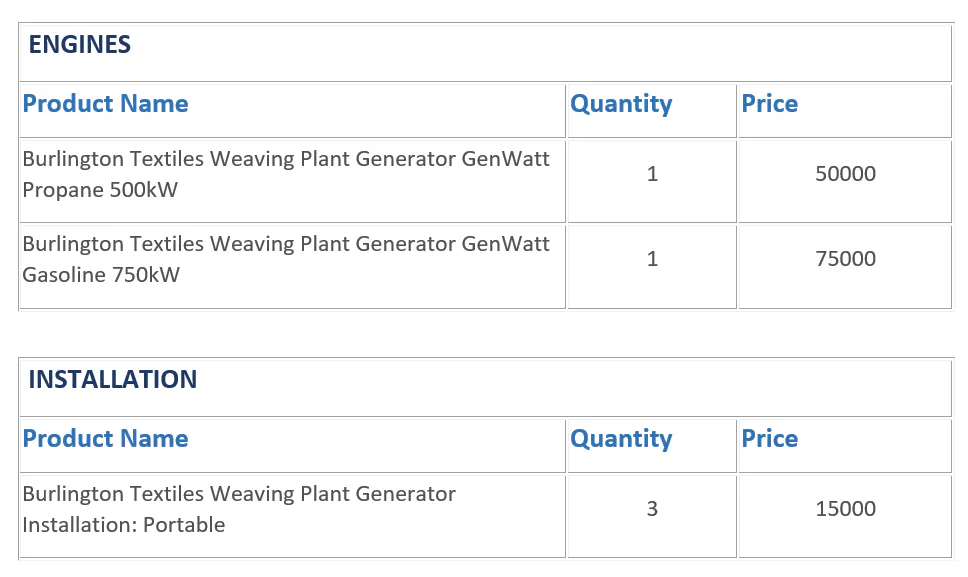
Output: the first product family's name as a heading, then the column headings and a row for each of its line items; then the same for the second family.
The generated document shows a heading for each product family, followed by its line items:
Works in
The example on this page uses a Word (DOCX) table.
Notes
You can also use TABLEGROUPSTART with custom SOQL queries. In that case, use the alias defined in the query instead of the Object.r.RelationshipName notation.
Common errors
- A template syntax error that names the group field. Check that both tags are written exactly as shown in Syntax, with the same relationship and field as in the example. See DME-TPL-000.
- "No such column" on the grouping field. Use the field's API name. See DME-SF-002.
- The heading shows
{{Product2.Family}}or is blank. Retype a tag Word has split, and check the field has a value. See Merge fields are blank or show as {{…}} text. - The rows under each heading are empty or repeat. See Related-list tables are empty, show one row or repeat.